
Ok lets start working with postman!!!!
Install Postman:
https://www.getpostman.com/downloads/
Open Postman:
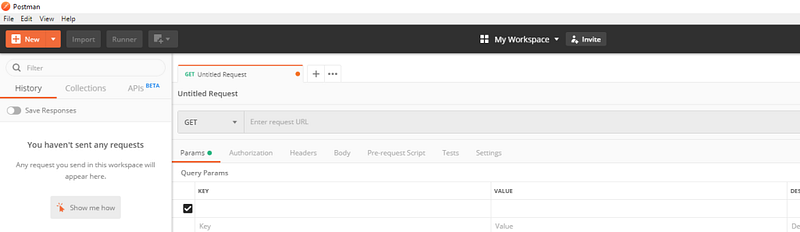
Create Workspace:
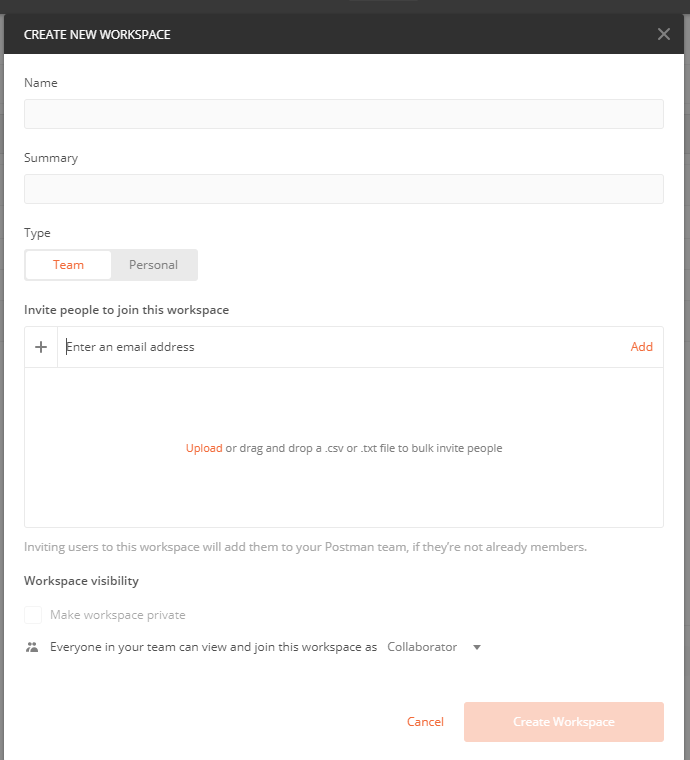
Work space allows you to organize your work. It creates a separate working space where you group all your works including tests,collections, environments etc ( will learn as you read on).
Click My work space and select create New workspace
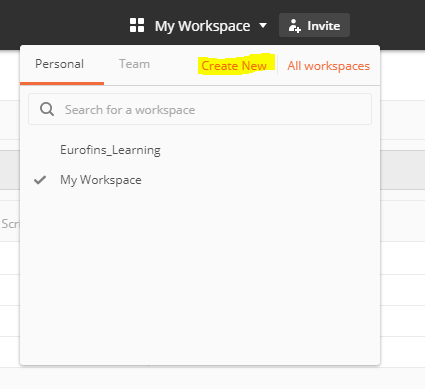
Note: Workspace could be personal, private or Team. Personal will be available only to you, shared will be available to everyone else with the invitation link and private is enterprise version and allows team members who were invited by you to be part of the workspace.
Team workspace and My Workspace are default workspace and cannot be deleted. To delete other workspaces, goto All workspace (will be opening in browser) and select delete by click ing the meatball menu.
Create Collection:
Collection allows to group your requests together in a logical order. It could be seen as the test suite level and we will have individual requests as the tests.
You also create folder inside postman to group your tests more efficiently for example :
Collection name be “Android FaceAPP”
And Folder name be “Test_LoginFeature”
Click collections>New collections for creating new collection
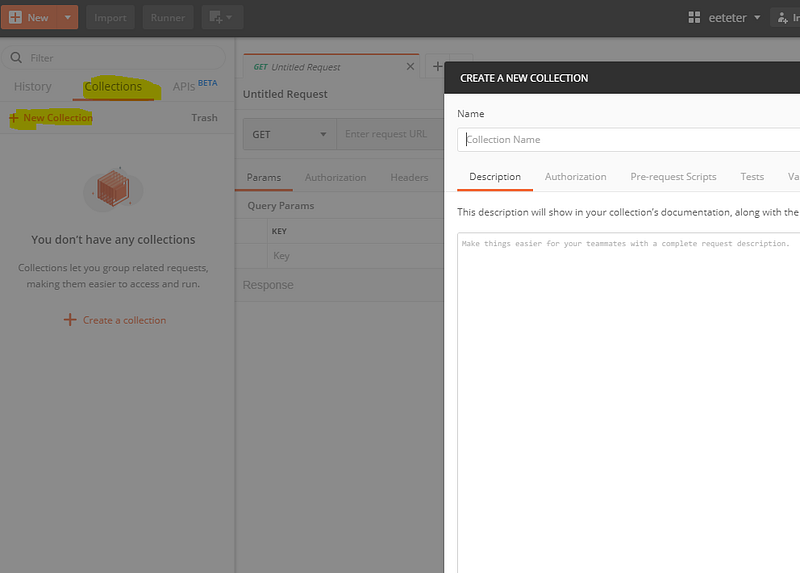
Click meatball menu> Add folder, to create folder
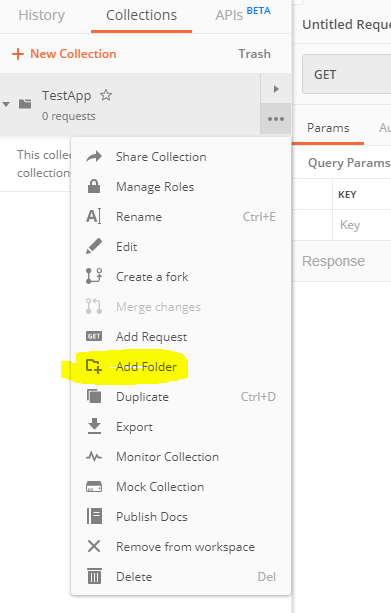
Create your first request:
Create a new request by clicking New or by using meatball menu corresponding to the desired collection and folder.
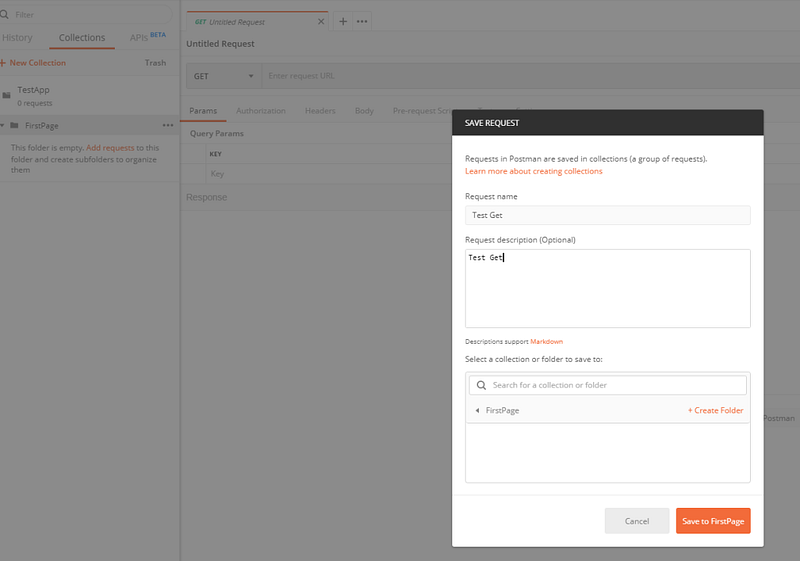
Add the request details:

And click save ( don’t forget to click save else the request won’t be saved onto collection- folder hierarchy)
Then click send.
Note: Use https://reqres.in/ to get API for practice.
Running Collection Runner:
So you can create as many requests as you want, now imagine you have to execute all this requests in order.
You can do this by using collection runner.
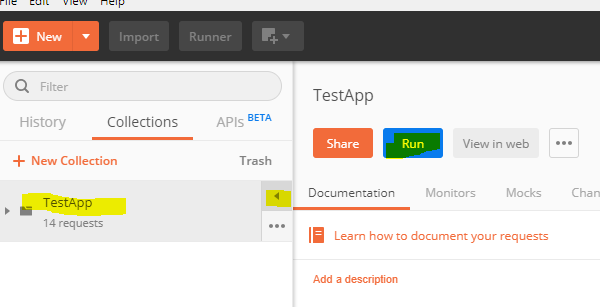
Click on the collection you want to run and click play icon, and click run.
The below window opens up and now click run <collectinname>
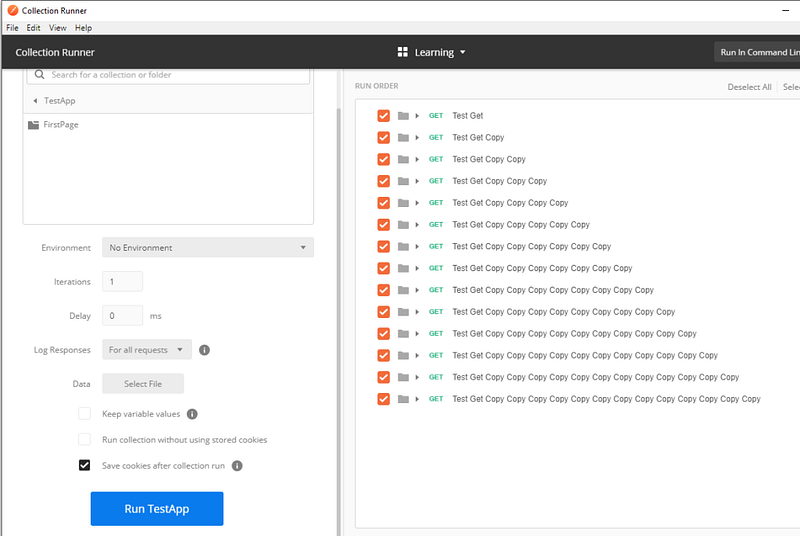
This will execute all requests in the collection and shows the result.
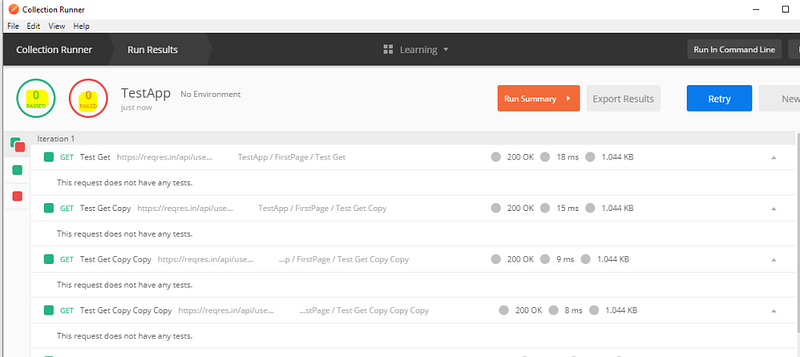
Note: Here test results shows ‘0’ passed and failed as there were no validation scripts added. We will learn it in next sections.
Running collections from command line:
For running collections through command line we need to use newman tool
To install newman you need npm (npm is installed as part of nodejs installation , Install here) and then use the below command:
npm install -g newman
Note: make sure that nodejs modules are in path or else add it to path , to ensure newman command is recognized from cmd.
Now to run the tests from command line create a share link or export collection as json
Through Share link:
Click the collection’s meatball menu and click share and navigate to ‘Get link’ and generate a link.
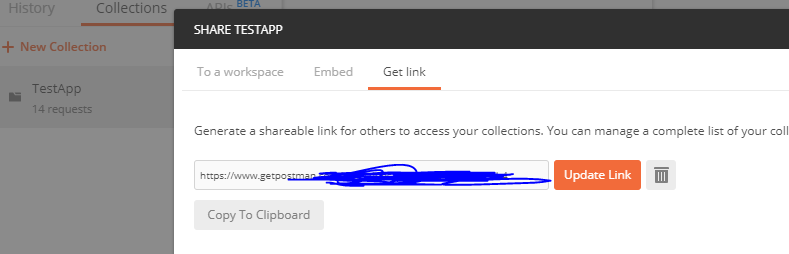
copy the link address and run the command:
newman run <link_address>
Through json:
Click the meatball menu and select export, this creats a json file for the collection
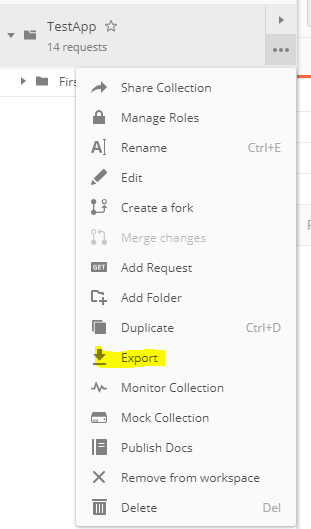
now run
newman run <full_path>/TestApp.postman_collection.json
Note: This could be used for running postman in CI/CD pipeline
HTML Reporting
We have seen how to run postman through command line using newman ( just npm install newman and use command ‘newman run <collection>.json’ or url)
To get html reporet install newman-reporter-htmlextra
npm install -g newman-reporter-htmlextra
Now run the scripts as
newman run <collection_file>.json -r htmlextra
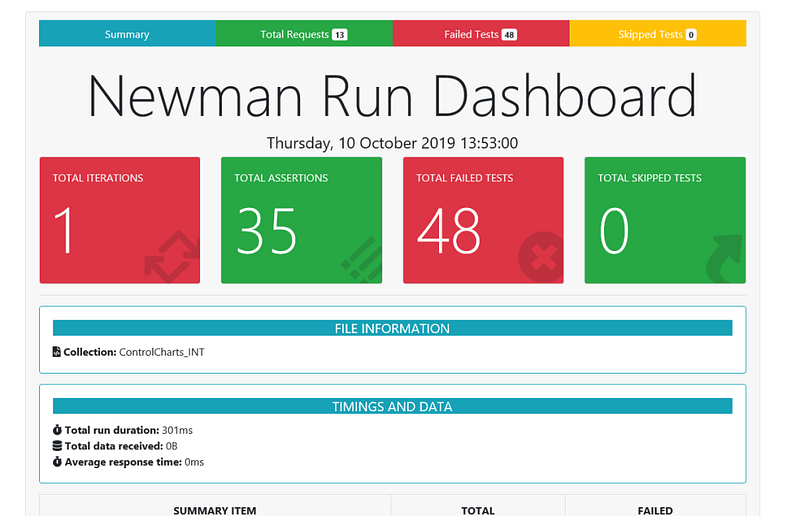

 Learn with praveen