Getting any other job’s status within Jenkins declarative pipeline

Jenkins tips

What is a pipeline:

It is a way to define the Jenkins workflow as code or in simple words instead of creating freestyle jobs and chaining them through post-build action. We can create the entire pipeline using code written in groovy

What is groovy?

Groovy is powerful, optionally typed and dynamic language to develop an application on Java Platform where its syntax is Java-like. Its typing discipline is strong, static and dynamic. The best things about Groovy are that since it extends JDK, it accepts Java code. Groovy can be used as both programming and scripting Language. Groovy is a superset of Java which means Java program will run in Groovy environment but vice-versa may or may not be possible. Whereas Java is strongly and statically typed programming language. Reference : geeksforgeeks.org

Difference between the declarative pipeline and scripted pipeline?

Though both these pipelines are based on the groovy DSL, the scripted pipeline uses stricter groovy based syntaxes because it was the first pipeline to be built on the groovy foundation. Since this Groovy script was not typically desirable to all the users, the declarative pipeline was introduced to offer a simpler and more optioned Groovy syntax. Declarative pipeline is a new introduction to Jenkins world.

How to get the result of a job?

https://javadoc.jenkins-ci.org/jenkins/model/Jenkins.html

Jenkins is built on java and provides methods to access the Jenkins objects from the execution JVM, one of such method is .getItemByFullName()

This will return the full object of the Item with the name provided

So if we need to get java object (which will have all attributes including result) of a job called “Test Job” . We can get it as jenkins.model.Jenkins.instance.getItemByFullName(“Test Job)

Now from this object we have to find the job.getLastBuild().getResult().toString()

This will give the status of the last build of that particular Job

But how to run this is Declarative pipeline?

In the scripted pipeline, you can write the commands directly but in the declarative pipeline, you have to run strict groovy commands inside the script block

The result could be accessed from other stages by storing it as environment variable as env.variable and can be accessed inside the step section of any other stage as ${variable}

pipeline {
    agent {
node {
label 'HostAgent'
}
}
/* tools {
'com.cloudbees.jenkins.plugins.customtools.CustomTool' "sonnarqube scanner"
} */
stages {
        stage('Print status') {

            steps {
script {
def job = jenkins.model.Jenkins.instance.getItemByFullName("Job name")
def result = job.getLastBuild().getResult().toString()
env.result = result
}
cleanWs()
sh 'echo "The result printed inside shell : ${result}"'
echo "The result printed outside shell: ${result}"
}
}
}
}

Installing CentOS7 VM with GUI (VMware Workstation)

Intro:

If you just want to know how to setup UI and not about setting up VM, scroll to the section : Installing GUI. Let’s startttttttttttt……………..

Prerequisite:

To create new VM:

In VMware workstation click ‘File> Create VM’ and choose custom option.

Select ESXi 6.5 from dropdwon to ensure compatibility with previous versions.

Choose ‘ i will select OS later’ to avoid the situation of VMWare detecting incorrect OS version and doing wrong configurations, that might cause compatibility issues.

Note: you can choose installer image directly, and in most cases it works fine.

Select the settings as in the screenshots below, and leave the settings in it’s defaults if screenshots are not provided.

Choose different location and name if required, else leave it as default.

Select appropriate RAM size for your VM, more RAM size = Smooth system!!!†

Select NAT or Bridged for internet connection , use Host only for private network between VM and host.

Suggested: We need to install packages and hence requires internet connectivity. For this purpose, choose NAT.

Note: Bridge network will behave as a new device connected to the real network and so is not recommended in protected networks. Read more at : Here

Leave all other setting as default and click finish.

Go to VM setting and select the downloaded ISO file and reboot the system.

select install centos 7.

Press Enter.

Select Keyboard and other settings.

Click on ‘installation Destination’ (Or where ever such a mark is there ).

Don’t need to do anything, just click Done button on the top left corner.

Start installation.

Set root password and create password by clicking the respective icons.

login as root.

Installing GUI. Let’s startttttttttttt……………..

Set up network:

Open network management UI through below command:

nmtui

Note: use your arrow keys to select different buttons and options.

Go to Edit connection and choose your network, select ‘automatically connect’:

This will ensure that network connection is enabled automatically with every reboot

Click OK and choose ‘activate a connection’. Select the appropriate connection and click activate (if status shows as deactivate then leave it as it is ).

Give the below command to ensure proper dhcp IP (not mandatory, do only if system didn’t got an IP assigned):

sudo dhclient

Install GNOME Desktop UI:

First update all packages in the system to avoid conflicts:

sudo yum update

Give the below command to install GNOME Desktop UI theme.

yum groupinstall "GNOME Desktop" "Graphical Administration Tools"

Start UI:

Give the below command to start GNOME Desktop UI theme.

startx

Add to start up:

But these settings will go off once you reboot the system. You can start the UI each time by just running startx.

But still this would be hectic, the workaround would be to start GUI automatically on start up.

First use the command ‘startx’ and open the terminal

copy and paste the below command to add GNOME UI to start up ( as GUI allows copy — paste) .

ln -sf /lib/systemd/system/runlevel5.target /etc/systemd/system/default.target

Here what we actually does is that , we sets runlevel 5 (graphical) to default runlevel.

So on each reboot , system starts up using default runlevel 5 which is the graphical runlevel

The below command shows the available runlevels

ls –al /lib/systemd/system/runlevel*

Note: Just think of runlevels as instructions used by linux to know what all services or capabilities to be loaded during boot-up ( something like secure,full and minimum start up boot in windows) . RunLevel 5 have scripts running for GUI.

Reading CSV file in Postman

CSV:

a,b,c
1,2,3
1,5,6
2,4,6

CSV parse output:

Approach 1: store CSV content as an environmental variable

Just copy the CSV file content and create an environmental variable and paste the content inside it

Then in test or pre-requisite step:

console.log(pm.environment.get("data"))
const parse = require('csv-parse/lib/sync')
//Environmental variable where we copy-pasted the csv content
const input =pm.environment.get("data");
const records = parse(input, {
 columns: true,
 skip_empty_lines: true
})

console.log(records)

Approach 2: Passing the CSV content to an environmental variable through Newman (Powershell):

Then in test or pre-requisite step use the same code as above:

> $a= Get-Content -raw .\1.csv
> newman run .\test.postman_collection.json -e .\test.postman_environment.json -k -r "cli,htmlextra" --env-var data=$a

Creating Cucumber Extent Report the Right way.

The right way is to use custom formatter (Plugins)

So what does this means ?

We are going to create our own report plugin using Extent report.

As in TestNG reporting, where we override the TestNG listeners to tell TestNG what to do for each action or events,

Here, we implements Cucumber listener class to listen to cucumber events and tell it what to do for each event.

Cucumber sends events for each action like scenario started, step started, step finished etc to this instance of the listener. So here we handle these events and tell cucumber what to do with these events (In our case we will tell it to log it to extent report).

There are two listener interfaces:

  1. EventListener
  2. ConcurrentEventListener

So as the name suggests, concurrentEventListener is thread-safe and the other is not. The implementation is exactly the same so we will use only the concurrentEventListner so that our framework is threadsafe when we have to run things in parallel.

Our TestListener :

package cucumberHooks;
import com.aventstack.extentreports.ExtentReports;
import com.aventstack.extentreports.ExtentTest;
import com.aventstack.extentreports.Status;
import com.aventstack.extentreports.gherkin.model.Feature;
import com.aventstack.extentreports.gherkin.model.Given;
import com.aventstack.extentreports.gherkin.model.Scenario;
import com.aventstack.extentreports.reporter.ExtentSparkReporter;
import com.aventstack.extentreports.reporter.configuration.Theme;
import io.cucumber.plugin.EventListener;
import io.cucumber.plugin.event.EventPublisher;
import io.cucumber.plugin.event.PickleStepTestStep;
import io.cucumber.plugin.event.TestCaseStarted;
import io.cucumber.plugin.event.TestRunFinished;
import io.cucumber.plugin.event.TestRunStarted;
import io.cucumber.plugin.event.TestSourceRead;
import io.cucumber.plugin.event.TestStepFinished;
import io.cucumber.plugin.event.TestStepStarted;
import io.cucumber.plugin.event.HookTestStep;
import java.util.HashMap;
import java.util.Map;
public class customReportListener implements EventListener {
private ExtentSparkReporter spark;
private ExtentReports extent;
Map<String, ExtentTest> feature = new HashMap<String, ExtentTest>();
ExtentTest scenario;
ExtentTest step;
public customReportListener() {
};
@Override
public void setEventPublisher(EventPublisher publisher) {
// TODO Auto-generated method stub
/*
* :: is method reference , so this::collecTag means collectTags method in
* 'this' instance. Here we says runStarted method accepts or listens to
* TestRunStarted event type
*/
publisher.registerHandlerFor(TestRunStarted.class, this::runStarted);
publisher.registerHandlerFor(TestRunFinished.class, this::runFinished);
publisher.registerHandlerFor(TestSourceRead.class, this::featureRead);
publisher.registerHandlerFor(TestCaseStarted.class, this::ScenarioStarted);
publisher.registerHandlerFor(TestStepStarted.class, this::stepStarted);
publisher.registerHandlerFor(TestStepFinished.class, this::stepFinished);
};
/*
* Here we set argument type as TestRunStarted if you set anything else then the
* corresponding register shows error as it doesn't have a listner method that
* accepts the type specified in TestRunStarted.class
*/
// Here we create the reporter
private void runStarted(TestRunStarted event) {
spark = new ExtentSparkReporter("./ExtentReportResults.html");
extent = new ExtentReports();
spark.config().setTheme(Theme.DARK);
// Create extent report instance with spark reporter
extent.attachReporter(spark);
};
// TestRunFinished event is triggered when all feature file executions are
// completed
private void runFinished(TestRunFinished event) {
extent.flush();
};
// This event is triggered when feature file is read
// here we create the feature node
private void featureRead(TestSourceRead event) {
String featureSource = event.getUri().toString();
String featureName = featureSource.split(".*/")[1];
if (feature.get(featureSource) == null) {
feature.putIfAbsent(featureSource, extent.createTest(featureName));
}
};
// This event is triggered when Test Case is started
// here we create the scenario node
private void ScenarioStarted(TestCaseStarted event) {
String featureName = event.getTestCase().getUri().toString();
scenario = feature.get(featureName).createNode(event.getTestCase().getName());
};
// step started event
// here we creates the test node
private void stepStarted(TestStepStarted event) {
String stepName = " ";
String keyword = "Triggered the hook :";
// We checks whether the event is from a hook or step
if (event.getTestStep() instanceof PickleStepTestStep) {
// TestStepStarted event implements PickleStepTestStep interface
// WHich have additional methods to interact with the event object
// So we have to cast TestCase object to get those methods
PickleStepTestStep steps = (PickleStepTestStep) event.getTestStep();
stepName = steps.getStep().getText();
keyword = steps.getStep().getKeyword();
} else {
// Same with HoojTestStep
HookTestStep hoo = (HookTestStep) event.getTestStep();
stepName = hoo.getHookType().name();
}
step = scenario.createNode(Given.class, keyword + " " + stepName);
};
// This is triggered when TestStep is finished
private void stepFinished(TestStepFinished event) {
if (event.getResult().getStatus().toString() == "PASSED") {
step.log(Status.PASS, "This passed");
} else if (event.getResult().getStatus().toString() == "SKIPPED")
{
step.log(Status.SKIP, "This step was skipped ");
} else {
step.log(Status.FAIL, "This failed");
}
};
}

So now we have the Plugin created, let’s call it inside our runner class:

package cucumber_Runner;
import io.cucumber.testng.AbstractTestNGCucumberTests;
import io.cucumber.testng.CucumberOptions;
import org.testng.annotations.DataProvider;
@CucumberOptions(plugin = {“cucumberHooks.customReportListener”},
monochrome=true,
glue={“stepDefinitions”,”cucumberHooks”}, //Packagename
features = {“src\\featureFiles”} //FolderName
)
public class RunnerCucumber extends AbstractTestNGCucumberTests {
@DataProvider(parallel = true)
@Override
public Object[][] scenarios() {
return super.scenarios();
}
}

My Maven Dependency:

<dependencies>
<! —  https://mvnrepository.com/artifact/com.aventstack/extentreports
<dependency>
<groupId>com.aventstack</groupId>
<artifactId>extentreports</artifactId>
<version>4.1.5</version>
</dependency>
<! —  https://mvnrepository.com/artifact/io.cucumber/cucumber-testng
<dependency>
<groupId>io.cucumber</groupId>
<artifactId>cucumber-testng</artifactId>
<version>6.0.0-RC2</version>
</dependency>
<! —  https://mvnrepository.com/artifact/io.cucumber/cucumber-java
<dependency>
<groupId>io.cucumber</groupId>
<artifactId>cucumber-java</artifactId>
<version>6.0.0-RC2</version>
</dependency>
<! —  https://mvnrepository.com/artifact/com.beust/jcommander
<! —  https://mvnrepository.com/artifact/org.testng/testng
<! —  https://mvnrepository.com/artifact/com.beust/jcommander
<dependency>
<groupId>com.google.guava</groupId>
<artifactId>guava</artifactId>
<version>24.1-jre</version>
</dependency>
<! —  https://mvnrepository.com/artifact/org.testng/testng
<dependency>
<groupId>org.testng</groupId>
<artifactId>testng</artifactId>
<version>7.1.0</version>
</dependency>
<! —  https://mvnrepository.com/artifact/org.seleniumhq.selenium/selenium-java
<dependency>
<groupId>org.seleniumhq.selenium</groupId>
<artifactId>selenium-java</artifactId>
<version>4.0.0-alpha-4</version>
</dependency>
<dependency>
</dependencies>

Explanation :

The inLine comments will explain most things, but just to iterate.

  • Here the report will be saved in the current directory as ExtentReportResults.html
  • Plugin doesn’t allow any input (Thats why empty constructor) . so in runner file , this (plugin = {“cucumberHooks.customReportListener:”}, is wrong and this (plugin = {“cucumberHooks.customReportListener”}, is correct ( means there should be no colon :)
  • If you want to pass argument you can make the constructor accept the argument and pass it in plugin as (plugin = {“cucumberHooks.customReportListener:<argument>”},

The TestStep event and Hook events implements PickleStepTestStep and HookTestStep ,

These interfaces have additional methods that allows us to access step names type and keywords. Too access these steps we need to widden the object by casting it to PickleStepTestStep and HookTestStep ,

PickleStepTestStep steps = (PickleStepTestStep) event.getTestStep();
HookTestStep hoo = (HookTestStep) event.getTestStep();

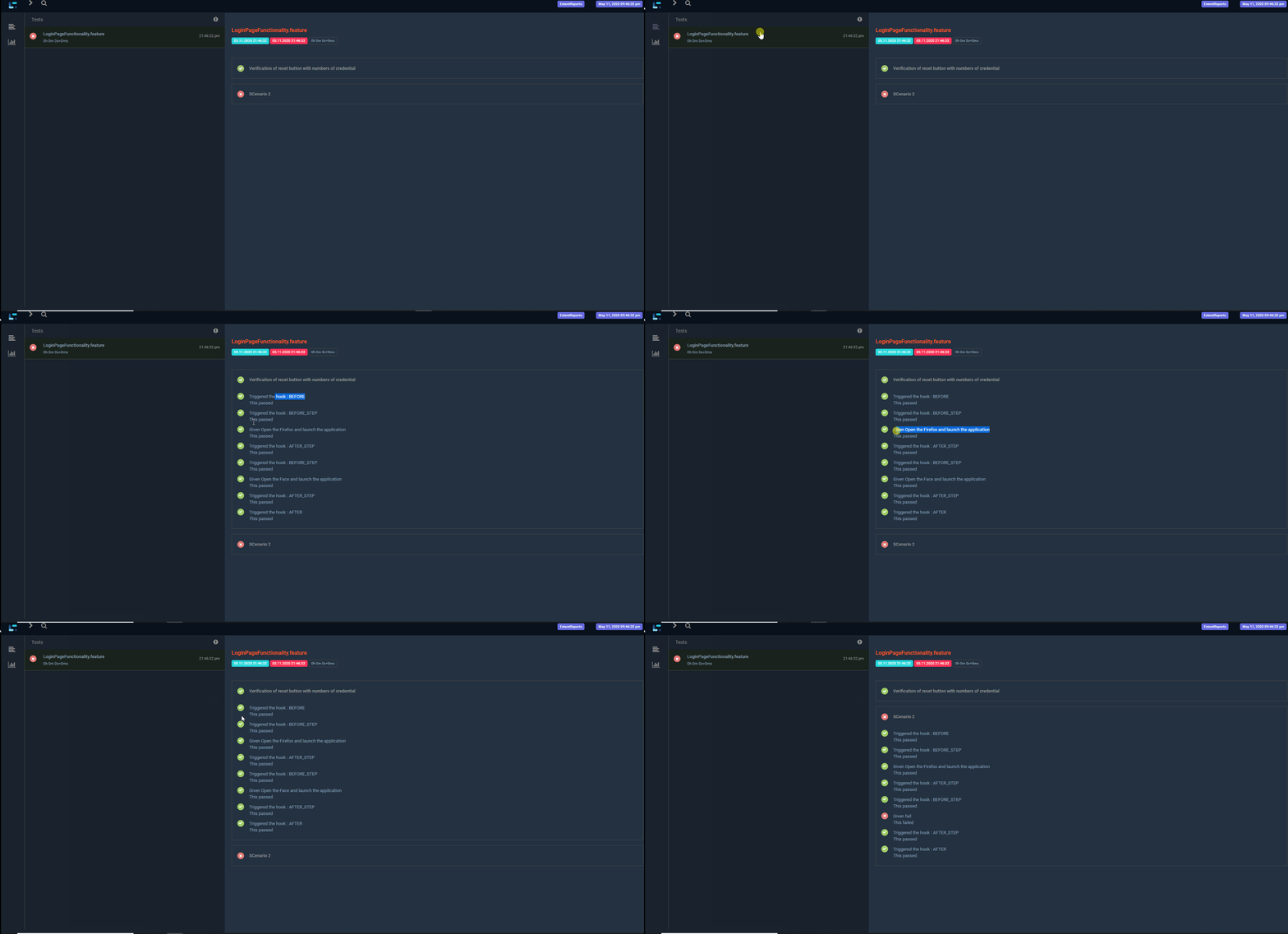
Output:

That’s it, now just run the runner class :

Protractor best HTML report…

We have seen how to create reports in our previous article, but that report used to break when we have test case names with a special character or long names.

So I came across a better report and let’s see how to implement it.

Note: Drawback of this report is that you cannot send it as an attachment as it is dependent on many files. It won’t work as standalone,

So you can use both this report and the old report together and use this one for debugging and the other one as a summary to send along with emails.

Install protractor-beautiful-reporter

npm install protractor-beautiful-reporter --save-dev

Add below code to OnPrepare of the config file:

framework: 'jasmine',
onPrepare: function(){
let HtmlReporter = require('protractor-beautiful-reporter');
jasmine.getEnv().addReporter(new HtmlReporter({
baseDirectory: 'reports_new',
screenshotsSubfolder: 'screenshotsOnFailure',
takeScreenShotsOnlyForFailedSpecs: true,
jsonsSubfolder: 'jsonFiles',
excludeSkippedSpecs: true,
preserveDirectory: false,
clientDefaults:{
showTotalDurationIn: "header",
totalDurationFormat: "h:m:s",
gatherBrowserLogs: true
},
}).getJasmine2Reporter());
}

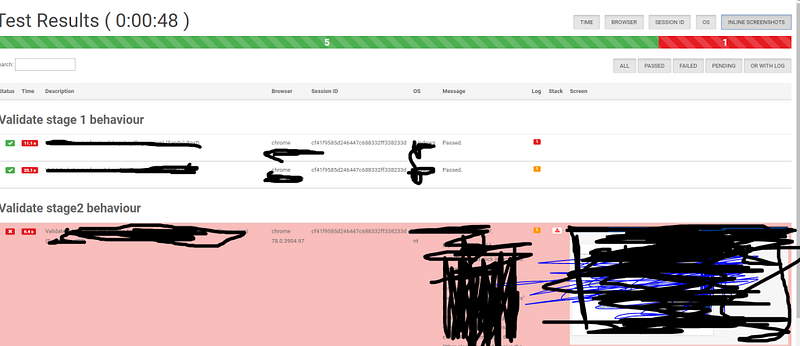
Report:

Opening the chrome driver and browser on a specific port, and connecting to already opened chroem…

Introduction:

This article helps you in understanding how to start chrome driver on a specific port, connect to an existing browser session and opening chrome browser with debug port opened through selenium scripts.
You should use ChromeDriverService for starting chrome in a different port:

import org.openqa.selenium.chrome.WebDriver;
      import org.openqa.selenium.chrome.ChromeDriverService;
      import org.openqa.selenium.chrome.ChromeOptions;
      import org.openqa.selenium.remote.RemoteWebDriver;     

      WebDriver browser = null;
  	  ChromeDriverService service = new ChromeDriverService.Builder()
      .usingDriverExecutable(new File("C:\\chromedriver.exe"))
      .usingPort(4444) 
      .build();
  	  service.start(); 
  	  browser = new RemoteWebDriver(service.getUrl(), new ChromeOptions());

Once your tests are done, make sure to close the browser and the service:

browser.quit()
  service.stop()

Else the port remains open.

Output:

Add alt text

Connecting to an existing chrome browser from selenium:

close all chrome browsers and then, start the Chrome browser in debug mode by opening cmd and running chrome.exe with — remote-debugging-port argument

"<path>\chrome.exe" --remote-debugging-port=1559

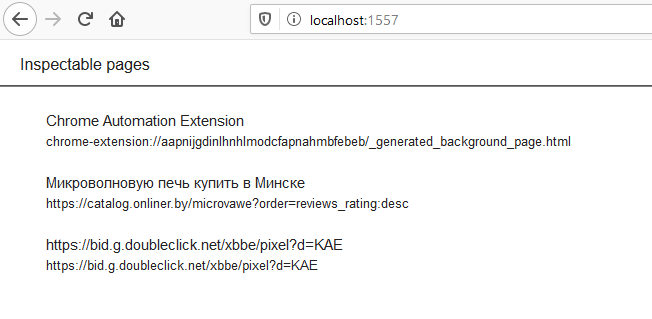
Now open any other browser and navigate to localhost:1559 to check that the browser was indeed opened with that port

Now in selenium code use chrome experimental option to connect to this chrome option

System.setProperty("webdriver.chrome.driver", "C:\\chromedriver.exe");
ChromeOptions options = new ChromeOptions();
options.setExperimentalOption("debuggerAddress", "127.0.0.1:1557");
WebDriver browser=new ChromeDriver(options);

Running Chrome on specific debug port from selenium:

System.setProperty("webdriver.chrome.driver", "C:\\chromedriver.exe");
ChromeOptions options = new ChromeOptions();
options.addArguments("--remote-debugging-port=1557");
WebDriver browser = new ChromeDriver(options);
options.setExperimentalOption("debuggerAddress", "127.0.0.1:1557");
browser=new ChromeDriver(options);

Output:

How to restart the browser in protractor-cucumber framework or protractor-jasmine

The problem at hand:

https://sqa.stackexchange.com/questions/42235/how-to-restart-browser-in-protractor-cucumber-framework-or-protractor-jasmine

Solution:

You are trying to access an element instance that was created using the previous browser instance. The workflow is as follow,

  1. You imported the page object instance at the start of the spec using require
  2. A browser instant is created in the onPrepare
  3. Using that instance your page object model gets the element object
  4. But on next ‘It’ the browser restarts but the page object instance remains the same
  5. So when you try to interact with the element, you are getting session ID of non-existing browser.

Solution:

As given in your code, you have your page object as a javascript property, than a function

So what you could do is, reinitiate the page object whenever you restart the browser.

This could be done using npm decahe module: https://www.npmjs.com/package/decache

So whenever, you restart the browser reinitiate the module using below command:

//import in top of the spec
var decache = require('decache');
//reinitiate where browser is restarted
decache('../pageobjects/stage1.js');
stage1 = require('../pageobjects/stage1.js');

So your final code:

'use strict';
var decache = require('decache');
let stage1 = require('../pageobjects/stage1.js');

describe('Validate stage 1 and 2 behaviour', function () {
    beforeEach(async function () {        
await browser.waitForAngularEnabled(false);
decache('../pageobjects/stage1.js');
stage1 = require('../pageobjects/stage1.js');
});

    it('Validate that error message in all fields given uploaded {Regression} {Smoke} {Sanity}', async function () {
await stage1.goto()
await stage1.sendValue('hi')
await browser.sleep(5000)
});

Note:

This works even if the page object is defined as a function

For protractor-cucumber add the same in before hook :

you should add the hook in the step definition file itself and not in separate hook.js:

"use strict";
let {Given,Before} = require('cucumber');
let decache = require('decache');
let stage1 = require('../pageobjects/stage1.js');
Before(async function (scenario) {
decache('../pageobjects/stage1.js');
stage1 = require('../pageobjects/stage1.js');
await browser.sleep(4000)
});
 Given('I navigates to google', async() => {
await stage1.goto()
});

Protractor Data-Driven Testing

Now Drive your test using test data

Now you can drive your protractor tests using CSV data:

Demo CSV: (just copy it to notepad and save as 1.csv)

a,b,c
1,2,3
1,5,6
2,4,6

Install csv-parser node module:

run it under the protractor project so that it will be installed as project’s local module ( Run the command where the package.json file is present)

npm install csv-parse

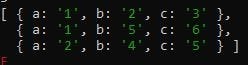
Output after parsing:

This module will parse the csv as below column as the key and value as the value on the specific row

Data-driven testing:

'use strict';
//use fs to read file
let fs = require('fs');
//use csv-parse sync to parse the file : https://csv.js.org/parse/
const parse = require('csv-parse/lib/sync');
//read the csv file
let a = fs.readFileSync('1.csv');
//parse the csv file
const testdata = parse(a, {
columns: true,
skip_empty_lines: true
})
console.log(testdata);
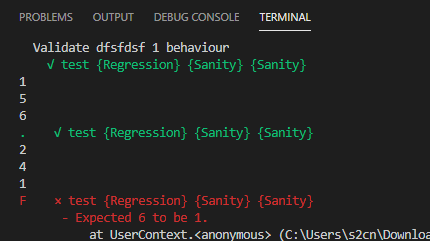
describe('Validate dfsfdsf 1 behaviour', function () {
for (let i of testdata) {
it('test {Regression} {Sanity} {Smoke}', async function () {
console.log(i);
console.log(i.a);
console.log(i.b);
console.log(i.c);
expect(Number(i.a) + Number(i.b)).toBe(Number(i.c))
});
}
});

Ignore below steps:

Deprecated:

npm package:

https://www.npmjs.com/package/csv-parser-sync-plus-promise

Usage:

importing:

let parser = require('csv-parser-sync-plus-promise')

Use as sync:

let a=parser.readCsvSync('')

Use as Promise:

let b=parser.readCsvPromise('')
it('test {Regression} {Sanity} {Sanity}', async function () {
console.log(await b);
});

Protractor test:

Use the demo csv ‘1.csv’

'use strict';
let parser = require('csv-parser-sync-plus-promise')
let testdata=parser.readCsvSync('<full_path>/1.csv');
describe('Validate dfsfdsf 1 behaviour', function () {

for(let i of testdata){
it('test {Regression} {Sanity} {Sanity}', async function () {
console.log(i.a);
console.log(i.b);
console.log(i.c);
expect(Number(i.a)+Number(i.b)).toBe(Number(i.c))
});
}
});

Output:

Protractor-cucumber Framework

Install dependencies:

  • cucumber : npm install cucumber (If protractor was installed locally else use npm install -g cucumber). Both protractor and cucumber should be in same scope.
  • cucumber-html-reporter: npm install cucumber-html-reporter — save-dev
  • chai: npm install chai
  • protractor-cucumber-framework: npm install — save-dev protractor-cucumber-framework

My package.json:

you can directly use the package.json and install all dependencies by placing the file under your test project and just running

npm install

package.json:

{
"name": "Test",
"version": "1.0.0",
"description": "Test framework for project Test",
"main": "conf.js",
"keywords": [
"test"
],
"author": "Praveen David Mathew",
"license": "ISC",
"dependencies": {
"chai": "^4.2.0",
},
"devDependencies": {
"cucumber": "^6.0.5",
"cucumber-html-reporter": "^5.1.0",
"protractor-cucumber-framework": "^6.2.0"
}
}

Now create chai expect global keyword:

Protractor uses jasmine out of the box, so when you are using the custom framework the jasmine expect class won’t work.

You have to use another assertion class , we are using chai.

We can use chai expect class by importing it in each step definition

'use strict';
expect = require('chai').expect;

This would be hectic, so work around is to declare expect as global in a separate file.

My chaiAssertions.js:

'use strict';
// Configure chai
global.expect = require('chai').expect;

Create Hook.js:

Hooks are just another stepdefinition file you can name it anything you want. A hook is identified using the keyword After and Before

Here i created a Hook.js file to get screenshot if scenario fails:

hook.js:

var { After, Before } = require('cucumber');
// Asynchronous Promise
After(async function(scenario) {
if (scenario.result.status === 'failed') {
const screenShot = await browser.takeScreenshot();
this.attach(screenShot, "image/png");
}
});

So after each scenario , the code inside after get executed. Which will take screenshot of scenario.result.status is failed.

Now my conf.js

'use strict';
exports.config = {
directConnect: true,
//Running chrome 
Capabilities: { browserName: 'chrome'
},
//point spec to feature file , my feature file was under feature folder
specs: ['feature/*.feature'],
//set framework options
framework: 'custom',
frameworkPath: require.resolve('protractor-cucumber-framework'),
//just maximizing window before testing
onPrepare: function(){
browser.waitForAngularEnabled(true);
browser.driver.manage().window().maximize();
} ,
//Create html report 
onComplete: () => {
var reporter = require('cucumber-html-reporter');
var options = {
theme: 'bootstrap',
jsonFile: './results.json',
output: './results.html',
reportSuiteAsScenarios: true,
launchReport: true,
metadata: {
"App Version":"0.3.2",
"Test Environment": "STAGING",
"Browser": "Chrome 54.0.2840.98",
"Platform": "Windows 10",
"Parallel": "Scenarios",
"Executed": "Remote"
},
output: './report/cucumber_report.html',
};
reporter.generate(options);
},
//set cucumber options
cucumberOpts: {
require: ['./testsuites/*.js','./commons/chaiAssertions.js','./commons/hooks.js'],
strict: true,
format: [], //don't put 'Pretty' as it is depreciated
'dry-run': false,
compiler: [],
format: 'json:results.json', //make sure you are not using multi-capabilities
},
SELENIUM_PROMISE_MANAGER: false,
};

Here, i point to the feature file using the property specs: [‘feature/*.feature’],

and glues it to the step definition using cucumberopts> require:

There is no one to one mapping between feature and step definition, the framework automatically finds the step definition that contains the definition for the step from provided step definitions(.js files) in the require field.

Now write feature file:

test.feature

Feature: Google search
Scenario Outline: Log in with given API
Given I navigates to google
And searches for '
'
Then I should see ''
Examples:
|input|this|
|test|pass|
|test2|fail|

Now write step definition:

step.js:

var { Given } = require('cucumber');
Given('I navigates to google', async function () {
await browser.get('https://www.google.com/');
});
Given('searches for {string}', async function (searchValue) {
await element(by.css('input[role="combobox"]')).sendKeys(searchValue)
});
Given('I should see {string}', async function (expectedValue) {
expect(expectedValue).to.equal('pass')
});

so here we are using just Given as during runtime Given ,when then etc will be ignored and only the string after that will be considered

So, even if our feature file has And searches for ‘input’ , we can write step definition as Given(‘searches for {string}’.

Note that we are not using regular expressions to get parameters but the data type.

you might have seen in other tutorials , Given( /^searches for (\w+)$/ ). Its simpler to use the format i have used Given(‘searches for {string}’. Both the approaches works works fine.

Now run the scripts:

protractor conf.js

Report:

Report will be generated under report folder

Framework zip:

Just download and run npm install

To execute , run the command protractor conf.js

https://github.com/praveendvd/Protractor_cucumber_PoC.git

Debugging protractor scripts

Using VScode:

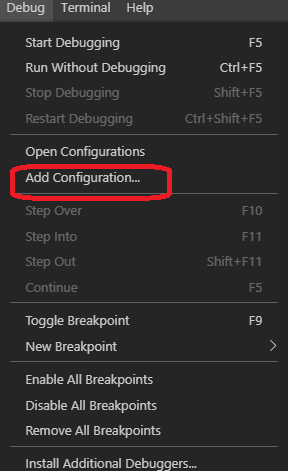
Click Debug>Add configuration:

This opens the launch.json, replace program and args with below values:

"program": "<your_path_to_protractor>\\npm\\node_modules\\protractor\\bin\\protractor",            
"args": ["${workspaceRoot}/confchrome.js"],

Now add break point:

You can add break point by clicking near to the line you want to inspect:

Now execute the debugger by pressing f5:

Using chrome inspect:

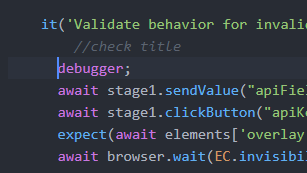
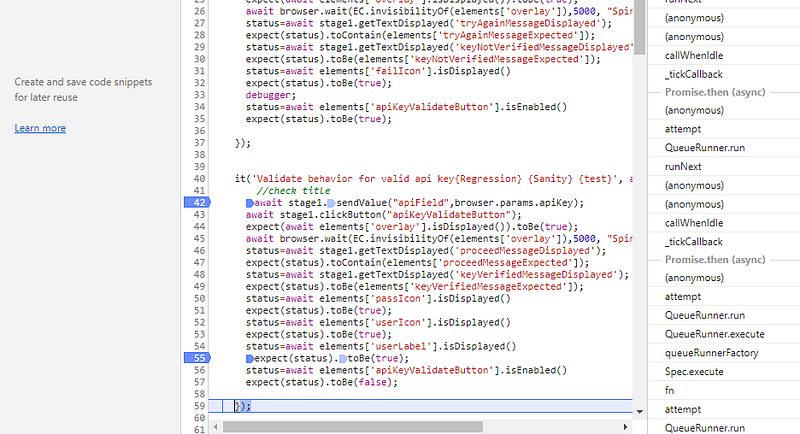
just add the keyword debugger to the tests which you want to inspect:

Run below command:

node --inspect-brk <full_Path>npm\node_modules\protractor\bin\protractor <filePath>/confchrome.js --params.url="https://sdsd"

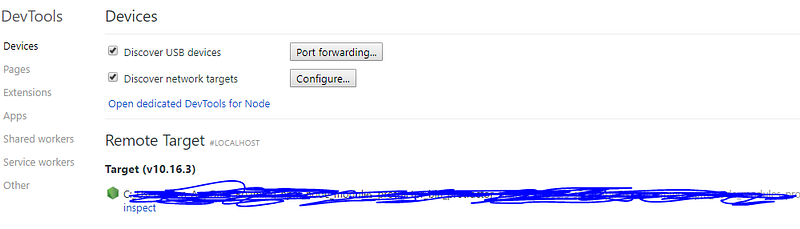
Now open chrome and type chrome://inspect/#devices

Click inspect and click F8 and click run. The exection stops at ‘debugger’ line and now add manual break points ow goto the file using the tabs and add manual break points.