Introduction to Control charts.

  • The control chart is a graph used to study how a process changes over time
  • Data are plotted in time order
  • A control chart always has a central line for the average, an upper line for the upper control limit, and a lower line for the lower control limit
  • Then the graph is divided into zones with each zone at 1 σ , 2 σ , and 3 σ , + or -from the average .

How it works:

  • Decide a process like to collect 10 samples a day
  • Find the daily average of the collected samples , example (sum of daily readings)/10
  • Now follow the below steps to create X and R charts

Lets create a control chart:

X chart:

Application description:

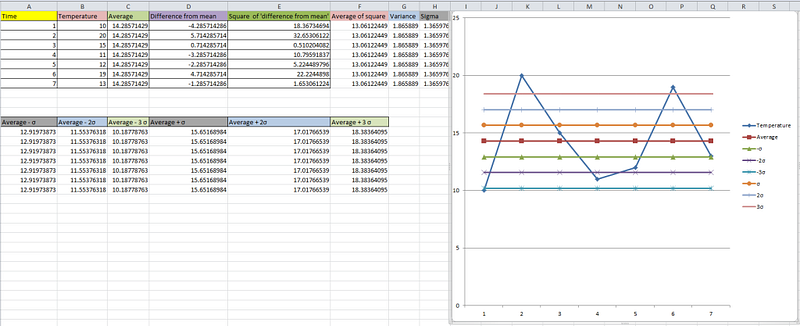
Lets consider data from a temperature sensor ,

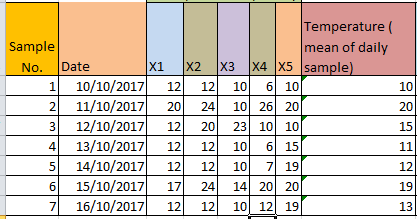
The cloumn x1,x2,x3,x4,x5 in below table shows ‘5’ daily readings took from the sensor.

Temperature column shows the daily average of the 5 samples.

so Temperature values are obtained as (x1+x2+x3+x4+x5)/5.
Now follow the below steps:

Note: Here the time column shows sample number ( I should have renamed it in the excel)

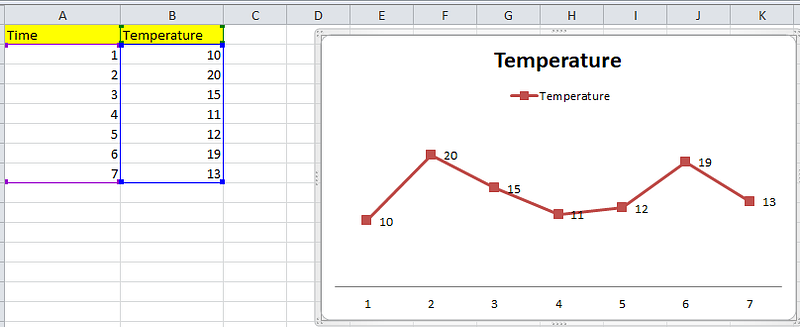
  • Create a normal line chart, with sample number in x axis and temperature in y axis
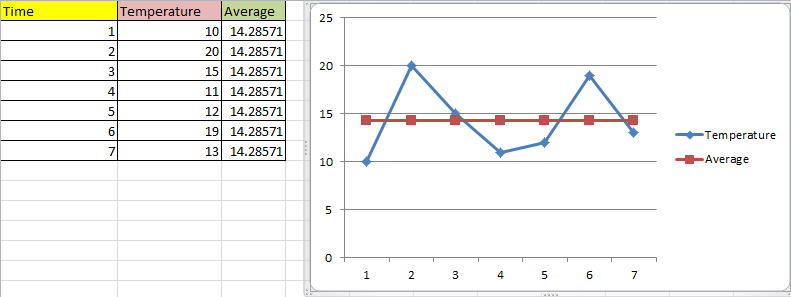
  • Now calculate the average (The arithmetic mean) of the average temperature:

Which is : ( sum of all the temperature values) / total entries

(10+20+15+11+12+19+13)/7 , i.e 100/7 = 14.28
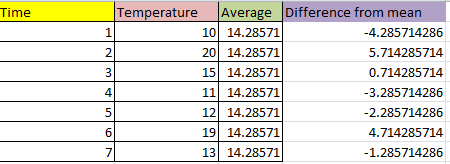
  • Now calculate the deviation of each value from the average/mean.

i.e , 10–14.28, 20 -14.28 etc
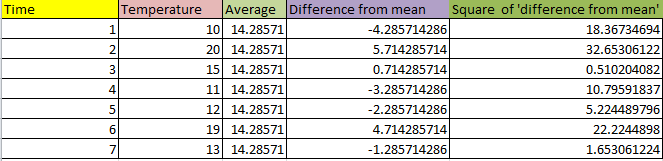
  • Now calculate the square of the difference we got

i.e -4.28² , 5.71^ 2 etc
  • Now calculate the variance

Variance is the mean of ‘square of ‘Difference from mean’

i.e (18.36+32.65+0.5+10.7+5.22+22.22+1.65)/7

Note: This is population variance but sample variation calculated as the sum/N-1 , so (18.36+32.65+0.5+10.7+5.22+22.22+1.65)/6

So the sum of the squares is 13.06122449 and that when divide by 7 we get 1.865889, which is the variance

  • Now calculate the standard deviation ( sigma σ )

Sigma or standard deviation is just the square root of variance i.e sqrt(1.865889)

  • Now calculate the UCL and LCL

Now we will calculate the upper and lower control limit which are ( Average + 3 σ ) and (Average — 3 σ ) respectively.

The graph also will be divided into zones ( Average +- σ ) and (Average — 2σ )

Which will be (14.28571429 +/- 1.365976) , (14.28571429 +/- (2 *1.365976) ), (14.28571429 +/- (3* 1.365976) ).
What next:

Now we use this chart to monitor the results

When new results comes in we will see:

  • whether its inside or outside the limits ,
  • Is there a pattern in result, for example, all the values are above average ( so we need to re caliber the tool properly)

The chart will be re-calibrated when we have more data and we will recalculate upper and lower limit to make sure that the result are more precise.

R Chart:

R chart considers the range of the sample points

Let us consider similar example above

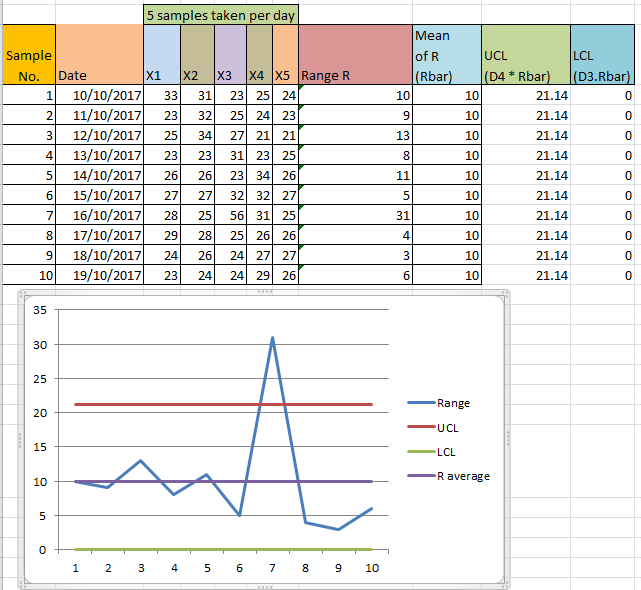
Here we are taking 5 temperature value samples from the tool daily ( In above case we add this value and divided by 5, to get temperature sample average)

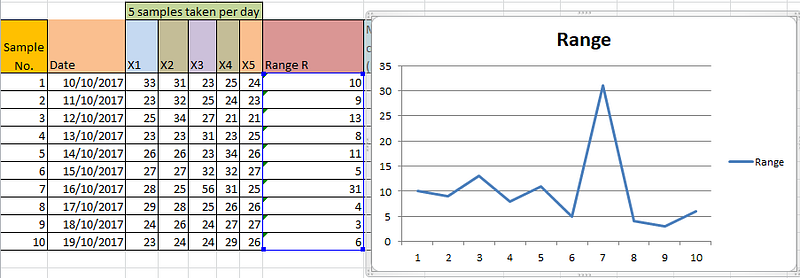
Now calculate ‘Range’ value ‘R’

We get R by subtracting (max-min) from the daily sample set

for example, in first row 33 is the max value and 23 is the min value, so R = 33–23 = 10. Plot it in graph
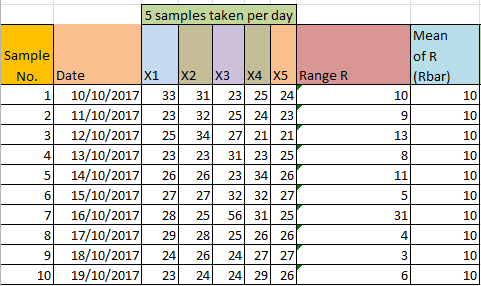
Now calculate average of R:

Add all the R values, and divide by no of samples : i.e : (10+9+13+….+6)/10 = 100/10=10.
Now calculate the UCL and LCL for R chart:

The equations for finding UCL and LCL for R chart are as below:

  • UCL = D4 * Rbar
  • LCL = D3 * Rbar

Were are D4 and D3 are R constants who’s values depends on the number of sample taken daily.

Here values taken per day (n) = 5

and total number of samples (k) = 10 ( we have samples for 10 days)

Now the value of D4 adn D3 depends on ’n’ and is as below:

reference : https://www.spcforexcel.com/knowledge/variable-control-charts/xbar-r-charts-part-1

Note: no data means ‘0’
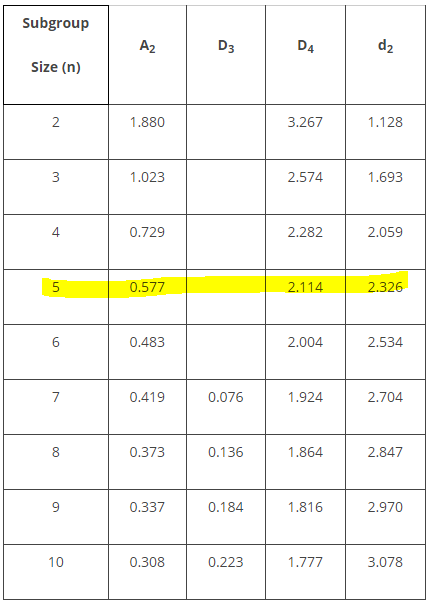
So as our ’n’ value is 5, D3 = 0 and D4 = 2.114, and we have Rbar = 10

Hence,

  • UCL = 2.114 * 10 = 21.14
  • LCL = 0*10 = 0

Output:

What next:

Now we use this chart to monitor the results (Range)

When new results comes in we will see:

  • whether its inside or outside the limits ,
  • Is there a pattern in result, for example, all the values are above average ( so we need to re caliber the tool properly)

The chart will be re-calibrated when we have more data and we will recalculate upper and lower limit to make sure that the result are more precise.

Note:

You can also calculate UCL and LCL of X chart using Rbar value
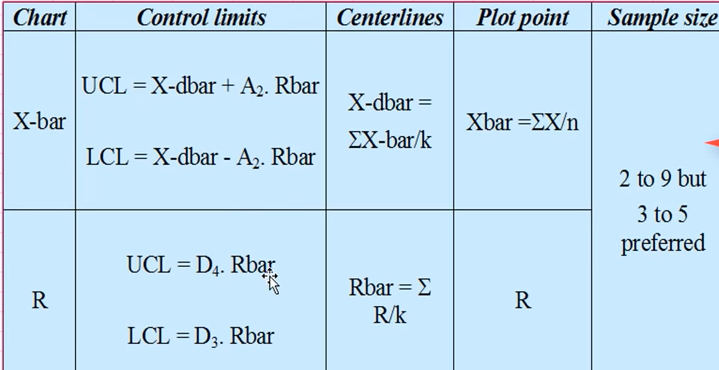
Were A2 is again a constant that we can get from the Table 1.

Note:

Reference:

https://youtu.be/krowVMzxecI

Creating HTML reports for protractor

Note: I have found an easier and better report for protractor by sauce lab use that report instead:

Read about the new report at: https://medium.com/@praveendavidmathew/protractor-best-html-report-d548d1460c36

But still, you can continue reading and see any of the features would be useful for you:

First, let us see why need reporting

Imagine you have written thousands was of wonderful test cases and you have put up it in CI/CD pipeline. You must be feeling proud right? and here the news that the first test runs for the suites you have written will run over the night and you get all excited.

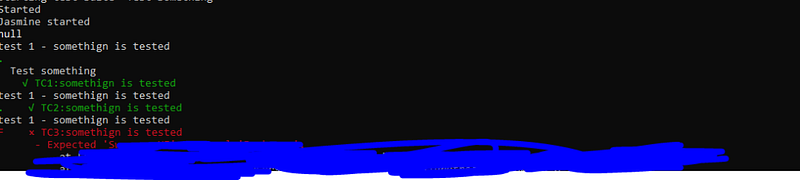
Next day you come to the office and sees the below console logs:

And you have no clue what passed, what failed because the execution got interrupted and was not completed.

Printing test status and logs after each test-case execution:

Add the below code to the protractor config file:

This enables real-time reporting, allowing to print errors onto console without having to wait for the test suite to finish executing.

exports.config = {
onPrepare: function(){
const SpecReporter = require('jasmine-spec-reporter').SpecReporter;
jasmine.getEnv().addReporter(new SpecReporter({
spec: {
displayStacktrace: true
}
}));
}
}

To make this work we need to install jasmine-spec-reporter

npm i jasmine-spec-reporter

Output:

So we can know when something goes wrong in the suite without wasting time waiting for it to finish executing.

Now lets create the Jasmine XML report :

Now lets believe that things went well, how will you report this to other stakeholders ? how will you show the status of the last test execution?

The answer is to use the jasmine xml report:

Install it using npm:

npm i jasmine-reporters

Add the below line in conf.js

exports.config = {

onPrepare: function(){
//configure junit xml report
var jasmineReporters = require('jasmine-reporters');
jasmine.getEnv().addReporter(new jasmineReporters.JUnitXmlReporter({
consolidateAll: true,
filePrefix: 'guitest-xmloutput',
savePath: '.'
}));
}
}
// so the xml file will be stored in current directory as guitest-xmloutput

Output:

Lets now create a HTML report

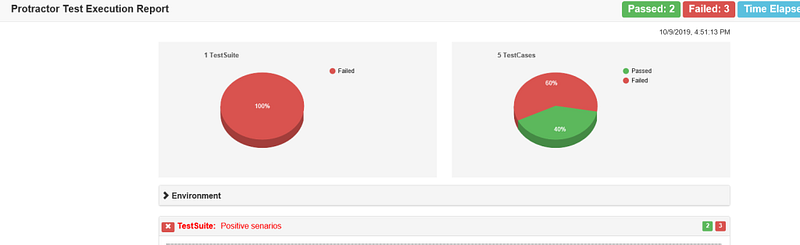
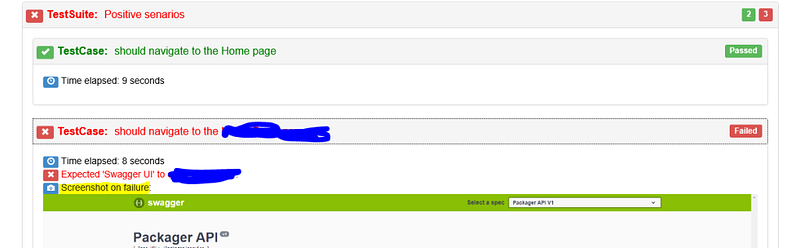
This report can’t be send to a Business analyst or any other non-tech guy right!!! lets add some visual treats using HTML.

The below npm tool takes the xml file we created in the previous section and converts it too HTML. The result will be stored in the current directory as ProtractorTestReport.html

The code gets browser name, version etc from the capabilities property, and the suite and test case name, from ‘describe’ and ‘it’ functions in spec.

You can install the tool through npm:

npm i protractor-html-reporter-2

Now add below code to conf.js

exports.config = {

onComplete: function() {
var browserName, browserVersion;
var capsPromise = browser.getCapabilities();
capsPromise.then(function (caps) {
browserName = caps.get('browserName');
browserVersion = caps.get('version');
platform = caps.get('platform');
var HTMLReport = require('protractor-html-reporter-2');
testConfig = {
reportTitle: 'Protractor Test Execution Report',
outputPath: './',
outputFilename: 'ProtractorTestReport',
screenshotPath: './screenshots',
testBrowser: browserName,
browserVersion: browserVersion,
modifiedSuiteName: false,
screenshotsOnlyOnFailure: true,
testPlatform: platform
};
new HTMLReport().from('guitest-xmloutput.xml', testConfig);
});
},
}

Output:

Taking screenshots on failure:

you can take screen shot on test failures by using fs-extra, to install use below command:

npm i fs-extra

Now add below command to conf.js

exports.config = {

onPrepare: function(){
var fs = require('fs-extra');
fs.emptyDir('screenshots/', function (err) {
console.log(err);
});
jasmine.getEnv().addReporter({
specDone: function(result) {
if (result.status == 'failed') {
browser.getCapabilities().then(function (caps) {
var browserName = caps.get('browserName');
browser.takeScreenshot().then(function (png) {
var stream = fs.createWriteStream('screenshots/' + browserName + '-' + result.fullName+ '.png');
stream.write(new Buffer.from(png, 'base64'));
stream.end();
});
});
}
}
});
}
}

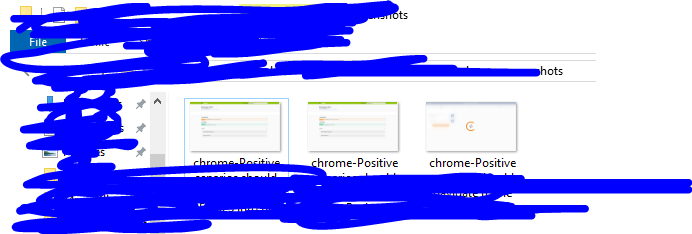
Screenshots will be taken and stored in ‘screenshots’ folder in the current directory.

Output:

Adding screenshots to html report:

Adding the above code to Onprepare property of protractor conf.js, ensures that on failure, screenshots are captured and stored on screenshots folder

The protractor-html tool will look for screenshots in this folder and add to the report automatically

output:

Final Config.js

exports.config = {
specs: ['spec.js'],
onPrepare: function(){
// Getting CLI report
      const SpecReporter = require('jasmine-spec-reporter').SpecReporter;
jasmine.getEnv().addReporter(new SpecReporter({
spec: {
displayStacktrace: true
}
}));

//Getting XML report
    var jasmineReporters = require('jasmine-reporters');
jasmine.getEnv().addReporter(new jasmineReporters.JUnitXmlReporter({
consolidateAll: true,
filePrefix: 'guitest-xmloutput',
savePath: '.'
}));
//Getting screenshots
  var fs = require('fs-extra');
fs.emptyDir('screenshots/', function (err) {
console.log(err);
});
jasmine.getEnv().addReporter({
specDone: function(result) {
if (result.status == 'failed') {
browser.getCapabilities().then(function (caps) {
var browserName = caps.get('browserName');
browser.takeScreenshot().then(function (png) {
var stream = fs.createWriteStream('screenshots/' + browserName + '-' + result.fullName+ '.png');
stream.write(new Buffer.from(png, 'base64'));
stream.end();
});
});
}
}
});
},
  onComplete: function() {
//Getting HTML report
var browserName, browserVersion;
var capsPromise = browser.getCapabilities();
capsPromise.then(function (caps) {
browserName = caps.get('browserName');
browserVersion = caps.get('version');
platform = caps.get('platform');
var HTMLReport = require('protractor-html-reporter-2');
testConfig = {
reportTitle: 'Protractor Test Execution Report',
outputPath: './',
outputFilename: 'ProtractorTestReport',
screenshotPath: './screenshots',
testBrowser: browserName,
browserVersion: browserVersion,
modifiedSuiteName: false,
screenshotsOnlyOnFailure: true,
testPlatform: platform
};
new HTMLReport().from('guitest-xmloutput.xml', testConfig);
});
}
}

Now lets see Loops and conditions in JavaScript

IF:

Syntax:
if (expression) {
Statement(s) to be executed if expression is true
}
Example:
let x = 5; 
if(x>4){
document.write(x)
}

ELSE:

Syntax:
if (expression) {
Statement(s) to be executed if expression is true
} else {
Statement(s) to be executed if expression is false
}
Example:
let x = 5; 
if(x>4){
document.write(x)
} else{
document.write("No");
}

ELSE IF:

Syntax:
if (expression 1) {
Statement(s) to be executed if expression 1 is true
} else if (expression 2) {
Statement(s) to be executed if expression 2 is true
} else if (expression 3) {
Statement(s) to be executed if expression 3 is true
} else {
Statement(s) to be executed if no expression is true
}
Example:
let x = 2; 
if(x>4){
document.write(x)
} else if (x>1){
document.write("No");
} else{
document.write("maybe")
}

Switch Case:

Syntax:
switch (expression) {
case condition 1: statement(s)
break;

case condition 2: statement(s)
break;
...

case condition n: statement(s)
break;

default: statement(s)
}
Example:
let a =1
let b= 4
switch (a+b){
case 2: document.write("2")
document.write("2 test")
break;
case 4: document.write("4")
document.write("4 test")
break;
case 5:
document.write("5")
document.write("5 test")
break;
default: document.write("invalid")
}

While Do:

Syntax:
while (expression) {
Statement(s) to be executed if expression is true
}
Example:
let a=5
while (a>0){
document.write(a+"W")
a--
}

Do While:

Syntax:
do {
Statement(s) to be executed if expression is true
} while (expression)
Example:
let a=5
do {
document.write(a+"W")
a--
} while (a>10)

For Loop:

Syntax:
for (initialization; test condition; iteration statement) {
Statement(s) to be executed if test condition is true
}
Example:
for(i=5; i>0;--i){
document.write(i)
}

For..in (Iterating through object with enumerable properties) :

This should be used only with objects that have elements stored as key value pairs, else if used with normal arrays, the index of the elements will be printed instead

Syntax:
for (variablename in object) {
statement or block to execute
}
Example:
var test= {a: 1, b: 2, c: 3}; 
var test2= [10,11,15]
for (a in test) {
document.write(a+"<br />");
// will print the key value of the elemnt (output is abc)
}
 for (a in test2) {
document.write(a+"<br />"); // will print 0,1,2 (index value)
}

For..of (Iterating through object) :

Syntax:
for (variablename of array) {
statement or block to execute
}
Example:
var test2= [10,11,15]
for (a of test2) {
document.write(a+"
"); // will print 10,11,15 (actual value)
}

Loop Control:

Continue, Break and label:

Continue:

  1. Continue keyword skips all the remaining code and navigates to next iteration
  2. Continue can be used only inside iterative blocks eg for, while , do..while , and for in, it cannot be used in switch and normal code block

In below code , document.write will be executed only if a!=1 , if a==1 , then the remaining code is skipped and the for loop goes to the next iteration.

Example:
let test=[1,2,3,4,6];
for (a in test) {

if(a==1){
continue;
}
document.write(a+"<br />"); // <br /> indicates next line
}

Break:

  1. Break is used to skip remaining code and iterations
  2. Once break is encountered, the code exists from the loop and continues with the outer code

The below code prints only 1 and 2, and on encountering 3, it exists from the loop and prints ‘exited’

Example:
let test=[1,2,3,4,6];
for (a in test) {
if(a==3){
break;
}
document.write(a+"<br />"); // <br /> indicates next line
}
document.write("exited");

Label:

  • Javascript allows controlling the continue and break code flow using labels
  • labels are used to identify loops or block and correctly specify which loop to break or continue
  • Any non reserved keyword could be used as label

In below code the inner loop is exited on getting a=3 and outer loop is broke when b=”c”

Here, we have labeled inner loop as inner and outer as outer.

Example:
let test=[1,2,3,4,6];
let test2=["a","b","c","d","e"];
outer:
for (b of test2){
inner:
for (a of test) {
if(a==3){
break inner;
}
if(b=="c"){
break outer;
}
document.write(a+ "<br />"); // indicates next line
}
document.write(b+ "<br />"); // indicates next line
}
document.write("exited");

You can use continue the same way to tell the loop to skip remaining lines and goto next iteration of the specified loop.

Example:
let test=[1,2,3,4,6];
let test2=["a","b","c","d","e"];
outer:
for (b of test2){
document.write(b+ "<br />"); // indicates next line
inner:
for (a of test) {
if(a==3){
continue outer;
}
if(b=="c"){
break outer;
}
document.write(a+ "<br />"); // indicates next line
}
}
document.write("exited");

Label could also be used with block

here we labeled the block ( code between { }) as foo, and in the second line we are existing this block so the third line within the block will not get executed.

foo: {
document.write('face'+"<br />");
break foo;
document.write('this will not be executed');
}
document.write('swap');

Lets begin with some highlevel JavaScript basics :)…

Java script simple statements could be ended without semi colon

Statements:

Both the below statements are valid

var a= 6;
var a=5

you could use ‘;’ semicolon to write multiple statement in single line

var1 =10;var 2=23;var 5= 9

Java script is case sensitive, meaning ‘Time’ and ‘time’ are two different elements.

Comments:

//single line comment
/* multi line statement
can be made like this */

html comment closing ‘ → ‘ is not detected by Javascript

Data Types:

Primitive:

JS following primitive data types:

  • Numbers — 1,2,3 ( Java script does not have separate representation for floating point and whole numbers, all the numeric are represented as floating points (Eg: 2.0)
  • Strings — “name”
  • Boolean — true or false

also supports ‘null’ and ‘undefined

Composite

JS also so support data type called ‘object

Declaring variables:

Variables are elements that store data and helps in re-usability

In JS , variables needs to be declared before it could be used. In JS , variable declaration could be made mainly using three keywords and are :

  1. var
  2. let
  3. const

Note: JS is dynamically typed (untyped) , meaning data type is detected dynamically. For instance, if for below variables , we store username = 1 and password = “we”; then the data type of username will be taken as Number and password as string.

Using Var

var username
var password

Multiple variable declaration in a single line is also permitted

var username,password,url

Note:

  • Variables declared with var are function scoped.
  • Could be modified
  • Could be re-declared ( It will replace the previous variable)
  • Does support hoisting (meaning that , if the variable is called before declaring , then JS will automatically declare and initialize it with value ‘undefined’)
console.log(username)
var username = "user"
// This prints "undefined" because java script changes this code internally as 
var username = undefined
console.log(username)
username = "user"
//This is called hoisting

Using let:

let username;

Note:

  • Variables declared with let are block scoped.
  • Could be modified
  • Could not be re-declared ( It will replace the previous variable)
  • Does not support hoisting. Variable should be declared before it could be used

Using const:

const username;

Note:

  • Variables declared with const are block scoped.
  • Could not be modified
  • Could not be re-declared ( It will replace the previous variable)
  • Does not support hoisting. Variable should be declared before it could be used

To know more read : ( Read : https://medium.com/@toddhd/javascript-understanding-the-difference-between-var-let-and-const-d0390da913 )

Variable Scope:

JavaScript only two scope :

  • Global — Available anywhere in the code
  • Local — Available only to the local function in which its defined

Variable naming rules:

Operators in JavaScript:

  • Arithmetic Operators

+ , — , * , / ,% , ++, —

  • Comparison Operators

==, !=, > , <, >=, <=,

  • Logical (or Relational) Operators

&& (AND) , || (OR), !

  • Assignment Operators

=, += (add and assign), -=, *= ,/=, %=

  • Conditional (or ternary) Operators

?:

eg: a==b? true:false

  • Bitwise Operators

Writing first test script and chaining outputs between scripts.

Till now , we have executed requests but have not written any testscripts. Meaning, there were no validation steps to verify whether the request passed or failed.

Now let us see who to do this. Let us write our first test script.!!!! 🙂

Automation tests with Postman:

There are two parts were we can write the scripts for our tests.

  1. Pre-request script
  2. Tests

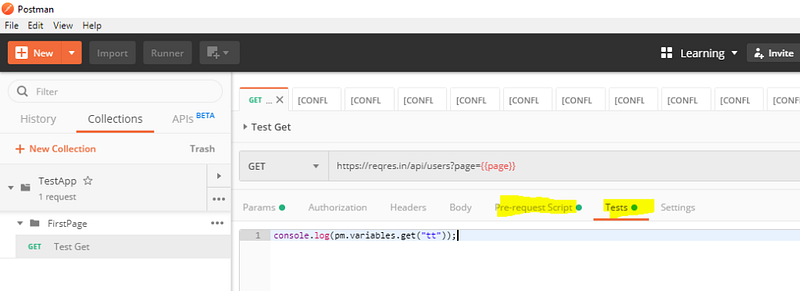
Here pre-request script act as the test setup script, meaning, it will get executed before the tests. So if you have any pre-requisite like creating user variable or validating whether a user variable value exists, you can do it here.

Tests are were we write the actual tests, it get executed after we get the response.

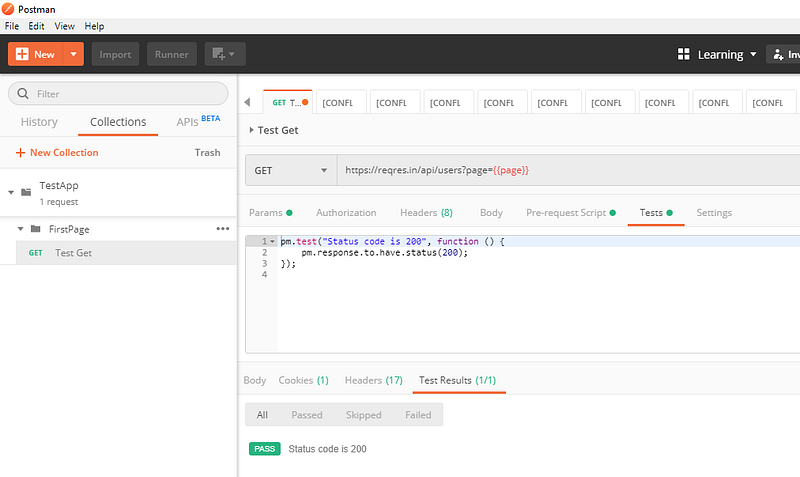
Writing first Test script:

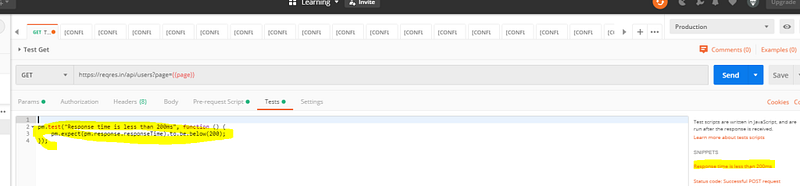
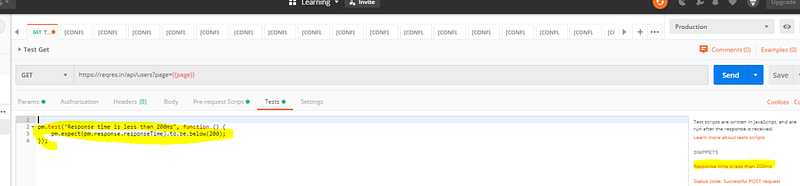
The syntax of writing tests are as follows:

pm.test("Test_case_description", function () {
    <Validation steps!> ( The steps are available as test snippet you just need to select it )
});

Note:

We can write tests at both the places ( Pre-request or Tests) but as tests are meant to be validating the user action, it should be written at the ‘Test’ tab so that it will be executed only after the action is completed.

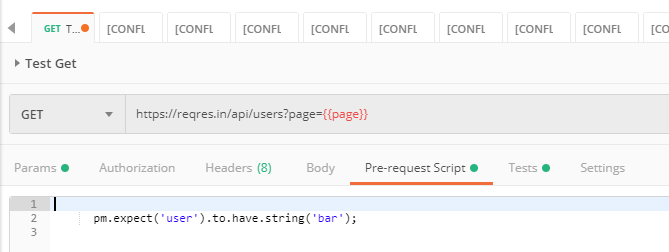
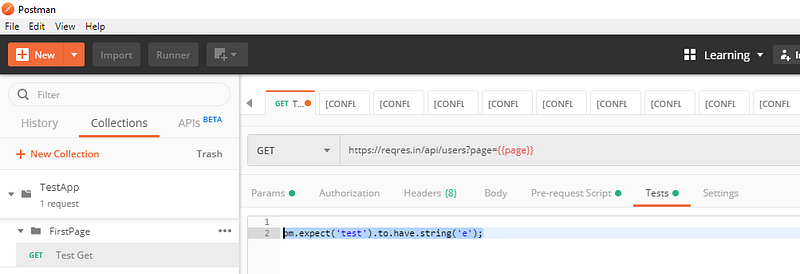
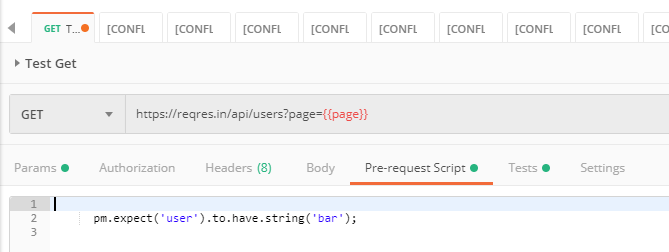
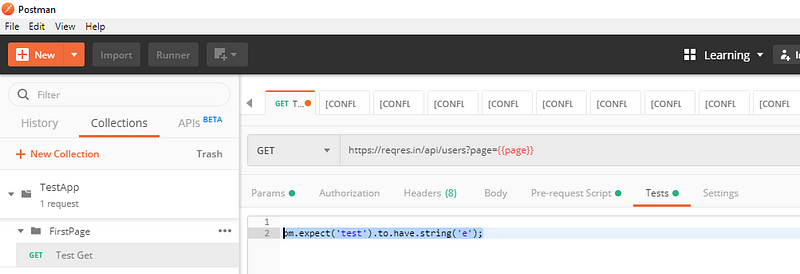
Postman pm.test function expects different exceptions and passes or fails the test accordingly. You can try running just the below command without the ‘pm.test’ enclosed and observe that on sending the request an assertion is thrown.

(The below script is to validate whether the text ‘test’ as sub-string ‘b’ in it.)

pm.expect('test').to.have.string('b');

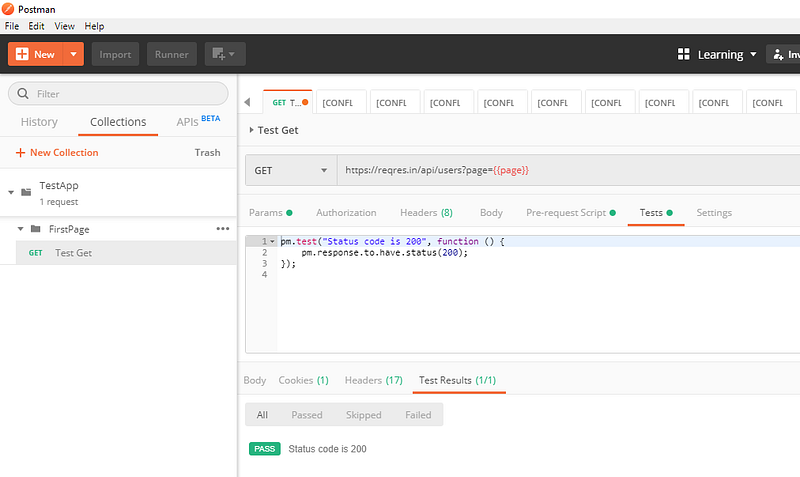
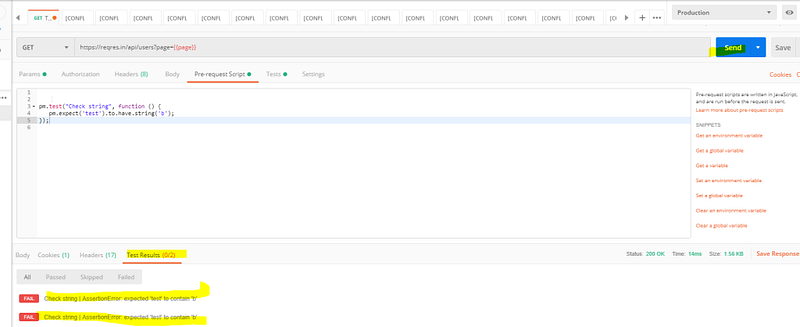
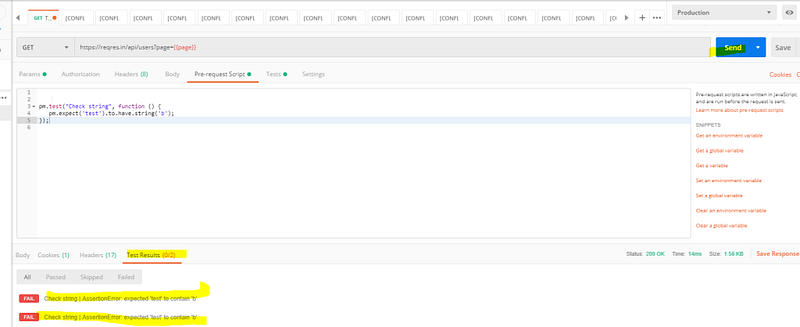
Now enclose the command in pm.test as below on both pre-request and Tests tab:

pm.test("Check string", function () {
   pm.expect('test').to.have.string('b');
});

Now send the request and you will observe that two tests were executed.

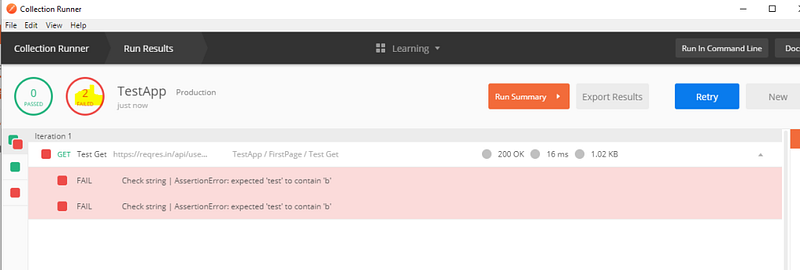
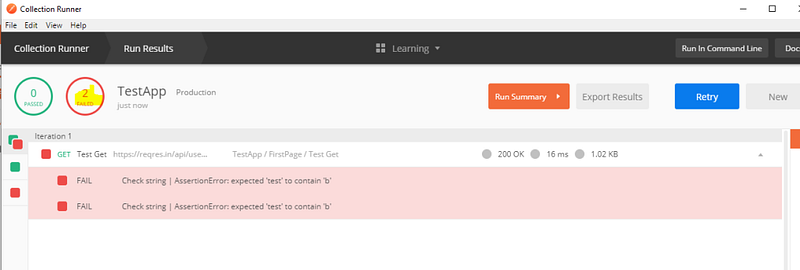
Run the same using collection runner (Make sure to click save before running runner):

Chaining the response together:

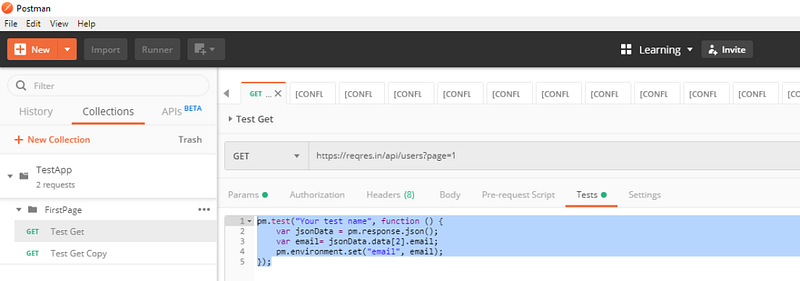
Get the data from response body and store it in an environmental variable:

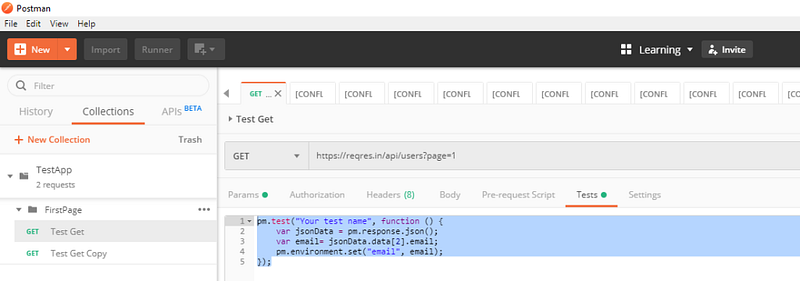
pm.test("Get email", function () {
    var jsonData = pm.response.json();
    var email= jsonData.data[2].email;
    pm.environment.set("email", email);
});

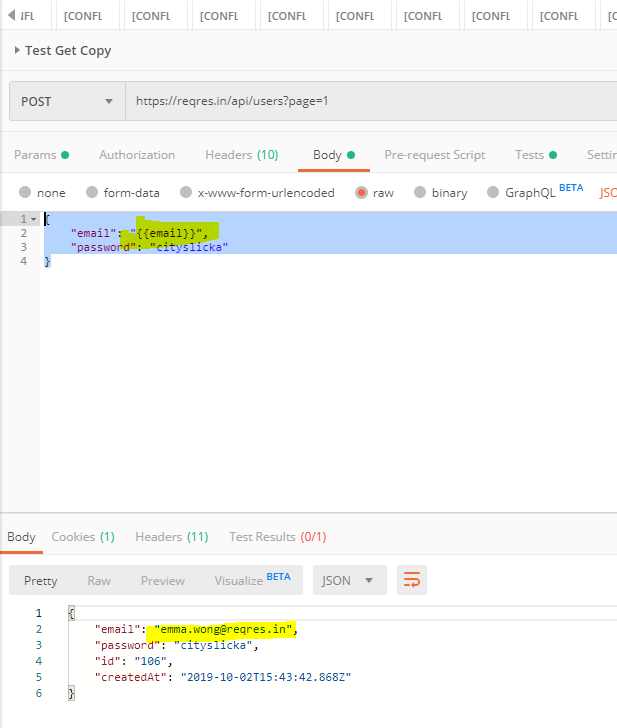
Use this environmental variable in next test.

{
    "email": "{{email}}",
    "password": "cityslicka"
}

Till now , we have executed requests but have not written any testscripts. Meaning, there were no validation steps to verify whether the request passed or failed.

Now let us see who to do this. Let us write our first test script.!!!! 🙂

Automation tests with Postman:

There are two parts were we can write the scripts for our tests.

  1. Pre-request script
  2. Tests

Here pre-request script act as the test setup script, meaning, it will get executed before the tests. So if you have any pre-requisite like creating user variable or validating whether a user variable value exists, you can do it here.

Tests are were we write the actual tests, it get executed after we get the response.

Writing first Test script:

The syntax of writing tests are as follows:

pm.test("Test_case_description", function () {
    <Validation steps!> ( The steps are available as test snippet you just need to select it )
});

Note:

We can write tests at both the places ( Pre-request or Tests) but as tests are meant to be validating the user action, it should be written at the ‘Test’ tab so that it will be executed only after the action is completed.

Postman pm.test function expects different exceptions and passes or fails the test accordingly. You can try running just the below command without the ‘pm.test’ enclosed and observe that on sending the request an assertion is thrown.

(The below script is to validate whether the text ‘test’ as sub-string ‘b’ in it.)

pm.expect('test').to.have.string('b');

Now enclose the command in pm.test as below on both pre-request and Tests tab:

pm.test("Check string", function () {
   pm.expect('test').to.have.string('b');
});

Now send the request and you will observe that two tests were executed.

Run the same using collection runner (Make sure to click save before running runner):

Chaining the response together:

Get the data from response body and store it in an environmental variable:

pm.test("Get email", function () {
    var jsonData = pm.response.json();
    var email= jsonData.data[2].email;
    pm.environment.set("email", email);
});

Use this environmental variable in next test.

{
    "email": "{{email}}",
    "password": "cityslicka"
}

Introduction to postman variables and Data driven testing…

Variables:

Same like other programming languages and tools , variables are elements that stores values or information for re-usability and preventing repetitive work.

How to call variables in Postman:

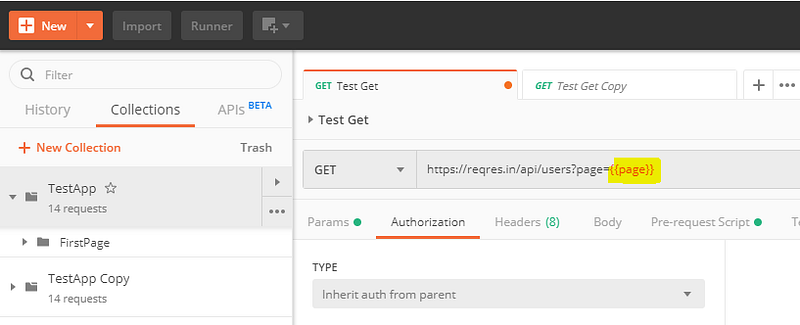
The syntax to call variable is to call variable name using double curly bracket {{<variable_name>}}

For instance let the variable name be ‘Page_no’ so to call this variable we use

https://www.facebook.com/somepage/{{Page_no }}

Note: we can call variables in request, request header or body.

Variable scope:

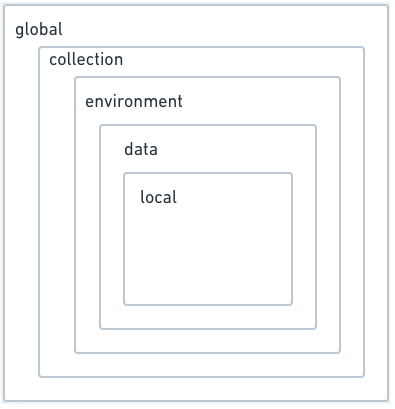
The variable scope in postman is as given below:

  1. Global
  2. Collection
  3. Environment
  4. Data
  5. Local

Note: This image representation may look confusing because environmental variables have more scope than collection, because an environmental variable will be available across all the collections but a collection variable will be available only for the specific collection.

So this list and hierarchy image is arranged more on precedence level than scope, with precedence increasing from top to bottom.

For instance if Collection variable and Environment variable has the same ‘name’ then ‘value’ of Environment variable will be considered.

Global:

Global variables are available across all the collections ( But not across all work-spaces, workspaces are considered as isolated from eachother so variables are not shared among workspaces )

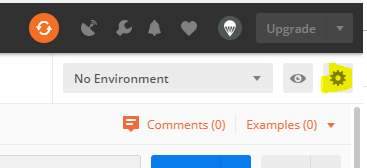
To add global variables click the enviroment management icon :

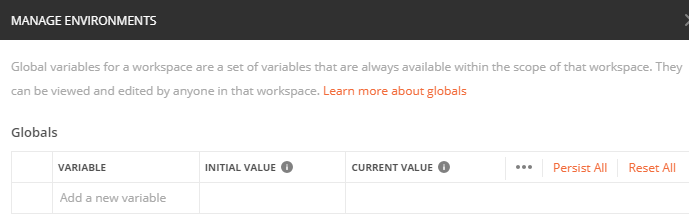
Click Globals button at bottom of the window

provide the global variable name and value.

Note: Initial value is the value shared with all the members in the workspace. If you want to try with different values without affecting all members in the workspace then edit current value, this will ensure that tests are run with the value you provided in the current value field but only on your local system.

You can synchronize this changes using persist or reset, persist sets initial value to the current value that you set and will reflect across the workspace, reset will make current value same as initial.

Collection:

Collections, as discussed before is a logical way of grouping requests.

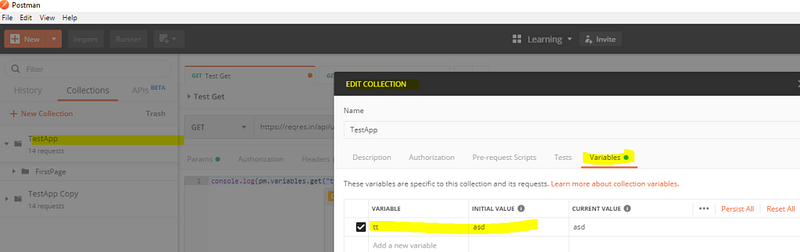
To create collection variable , click the meatball menu and select edit and navigate to variables.

Now add the variable and the value

This variable and value will be available only for the requests/folders within the specific collection.

Environment:

Environment is a way of logically grouping variables. For instance, imagine you want to use the same set of tests in two different environments say ‘Production’ and ‘Testing’ .

The variables ‘url’, ‘username’ and ‘password’, will have different values depending upon where we are running these tests.

So we can create two environments , ‘Production’ and ‘Test’ and add these variables and their corresponding values.

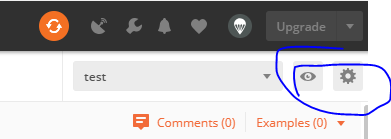
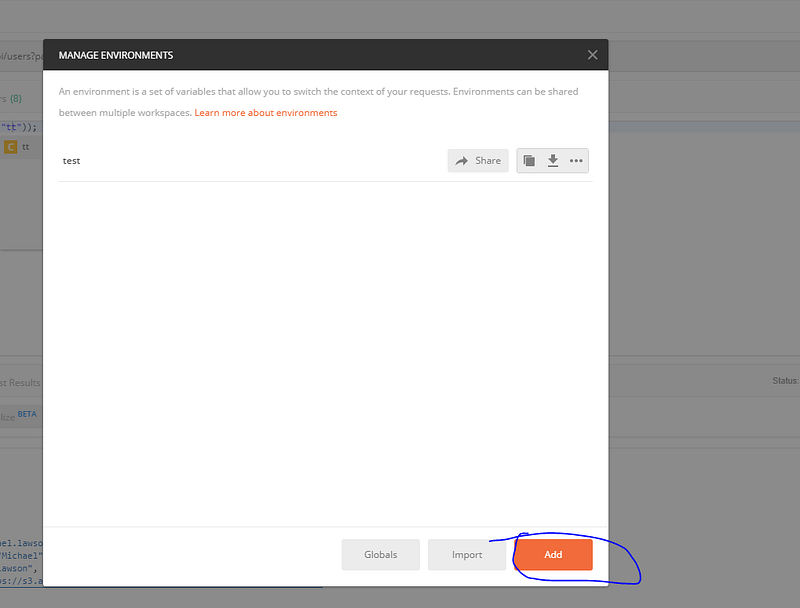
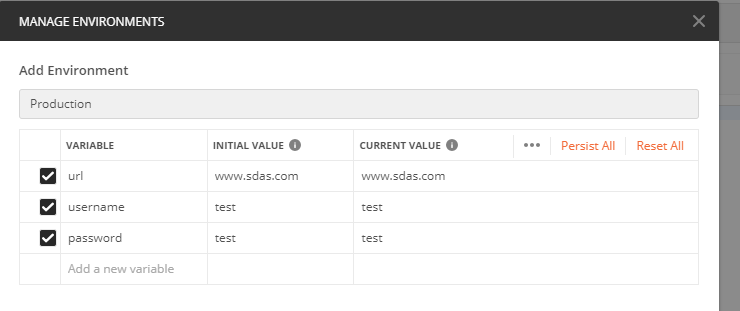
To create ‘environment’ click ‘manage environment’ icon and click the add button on the window.

And give environment name and add the variables

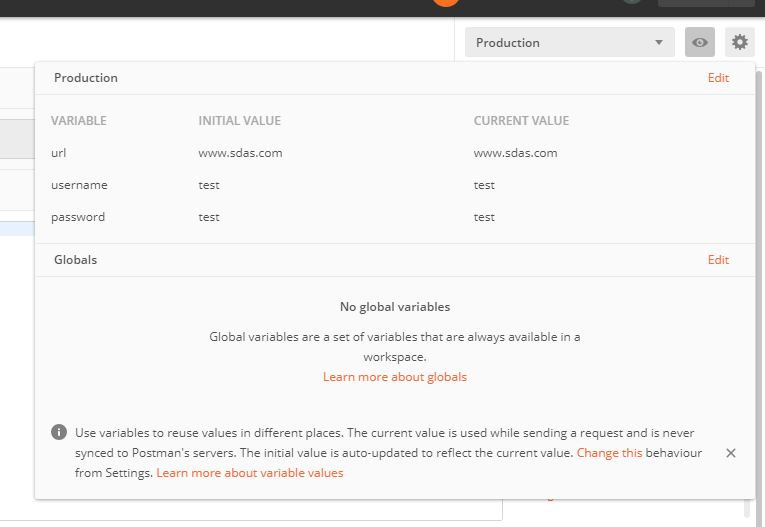
Now select the variable from drop down.

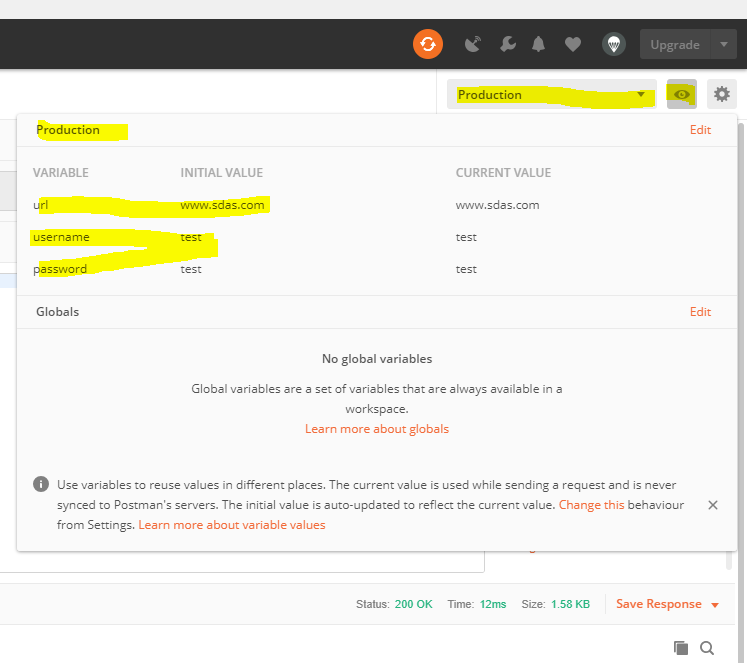
Select the variable from the drop down list as shown and click the eye icon to see the variable details of the specific environment.

Now when we call these variables in our request we get these values.If we change the environment, then the value changes accordingly.

Data:

Postman allows to store and use variables as key value pairs from CSV or JSON file. This helps in data driven testing.

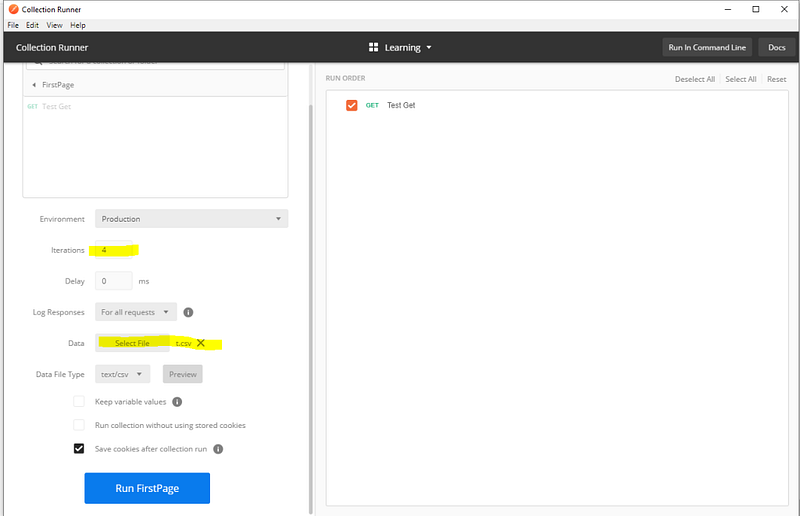
Data variables are available only through Collection runner. To open collection runner , click the collection you want to run , click play icon and click run.

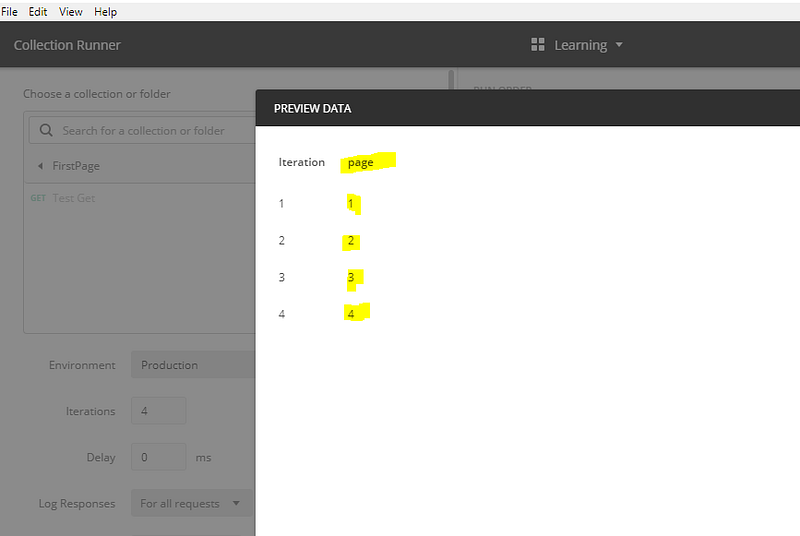
Select the csv file or json file , the iteration will be automatically set to number values in the file

https://learning.getpostman.com/docs/postman/collection_runs/working_with_data_files/#working-with-the-sample-files , this links helps you to know how to create a data file

Clicking the preview will show whether the file was parsed correctly into key and value.

So page is the key and {1,2,3,4} are the values.

One running the test, it will get executed 4 times . That is with value 1,2,3, and 4.

Local:

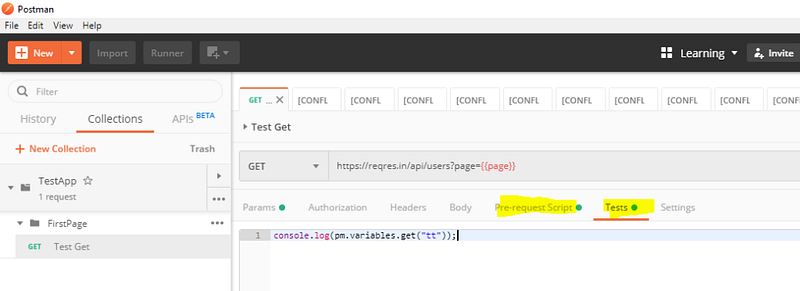
Local variable are specific to the request, it will be set through prerequisite- scripts ( which runs before executing requests) or tests ( which run after the response is received)

pm.variables.set('myVariable', MY_VALUE);

They are accessible only with in the request.

Running Data driven test from cmd:

Get the collection link and pass the data file using -d command line argument

newman run https://www.getpostman.com/collections/xxxxx -d t.csv

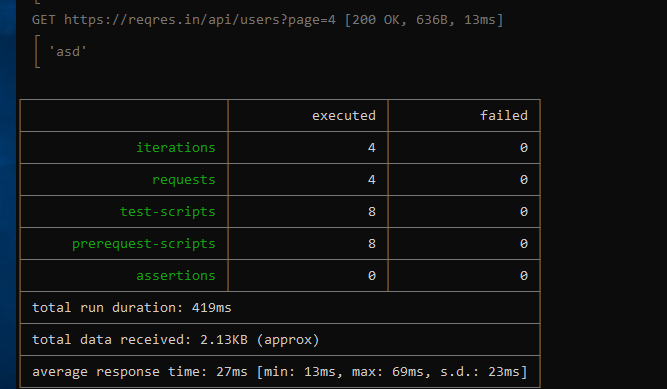
output will be

Note: Tests are written in the test tab of requests, and as we have not mentioned any validation test scripts, the test failed and pass number will be zero. We will see in next session how to write tests.

First steps with Postman…

Ok lets start working with postman!!!!

Install Postman:

https://www.getpostman.com/downloads/

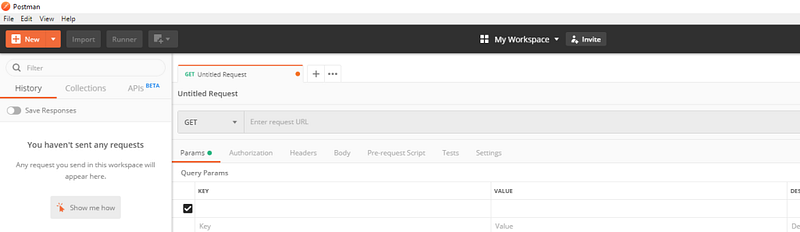
Open Postman:

Create Workspace:

Work space allows you to organize your work. It creates a separate working space where you group all your works including tests,collections, environments etc ( will learn as you read on).

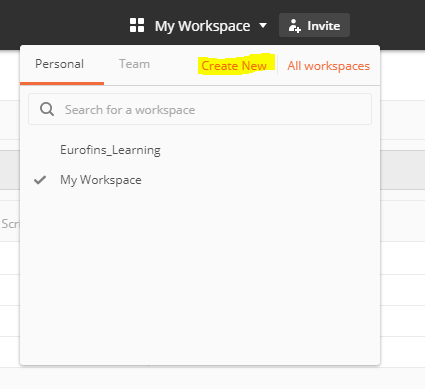
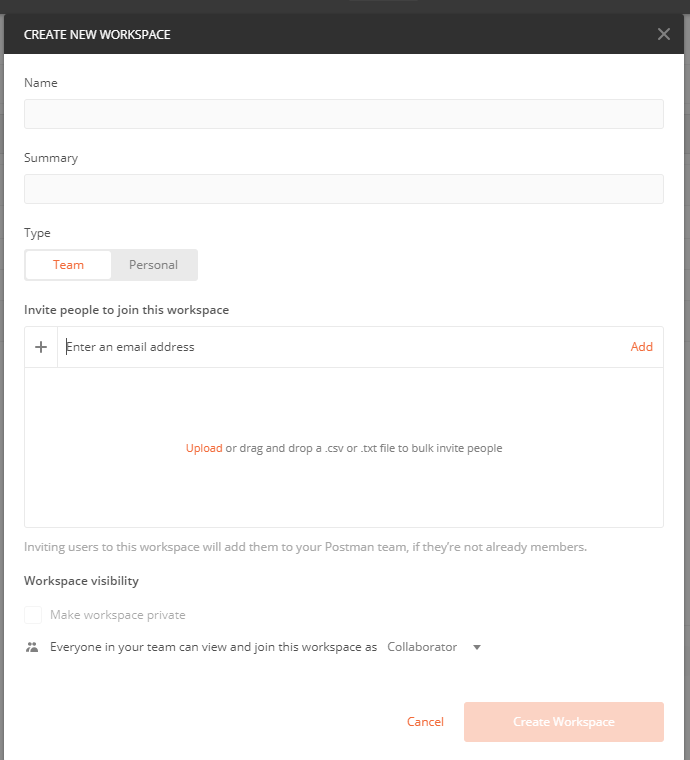
Click My work space and select create New workspace

Note: Workspace could be personal, private or Team. Personal will be available only to you, shared will be available to everyone else with the invitation link and private is enterprise version and allows team members who were invited by you to be part of the workspace.

Team workspace and My Workspace are default workspace and cannot be deleted. To delete other workspaces, goto All workspace (will be opening in browser) and select delete by click ing the meatball menu.

Create Collection:

Collection allows to group your requests together in a logical order. It could be seen as the test suite level and we will have individual requests as the tests.

You also create folder inside postman to group your tests more efficiently for example :

Collection name be “Android FaceAPP”

And Folder name be “Test_LoginFeature”

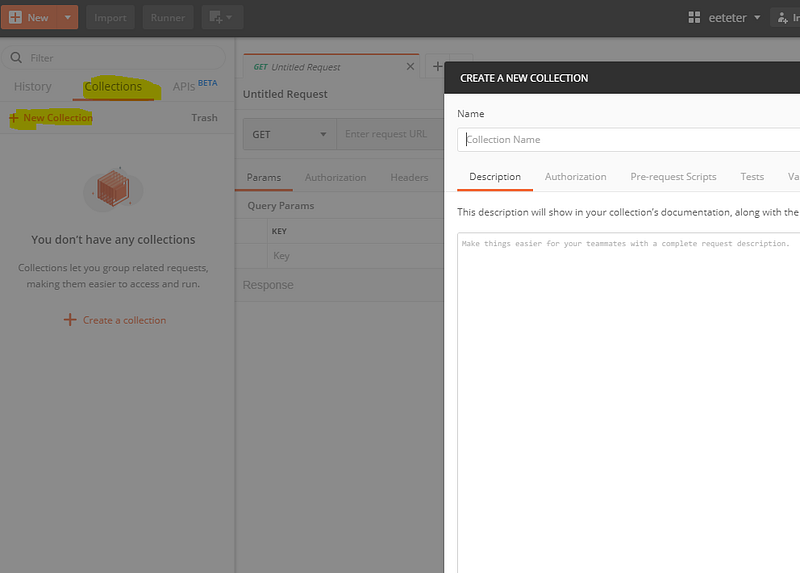
Click collections>New collections for creating new collection

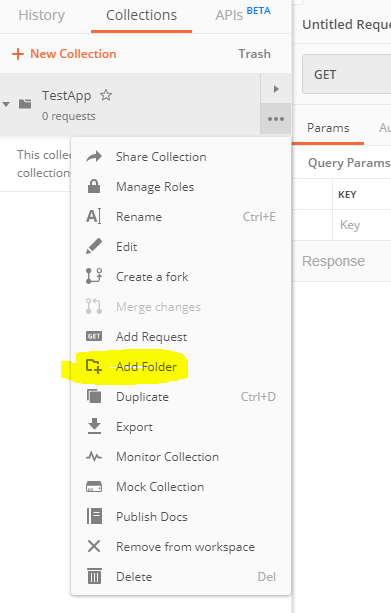
Click meatball menu> Add folder, to create folder

Create your first request:

Create a new request by clicking New or by using meatball menu corresponding to the desired collection and folder.

Add the request details:

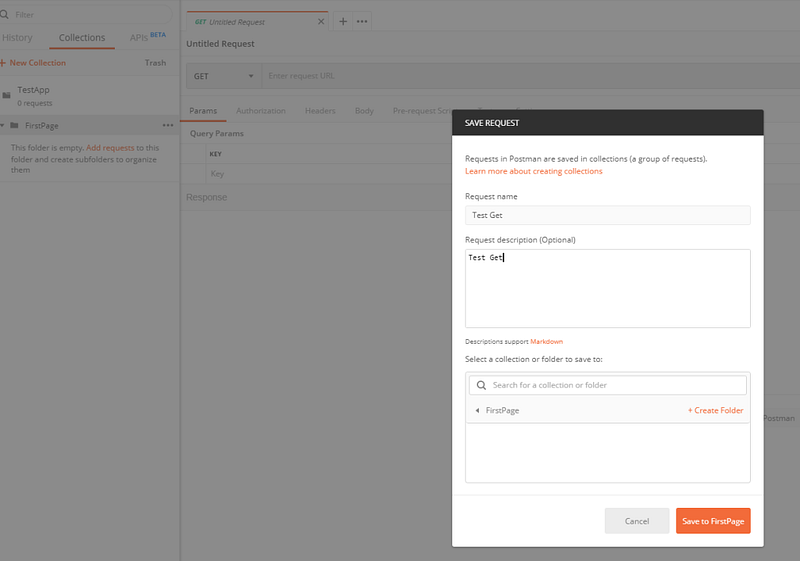
And click save ( don’t forget to click save else the request won’t be saved onto collection- folder hierarchy)

Then click send.

Note: Use https://reqres.in/ to get API for practice.

Running Collection Runner:

So you can create as many requests as you want, now imagine you have to execute all this requests in order.

You can do this by using collection runner.

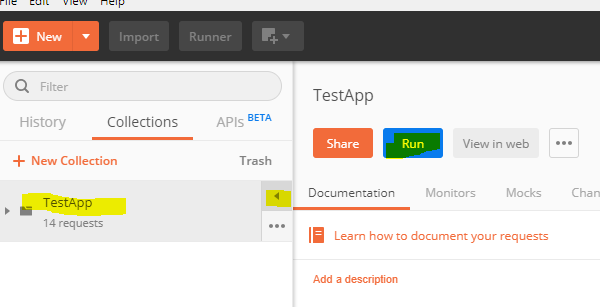
Click on the collection you want to run and click play icon, and click run.

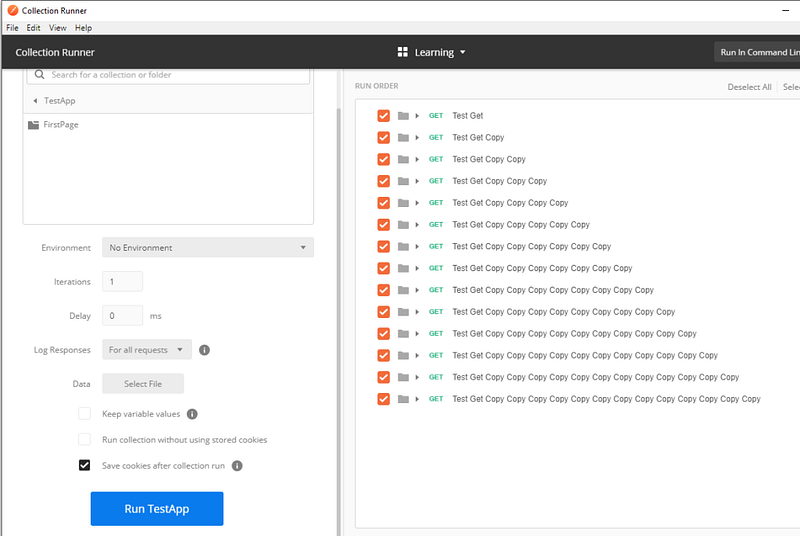
The below window opens up and now click run <collectinname>

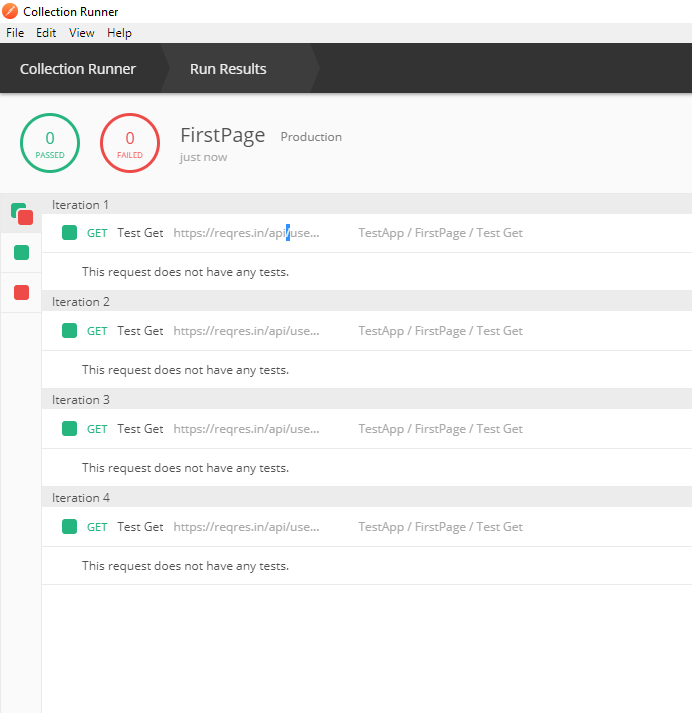
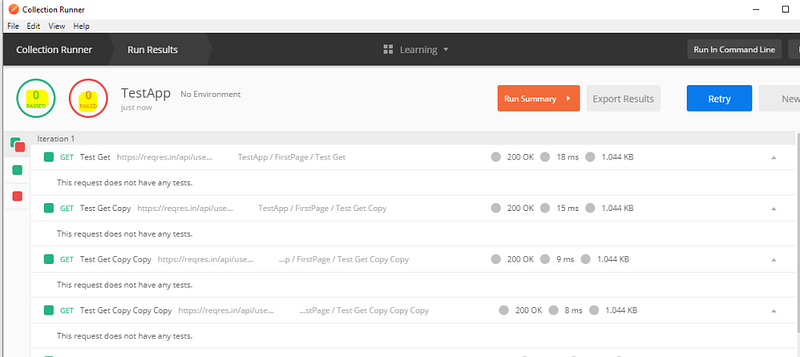
This will execute all requests in the collection and shows the result.

Note: Here test results shows ‘0’ passed and failed as there were no validation scripts added. We will learn it in next sections.

Running collections from command line:

For running collections through command line we need to use newman tool

To install newman you need npm (npm is installed as part of nodejs installation , Install here) and then use the below command:

npm install -g newman

Note: make sure that nodejs modules are in path or else add it to path , to ensure newman command is recognized from cmd.

Now to run the tests from command line create a share link or export collection as json

Through Share link:

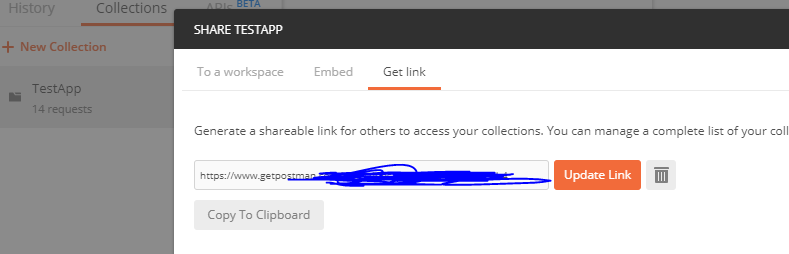
Click the collection’s meatball menu and click share and navigate to ‘Get link’ and generate a link.

copy the link address and run the command:

newman run <link_address>

Through json:

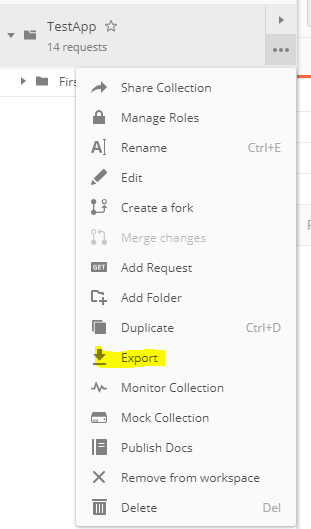
Click the meatball menu and select export, this creats a json file for the collection

now run

newman run <full_path>/TestApp.postman_collection.json

Note: This could be used for running postman in CI/CD pipeline

HTML Reporting

We have seen how to run postman through command line using newman ( just npm install newman and use command ‘newman run <collection>.json’ or url)

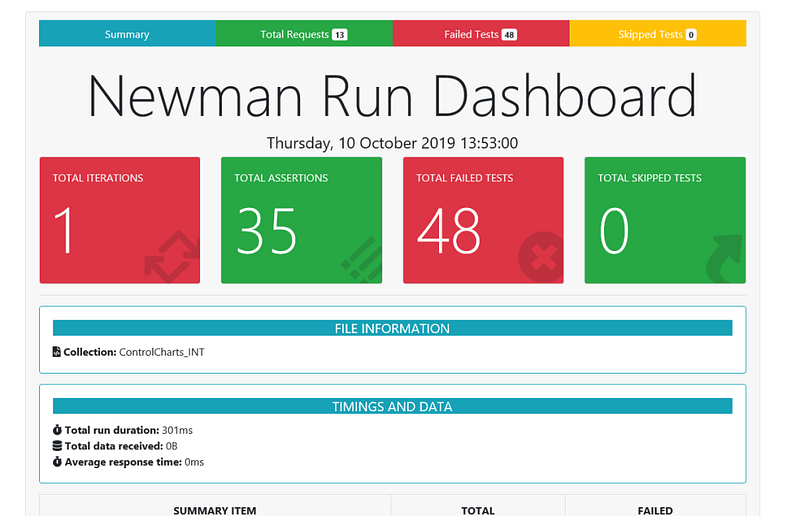
To get html reporet install newman-reporter-htmlextra

npm install -g newman-reporter-htmlextra

Now run the scripts as

newman run <collection_file>.json -r htmlextra

Let’s run our first Docker container (OWASP Juice shop)

This lab was built on a CentOS 7 system. Please refer the previous article to learn about how to setup docker on CentOS 7 :

https://medium.com/@praveendavidmathew/installing-centos7-vm-with-gui-vmware-workstation-8f2cc1d44c34

Remember…..

Docker images are pre-build docker snapshots made from the Dockerfile (a file with a set of instructions about how the image should be built).

Docker containers are the instances of images (Running instance of the snapshot). We can run N number of containers from a single Docker image……

Docker Hub:

This is a cloud repository where Docker users and partners create, test, store and distribute Docker images.

in simple words, it is a git-hub of docker images 😀 …..

As in git-hub, we can create a public and private repository in the Docker hub. Docker images published in public repository are available to everyone, while the ones published to the private repository will be available only for authorized users.

https://hub.docker.com/

Lets Start…

Get the OWASP juice-shop image from docker hub: (Add sudo if you are not running under root , to run terminal as sudo use su -)

Note: Docker pull command will download the image from the official docker hub of owasp juice shop ‘bkimminich/juice-shop

Note: Docker run does pull the code if its not downloaded, so you don’t have to explicitly pull. Pull the image only if you just need the image and don’t have to run now, else skip this step and goto run.

https://hub.docker.com/r/bkimminich/juice-shop

docker pull bkimminich/juice-shop

But wait !!! what if we want to have a specific version of the application?

We can specify the version by using the tags attribute. Navigate to ‘tags’ and choose the tag corresponding to the version you are interested in

https://hub.docker.com/r/bkimminich/juice-shop/tags

Run the below command to download the specific version: syntax is docker pull owner/repo:<tag>

docker pull bkimminich/juice-shop:v8.7.2

Note: if no tag is specified, the default tag value will be latest

To see downloaded images:

Use the command to view the final downloaded images.

docker images

Add -a to view all intermediate images:

docker images -a

Meaning: Docker images are made from different baseline images. For instance, juiceshop is made from baseline images of nodejs and nodejs is made from Ubuntu and so on. There will be many other intermediate layers and so the ‘docker images’ command will show only the final images. To see the intermediate images, we use -a

Run container instance from the downloaded image:

Note: Docker run does pull the code if its not available locally so you don’t have to explicitly pull. Pull the image only if you just need the image and don’t have to run now.

To run the container, use the below command

docker run --rm -p 3000:3000 bkimminich/juice-shop

Here -p specifies the port mapping of the host to docker and the syntax is

-p <external(Host)_port>:<internal(Container)_port>

Hence, to run juice shop in port 4000 of the host, use -p 4000:3000

Here, container port should be always 3000 as the juiceshop app is configured to run in port 3000 ( Unless you set the environmental variable ‘PORT’ to other values )

— rm ensures that all memory and other dependencies are removed once the container is stopped.

To start juice shop container as a daemon:

running the container as a daemon will make it run in the background without locking the CLI. We specify this with -d

docker run --rm -d -p 3000:3000 bkimminich/juice-shop

To see running containers:

To see all the running containers use this command

docker ps

we can operate on containers using the container ID

To stop containers:

use the ‘docker stop’ command on the specific ‘container ID’ that needs to be stopped

docker stop 29d90c64b1fd

Docker kill can be used for sending ungraceful stop but is not recommended.

To remove images, volumes, containers extra that are not used or dangling:

Sometimes pulling images will download intermediate images that are not used by the final image. This is because the required intermediate images may be already downloaded during some other image pull operation.

These images which do not have a relationship to the final images and are not useful anymore are called dangling image. The below command will remove all dangling images and associated resources

docker system prune

use -a to remove all unused images along with dangling images

docker system prune -a

Note: Dangling images are the ones which don’t have a final image(child image) to relate to and are unuseful, while unused images are images that do not have container instance running.

use — volume to remove all container memories or disk files, else some containers may started with previous container states even after deleting images.

docker system prune --volumes

Remove selected images:

docker rmi command can be used along with container ids to be removed.

note that, we need to provide only the initial digits of container IDs that make it unique.

Docker rmi 345 345 erf3

Other Tips:

Build Docker image from Source:

Docker images are made from DockerFIle, for juiceshop project a docker file is available in the repository.

Clone the juiceshop code from repo as below.

git clone https://github.com/bkimminich/juice-shop.git

Now build the Juiceshop docker image:

When we were pulling we so the naming standard like owner/repo:<tag>

So praveen/juiceshop is my owner/repo and latest is my tag.

‘.’ is the location of Docker File, i have it in my current directory so used ‘.’

Note: if no tag is given in Pull and Run commands, builds with latest tag is pulled by default

sudo docker build -t praveen/juiceshop:latest .

Run the Image:

After building we will get the docker image, which could be checked using the ‘docker images’ command

To run this Image , use the same docker run command:

docker run --rm -d -p 3000:3000   praveen/juiceshop

List all container process IDs:

-a — displays all the containers

-q — shows only the IDs

docker ps -aq

Exit all containers:

Here “docker ps -aq” gives all the IDs, and we provide it to the stop command

docker stop $(docker ps -aq)

Removes all containers:

docker rm $(docker ps -aq)

Removes all images:

docker rmi $(docker images -q)

Reference:
https://itnext.io/docker-from-the-beginning-part-i-ae809b84f89f

http://blog.baudson.de/blog/stop-and-remove-all-docker-containers-and-images