its easier than you would expect to create a project collection…
Postman API Feature:
you can create collection , mock servers, documentation in click of a button by using postman API definition feature.
Lets see how to do it!!
Get the API definition:
postman supports following API definitions:
so what is API definitions ?
API definitions, or API specifications or description formats (all are the same) defines your API . It is like a live documentation on what is available, what it can do , what is supported etc . In short a comprehensive live documentation that can help consumers understand what your API can do.
in summary:
Help internal folks understand the API and agree on its attributes
Help external folks understand the API and what it can do
Act as live documentation on what all endpoints are available, what methods are supported, what attributes are expected etc.
you can see the link to the definition file, it can be in yaml or json format. just click the link and copy the content.
you can see the version is swagger 2.0 meaning its open api v2
2. Create API in Postman
click API section and click the add icon or create new API link
Now give the below details:
name,version , open api v2.0 and json , and click create
Now paste the swagger definition we copied from pet store:
you can press ctrl+b to format the json properly after pasting:
click save
3. Now Generate collection from this swagger definition:
click generate collection:
click show advanced settings:
Give the below settings:
Now click Generate collection and goto your collections once the collection generation completes
4. Mock server , documentation and other things
so the generated collection will have documentation and examples as per the API definition file provided so you don’t have to generate documentation separately!!
And for mockserver, you can directly create a mock server from the collection as the examples are already available.
5. Publishing your documentation and adding animation to your documentation
Click the collection and click view documentation , and click publish
Now you have the documentation available in public domain for your customers.
This is why proper API documentation and proper status code is important 😀😀😀
Spend half an hour trying to figure out how to delete a #Jenkins #job using “Jenkins remote access API” 😩 😤 😮 😱
You can access all the methods support for an endpoint say for the below job:
https://<Jenkins_url>/job/<job_name>
at : 👇
https://<Jenkins_url>/job/<job_name>/api
The documentation at this endpoint says, to programmatically delete a job, just do DELETE to “This URL”, which on clicking takes us to: 😖 😫 😩👇
https://<Jenkins_url>/job/<job_name>/
so I tried #DELETE method on : 😑 😒 👇
https://<Jenkins_url>/job/<job_name>
And guess what we get status #200 but the job never gets deleted after playing around for half an hour by reading many answers online and inspecting the #network tab when you do delete from UI. I identified the below endpoint to do this: 📌 📍 📌 📍 🚩
https://<Jenkins_url>/job/<job_name>/doDelete
But was still wondering why the documentation was wrong !!! so gave a last try of adding the front slash as per the URL opened up in the browser: 🙏🙏
DELETE https://<Jenkins_url>/job/<job_name>/
Guess what !!!!! 💰 💰 I got a status code #204 and JOB got deleted !!!! 😂 😃 😄 😅
so note: front slash is important if you are playing with Jenkins remote access API 😂 😃 😄 😅
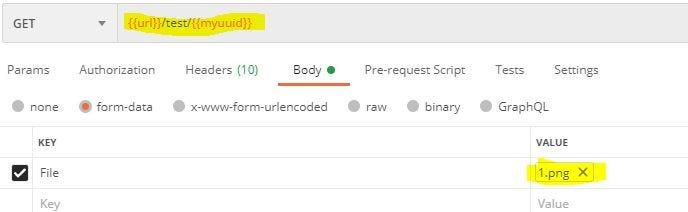
In postman if we check the UI, we notice that there is no way to define file path as variable.
This looks like a limitation when we need to run file from different systems
Solution:
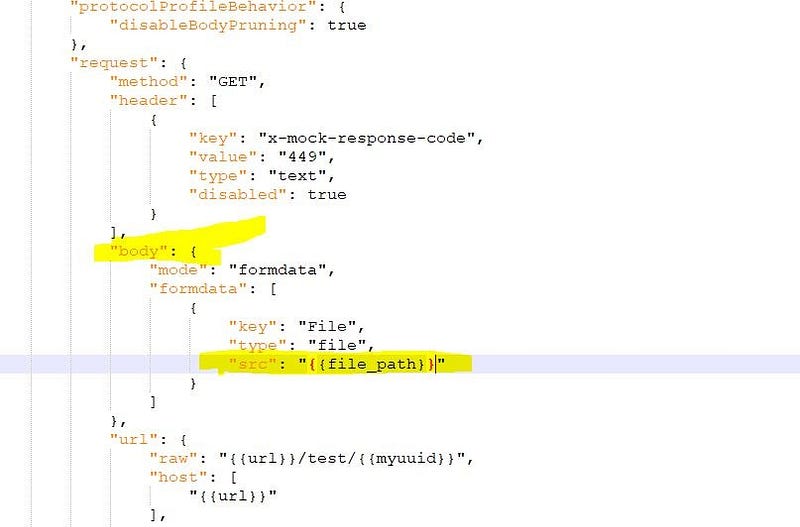
The solution is to hack the collection.json file. Open the json and edit the formdata src and replace it with a variable, let say fire_path so : {{fire_path}}





 Learn with praveen