Appium: Running tests on a device connected to a remote system (uiautomator2)

Architecture:

Credit Github: https://github.com/appium/appium/issues/10503

Here we are running scripts from a remote/local Appium server while the devices are connected to another system in the network.

Setup:

  1. Start adb server in the system in which devices are connected:

Just run the below command in cmd (given adb is available in path)

adb kill-server
adb -a -P 5037 server nodaemon

Appium capabilities:

Now to run appium tests we need to add the below capability:

Try appium inspector from the remote system with below capability (edit all other fields according to your setup except remoteAdbHost,systemport and adbPort)

here remoteadbhost is the remote system which has connected devices, system port is the uiautomator2 server port which is 8021 by default and finally adbport

This will allow you to inspect the remote devices from your local system

{
“platformName”: “Android”,
“appium:platformVersion”: “11”,
“appium:deviceName”: “sr”,
“appium:app”: “C:\\Users\\Downloads\\ApiDemos-debug.apk”,
“appium:automationName”: “UiAutomator2”,
"remoteAdbHost":"192:168.0.7",
"systemPort":8021,
"adbPort":5037
}

Note: when using webdriverio 7 add appium: infront of all the capabilities as its the new syntax for w3c.

Manually testing the remote connectivity:

1. From remote machine run:

Note: Change “192.168.0.7” to the ip address of the system in which devices are connected

on running this you can see the remote devices

adb -L tcp:192.168.0.7:5037 devices

Now you are ready to run the tests:

2. if you run

adb devices

This gives the devices connected local to the system

so to change that you can set the variable ADB_SERVER_SOCKET, to set this from use:

Note: change ip to system in which devices are connected

set ADB_SERVER_SOCKET=192.168.0.7

Now adb devices command gives the remote device details

4.To test if the adb is working remotely run the below command, you will see that call view is opened in the remote device:

just run the below command in cmd of the remote machine

adb shell am start -a android.intent.action.VIEW

How to test chrome in mobile devices without appium:

You can run chrome in android device straight from selenium:

https://chromedriver.chromium.org/getting-started/getting-started—android

First Connect actual device or emulator:

To start emulator follow the below article about installing android-studio:

https://praveendavidmathew.medium.com/android-studio-7174c43708f6

To connect an actual mobile instead then use below article, read about enabling debugger mode:

https://praveendavidmathew.medium.com/android-studio-7174c43708f6

Second make sure you have latest adb version is installed:

download latest from :

https://developer.android.com/studio/releases/platform-tools

the adb will be inside the platform tool folder

Now make sure device is detected and authorized: (these steps are explained in the above mentioned articles)

open the folder in which abd is there and run the below command ./adb

./adb devices

And make sure device shows in the list

make sure it is showing device and not unauthorized:

Now you can run below code:

Here we are using experimental_option “androidPackage” to connect to chrome in mobile device

you can add experimental option (for any binding )

Python:

options = webdriver.ChromeOptions()
options.add_experimental_option('androidPackage', 'com.android.chrome')
driver = webdriver.Chrome('./chromedriver', options=options)
driver.get('https://google.com')
driver.quit()

Java:

System.setProperty(“webdriver.chrome.driver”,””);
ChromeOptions options = new ChromeOptions();
options.setExperimentalOption(“androidPackage”, “com.android.chrome”);
WebDriver driver = new ChromeDriver(options);
driver.get(“https://www.google.com");

You can see how to inspect from desktop here:

https://praveendavidmathew.medium.com/android-studio-7174c43708f6

Getting Started with Appium android

appium

step towards mobile automation….

Description:

Have you always wanted to get into mobile test automation space but was reluctant thinking you have no clue where to start?

Then here you go , a simple article outlining how to setup android emulator and find the locators for the elements using Appium desktop app and Android studio

(The Android Emulator simulates Android devices on your computer so that you can test your application on a variety of devices and Android API levels without needing to have each physical device)

Android Studio

Install Android Studio:

This has the emulator .

https://developer.android.com/studio

Note: you might get an error at the end saying cannot open correctly follow the below step

Open Android studio:

In windows go to the installation folder and open

android studio/bin and double click studio.bat

Change the Target of your android studio

Install SDK in android studio:

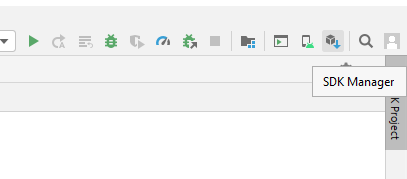
click SDK manager:

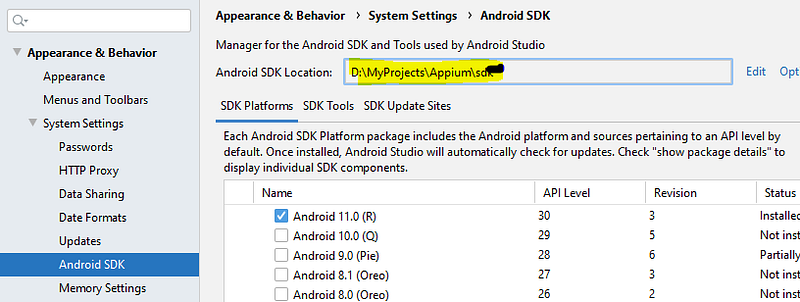
Select the desired SDK android version and click apply.

This will install the SDK:

Set Environment Variables:

goto windows and type edit environment variables and this two environment variable

Add the value as the path to which SDK is installed

Also add D:\MyProjects\Appium\Sdk\platform-tools to PATH

Configure emulator (Virtual device):

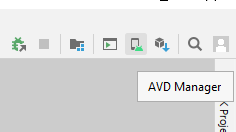
Click AVD Manager

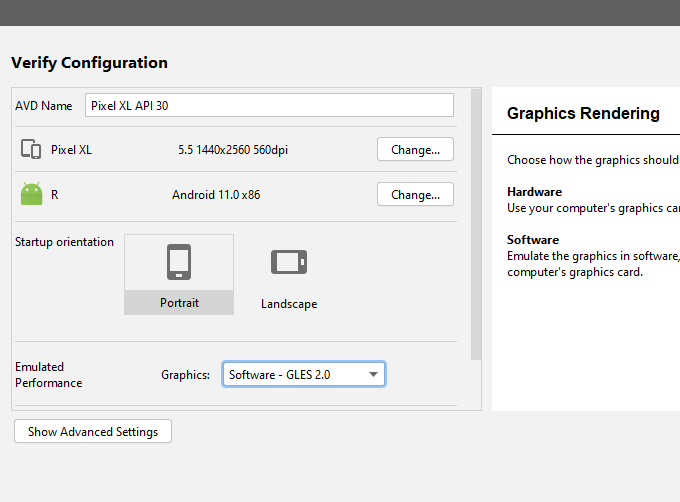
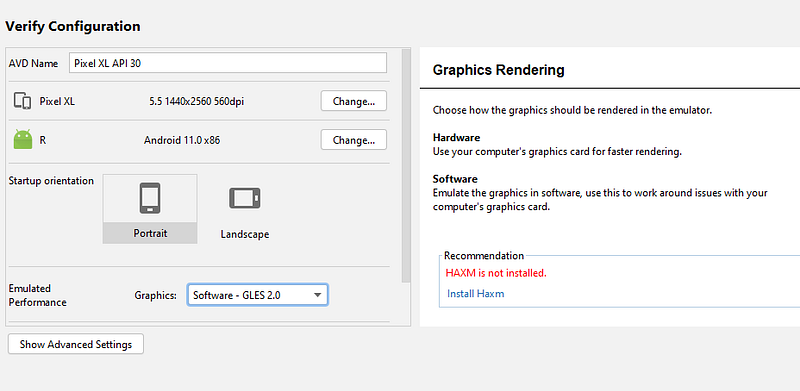
Configure the device as you want and at the end use graphics as software ( use hardware only if you have a graphic card)

Install HAXM:

Hyper-V is a virtualization feature of Windows that makes it possible to run virtualized computer systems on a physical host computer. Intel’s Hardware Accelerated Execution Manager (HAXM). HAXM is a virtualization engine for computers running Intel CPUs.

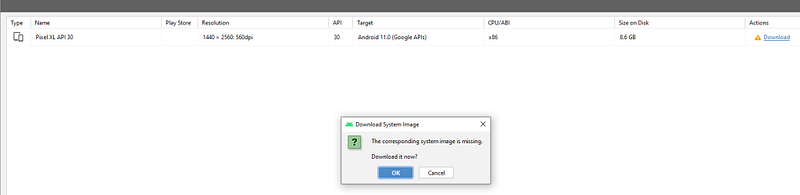
Install system image:

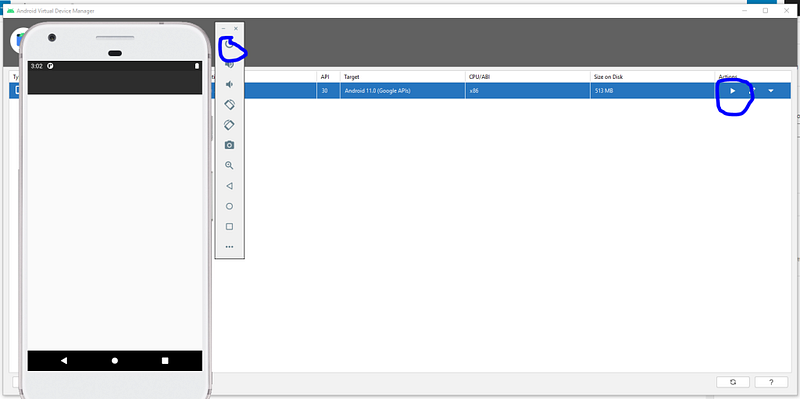
Click play to start the simulator and then power it own:

Note:

If you get abd not found error then goto sdk installation folder delete sdk folder , reinstall sdk by going to sdk manager and select new sdk installation path

Then download https://github.com/appium/appium/raw/master/sample-code/apps/ApiDemos-debug.apk

Goto File>Profile or APK Debug (select Create a newfolder if prompted)

Now goto File > Project structure and

install jdk and select project sdk

Verify Installation:

To verify that all of Appium’s dependencies are met you can use appium-doctor. Install it with npm install -g appium-doctor, then run the appium-doctor command, supplying the --ios or --android flags to verify that all of the dependencies are set up correctly.

Check if device is find by adb driver:

ADB is a command line tool that allows users to control their Android device on their Windows PC, This is like usb driver which allows windows to detect the mobile device.

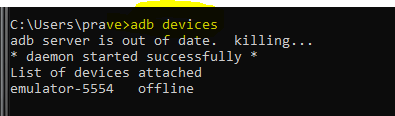
to check if the emulator is detected by the driver use below command

adb devices

Appium and Appium studio :

Appium allows to interact with mobile drivers and through that to the device or emulator

It also has inbuild inspector to inspect the elements locators

Install Appium:

goto : https://github.com/appium/appium-desktop/releases

Find the build with tag latest , download

the windows version

Install appium using npm:

you can also use appium as command line tool using npm , but you need appium studio to inspect elements anyways.

npm install -g appium

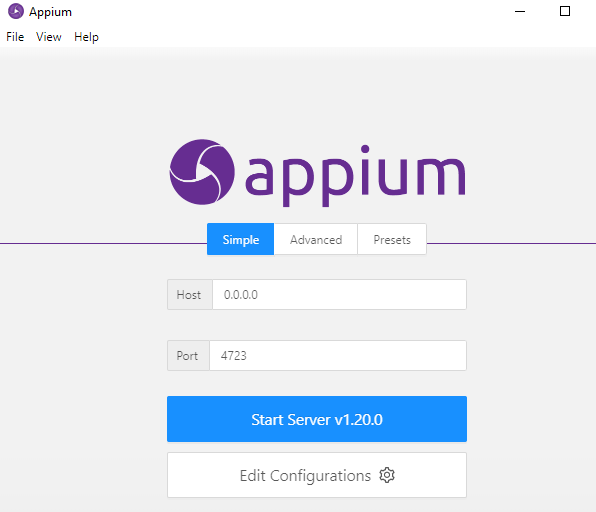
Start Appium studio:

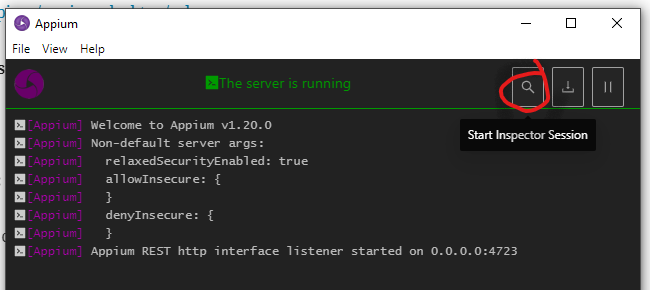
click start server

Open element inspect:

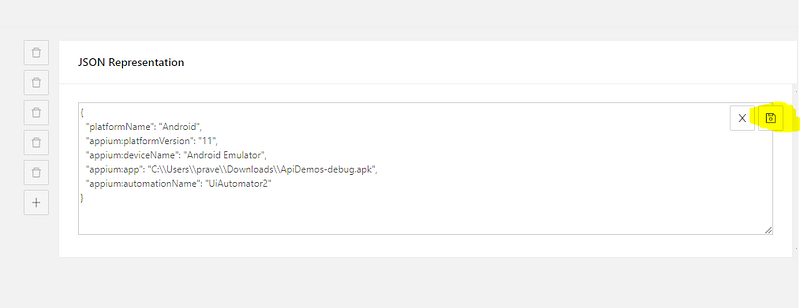
Now add the capability:

click save. and then click start session

Eg capabilities : here we are telling the apk of the app we are testing and all other information.

{
"platformName": "Android",
"appium:platformVersion": "11",
"appium:deviceName": "Android Emulator",
"appium:app": "C:\Users\prave\Downloads\ApiDemos-debug.apk",
"appium:automationName": "UiAutomator2"
}

After starting session , inspect elements:

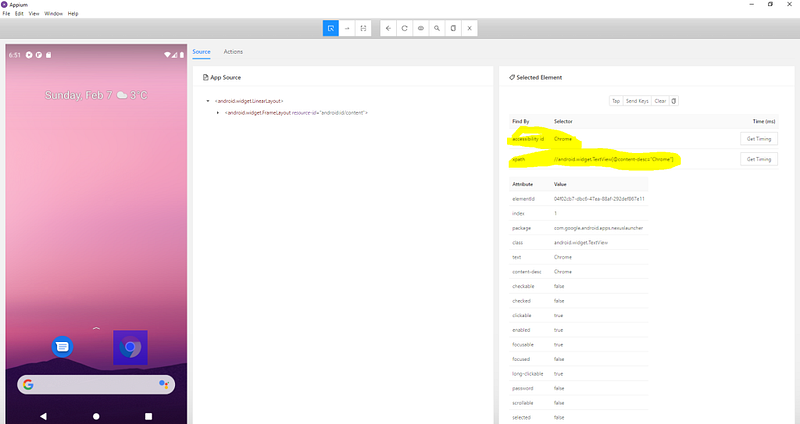
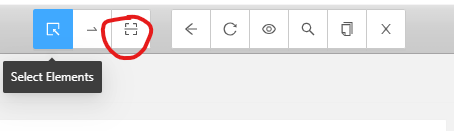
use the select element to find the locator and use red mark option to click any element,

Other buttons are self exploratory can be used to navigate through different views.

IF you want to goto another page just navigate to that page in emulator and click the refresh button 5th icon from left

Finding Current activity locator: ( Thanks to testsigma.com)

Activity is like url in web automation , you can use activity to navigate to a specific page in the app.

in windows use below command:

adb shell dumpsys window | find "mCurrentFocus"

in linux/mac :

adb shell dumpsys window | grep -E 'mCurrentFocus'

Output:

The blue marked part after u0 is the package name and the remaining section is the activity name

The end:

In the coming articles we will see how to use this information in the web autoamtion:

How to connect OnePlus 6 to Appium studio.

https://experitest.com/mobile-test-automation/appium-studio/

Enable Developer mode in Oneplus:

Navigate to Settings>About and click Build Number multiple time

<you will get a message pop saying developer mode enabled>

Enabled Remote Debugging:

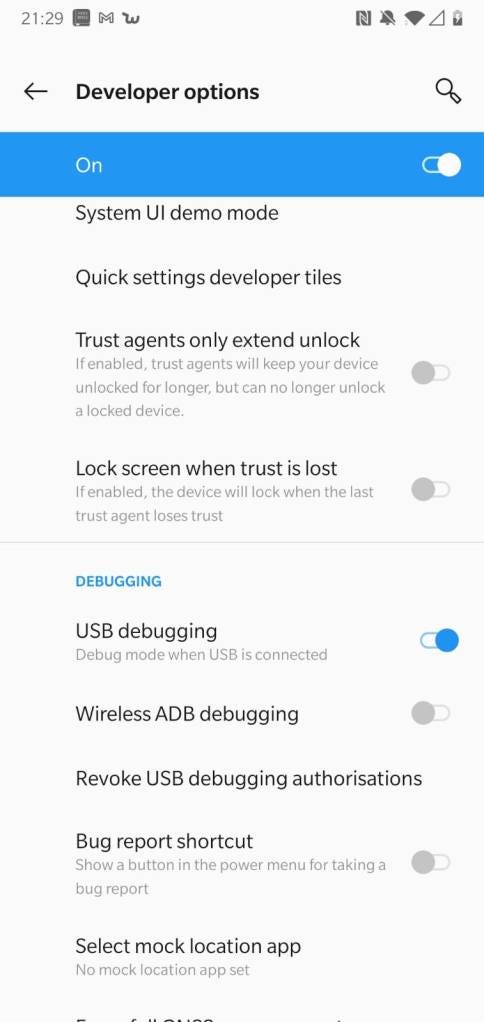
Goto Settings>System>Developer options>Debugging>USB Debugging and enable it:

Now search for device:

Open cmd and run:

adb devices

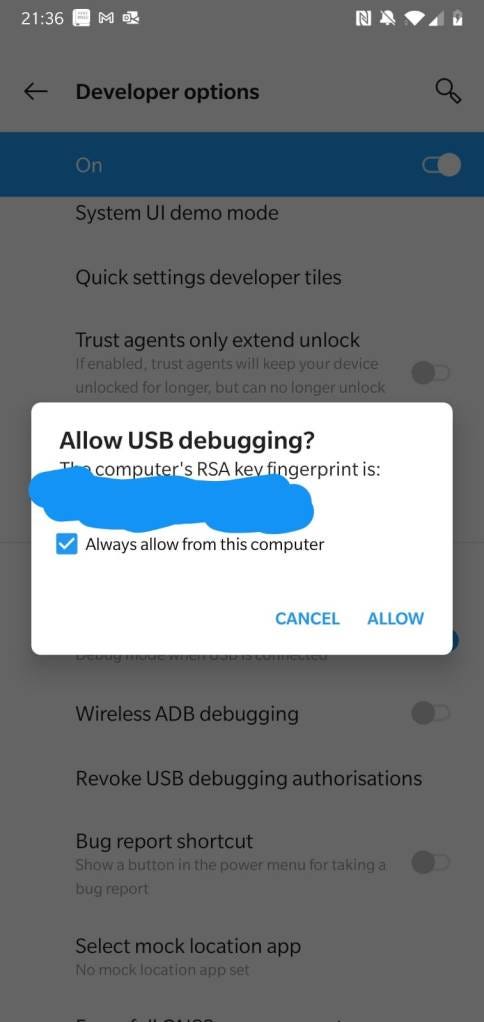
You will get prompt in phone for authorization accept it:

Select always allow from this computer

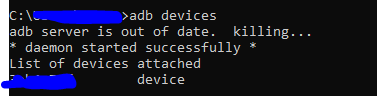
The output of abd devices command should be like:

Accept the prompt and execute the command till you get device instead of unauthorized as output of the command:

Open Appium studio:

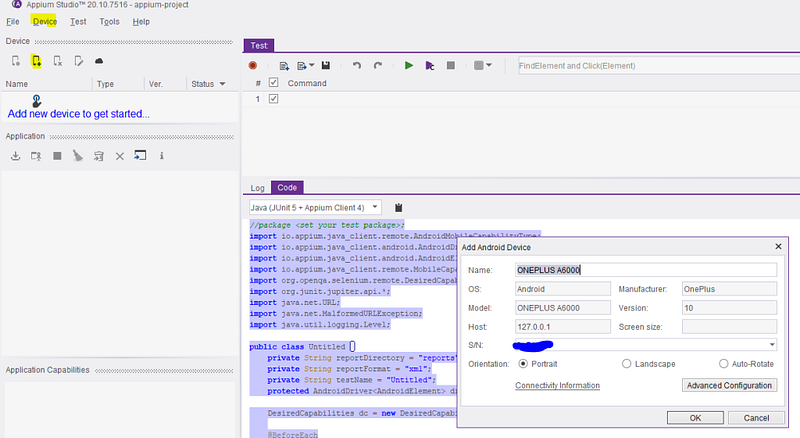
Click Device>Android ( you can use the icon also for adding)

You don’t have anything to configure just click OK

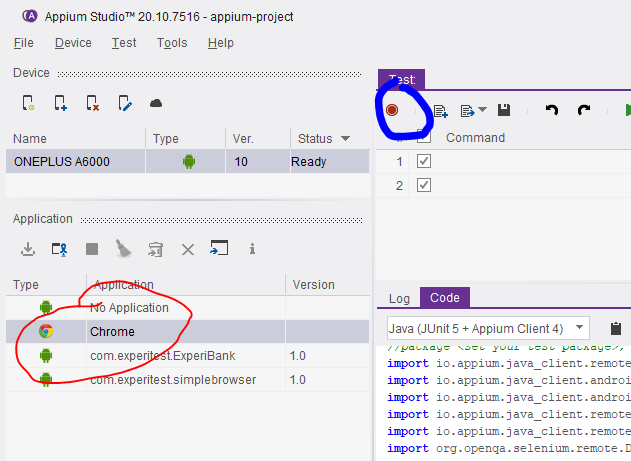
Now click chrome and click record button:

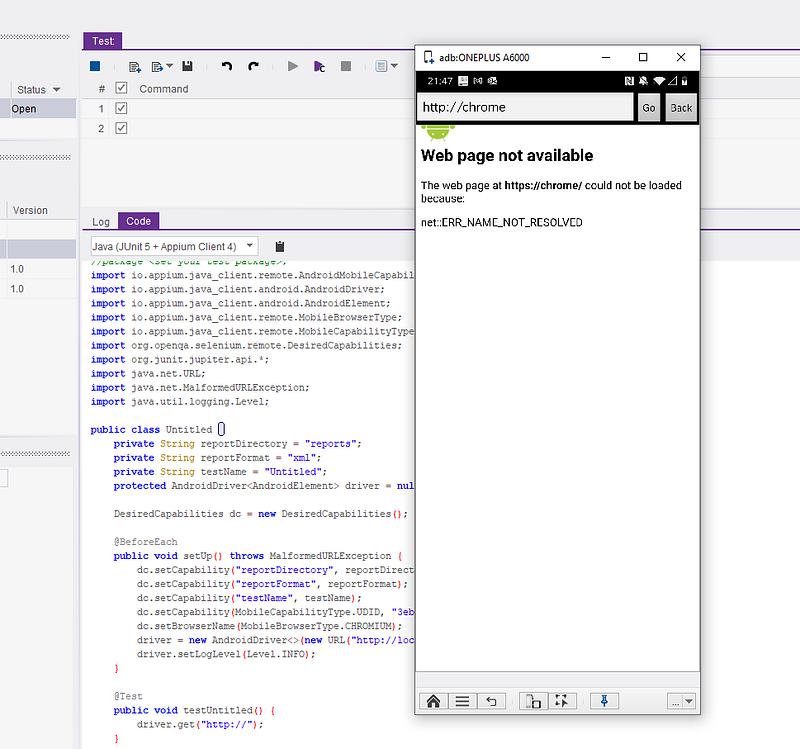
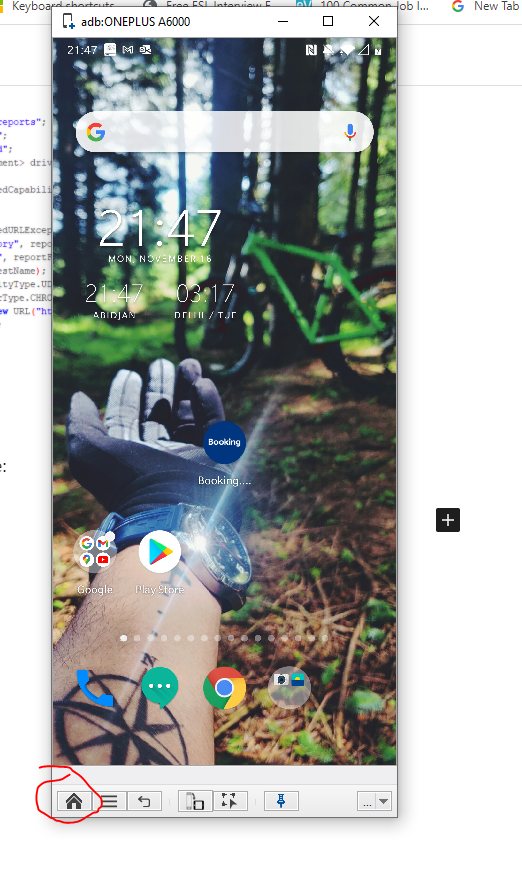
Now see the screen: 😀

You can click home button to goto home:

I hope you love my cycle and Tattoo 😀


Originally published at http://learnwithpraveen.home.blog on November 16, 2020.