Now lets see Loops and conditions in JavaScript

IF:

Syntax:
if (expression) {
Statement(s) to be executed if expression is true
}
Example:
let x = 5; 
if(x>4){
document.write(x)
}

ELSE:

Syntax:
if (expression) {
Statement(s) to be executed if expression is true
} else {
Statement(s) to be executed if expression is false
}
Example:
let x = 5; 
if(x>4){
document.write(x)
} else{
document.write("No");
}

ELSE IF:

Syntax:
if (expression 1) {
Statement(s) to be executed if expression 1 is true
} else if (expression 2) {
Statement(s) to be executed if expression 2 is true
} else if (expression 3) {
Statement(s) to be executed if expression 3 is true
} else {
Statement(s) to be executed if no expression is true
}
Example:
let x = 2; 
if(x>4){
document.write(x)
} else if (x>1){
document.write("No");
} else{
document.write("maybe")
}

Switch Case:

Syntax:
switch (expression) {
case condition 1: statement(s)
break;

case condition 2: statement(s)
break;
...

case condition n: statement(s)
break;

default: statement(s)
}
Example:
let a =1
let b= 4
switch (a+b){
case 2: document.write("2")
document.write("2 test")
break;
case 4: document.write("4")
document.write("4 test")
break;
case 5:
document.write("5")
document.write("5 test")
break;
default: document.write("invalid")
}

While Do:

Syntax:
while (expression) {
Statement(s) to be executed if expression is true
}
Example:
let a=5
while (a>0){
document.write(a+"W")
a--
}

Do While:

Syntax:
do {
Statement(s) to be executed if expression is true
} while (expression)
Example:
let a=5
do {
document.write(a+"W")
a--
} while (a>10)

For Loop:

Syntax:
for (initialization; test condition; iteration statement) {
Statement(s) to be executed if test condition is true
}
Example:
for(i=5; i>0;--i){
document.write(i)
}

For..in (Iterating through object with enumerable properties) :

This should be used only with objects that have elements stored as key value pairs, else if used with normal arrays, the index of the elements will be printed instead

Syntax:
for (variablename in object) {
statement or block to execute
}
Example:
var test= {a: 1, b: 2, c: 3}; 
var test2= [10,11,15]
for (a in test) {
document.write(a+"<br />");
// will print the key value of the elemnt (output is abc)
}
 for (a in test2) {
document.write(a+"<br />"); // will print 0,1,2 (index value)
}

For..of (Iterating through object) :

Syntax:
for (variablename of array) {
statement or block to execute
}
Example:
var test2= [10,11,15]
for (a of test2) {
document.write(a+"
"); // will print 10,11,15 (actual value)
}

Loop Control:

Continue, Break and label:

Continue:

  1. Continue keyword skips all the remaining code and navigates to next iteration
  2. Continue can be used only inside iterative blocks eg for, while , do..while , and for in, it cannot be used in switch and normal code block

In below code , document.write will be executed only if a!=1 , if a==1 , then the remaining code is skipped and the for loop goes to the next iteration.

Example:
let test=[1,2,3,4,6];
for (a in test) {

if(a==1){
continue;
}
document.write(a+"<br />"); // <br /> indicates next line
}

Break:

  1. Break is used to skip remaining code and iterations
  2. Once break is encountered, the code exists from the loop and continues with the outer code

The below code prints only 1 and 2, and on encountering 3, it exists from the loop and prints ‘exited’

Example:
let test=[1,2,3,4,6];
for (a in test) {
if(a==3){
break;
}
document.write(a+"<br />"); // <br /> indicates next line
}
document.write("exited");

Label:

  • Javascript allows controlling the continue and break code flow using labels
  • labels are used to identify loops or block and correctly specify which loop to break or continue
  • Any non reserved keyword could be used as label

In below code the inner loop is exited on getting a=3 and outer loop is broke when b=”c”

Here, we have labeled inner loop as inner and outer as outer.

Example:
let test=[1,2,3,4,6];
let test2=["a","b","c","d","e"];
outer:
for (b of test2){
inner:
for (a of test) {
if(a==3){
break inner;
}
if(b=="c"){
break outer;
}
document.write(a+ "<br />"); // indicates next line
}
document.write(b+ "<br />"); // indicates next line
}
document.write("exited");

You can use continue the same way to tell the loop to skip remaining lines and goto next iteration of the specified loop.

Example:
let test=[1,2,3,4,6];
let test2=["a","b","c","d","e"];
outer:
for (b of test2){
document.write(b+ "<br />"); // indicates next line
inner:
for (a of test) {
if(a==3){
continue outer;
}
if(b=="c"){
break outer;
}
document.write(a+ "<br />"); // indicates next line
}
}
document.write("exited");

Label could also be used with block

here we labeled the block ( code between { }) as foo, and in the second line we are existing this block so the third line within the block will not get executed.

foo: {
document.write('face'+"<br />");
break foo;
document.write('this will not be executed');
}
document.write('swap');
Lets begin with some highlevel JavaScript basics :)…

Java script simple statements could be ended without semi colon

Statements:

Both the below statements are valid

var a= 6;
var a=5

you could use ‘;’ semicolon to write multiple statement in single line

var1 =10;var 2=23;var 5= 9

Java script is case sensitive, meaning ‘Time’ and ‘time’ are two different elements.

Comments:

//single line comment
/* multi line statement
can be made like this */

html comment closing ‘ → ‘ is not detected by Javascript

Data Types:

Primitive:

JS following primitive data types:

  • Numbers — 1,2,3 ( Java script does not have separate representation for floating point and whole numbers, all the numeric are represented as floating points (Eg: 2.0)
  • Strings — “name”
  • Boolean — true or false

also supports ‘null’ and ‘undefined

Composite

JS also so support data type called ‘object

Declaring variables:

Variables are elements that store data and helps in re-usability

In JS , variables needs to be declared before it could be used. In JS , variable declaration could be made mainly using three keywords and are :

  1. var
  2. let
  3. const

Note: JS is dynamically typed (untyped) , meaning data type is detected dynamically. For instance, if for below variables , we store username = 1 and password = “we”; then the data type of username will be taken as Number and password as string.

Using Var

var username
var password

Multiple variable declaration in a single line is also permitted

var username,password,url

Note:

  • Variables declared with var are function scoped.
  • Could be modified
  • Could be re-declared ( It will replace the previous variable)
  • Does support hoisting (meaning that , if the variable is called before declaring , then JS will automatically declare and initialize it with value ‘undefined’)
console.log(username)
var username = "user"
// This prints "undefined" because java script changes this code internally as 
var username = undefined
console.log(username)
username = "user"
//This is called hoisting

Using let:

let username;

Note:

  • Variables declared with let are block scoped.
  • Could be modified
  • Could not be re-declared ( It will replace the previous variable)
  • Does not support hoisting. Variable should be declared before it could be used

Using const:

const username;

Note:

  • Variables declared with const are block scoped.
  • Could not be modified
  • Could not be re-declared ( It will replace the previous variable)
  • Does not support hoisting. Variable should be declared before it could be used

To know more read : ( Read : https://medium.com/@toddhd/javascript-understanding-the-difference-between-var-let-and-const-d0390da913 )

Variable Scope:

JavaScript only two scope :

  • Global — Available anywhere in the code
  • Local — Available only to the local function in which its defined

Variable naming rules:

Operators in JavaScript:

  • Arithmetic Operators

+ , — , * , / ,% , ++, —

  • Comparison Operators

==, !=, > , <, >=, <=,

  • Logical (or Relational) Operators

&& (AND) , || (OR), !

  • Assignment Operators

=, += (add and assign), -=, *= ,/=, %=

  • Conditional (or ternary) Operators

?:

eg: a==b? true:false

  • Bitwise Operators

Writing first test script and chaining outputs between scripts.

Till now , we have executed requests but have not written any testscripts. Meaning, there were no validation steps to verify whether the request passed or failed.

Now let us see who to do this. Let us write our first test script.!!!! 🙂

Automation tests with Postman:

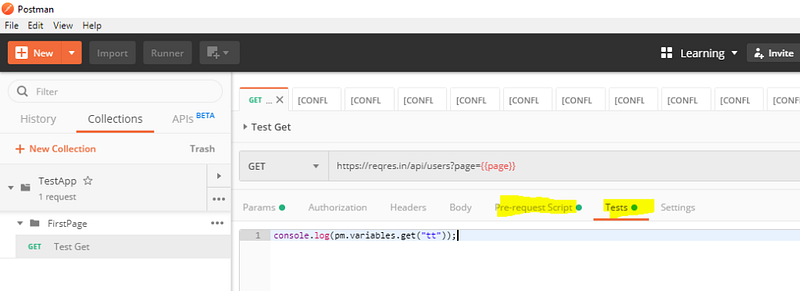
There are two parts were we can write the scripts for our tests.

  1. Pre-request script
  2. Tests

Here pre-request script act as the test setup script, meaning, it will get executed before the tests. So if you have any pre-requisite like creating user variable or validating whether a user variable value exists, you can do it here.

Tests are were we write the actual tests, it get executed after we get the response.

Writing first Test script:

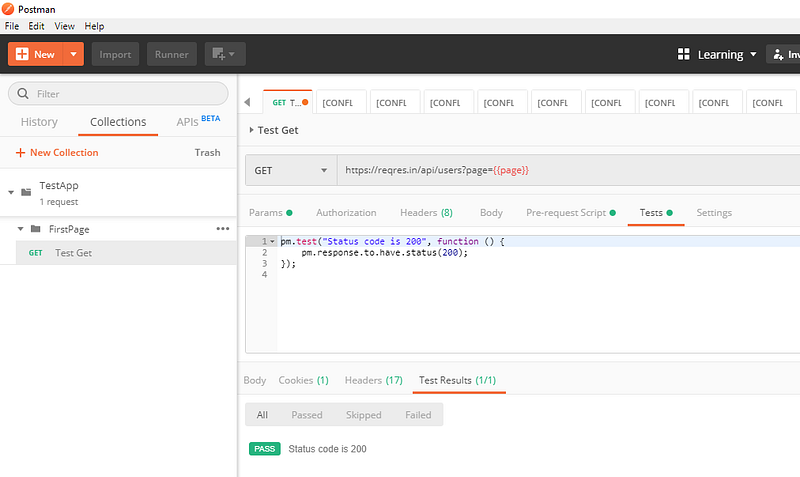
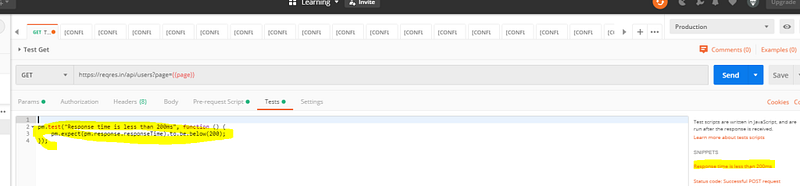
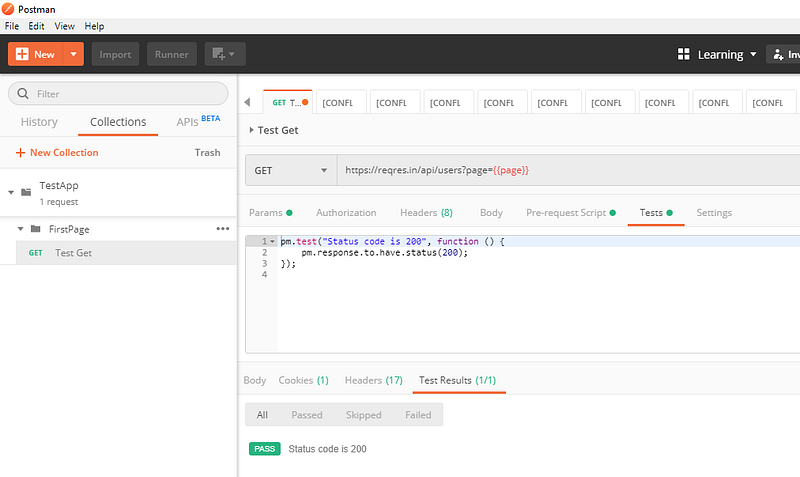
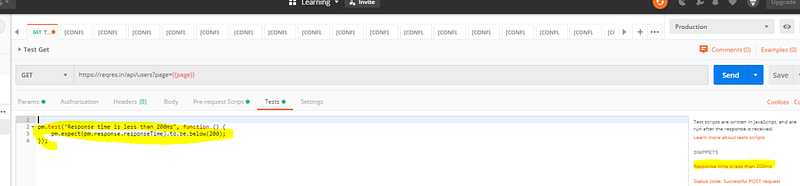
The syntax of writing tests are as follows:

pm.test("Test_case_description", function () {
    <Validation steps!> ( The steps are available as test snippet you just need to select it )
});

Note:

We can write tests at both the places ( Pre-request or Tests) but as tests are meant to be validating the user action, it should be written at the ‘Test’ tab so that it will be executed only after the action is completed.

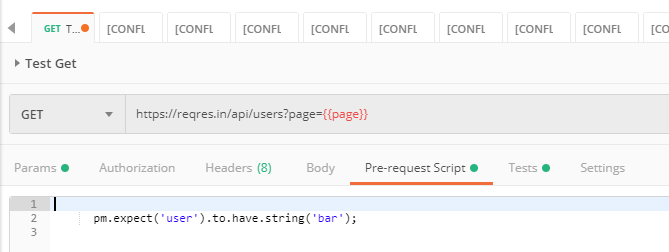
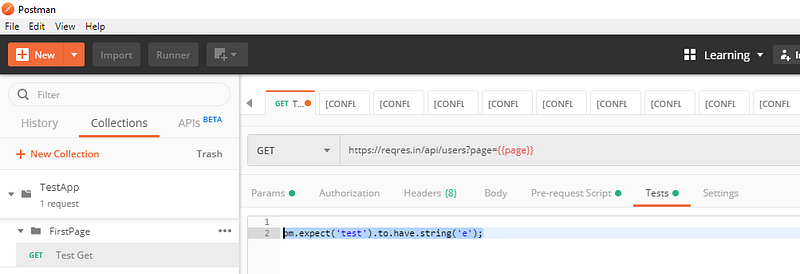
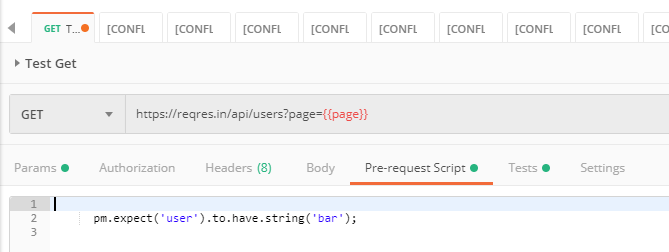
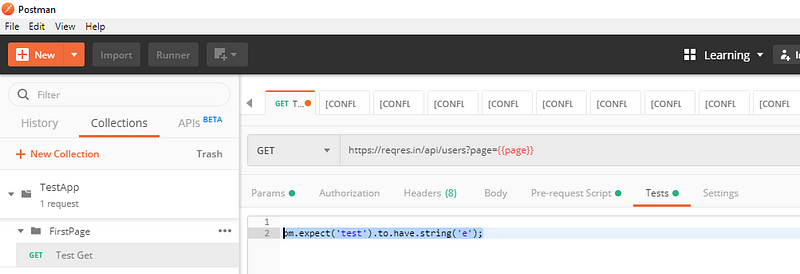
Postman pm.test function expects different exceptions and passes or fails the test accordingly. You can try running just the below command without the ‘pm.test’ enclosed and observe that on sending the request an assertion is thrown.

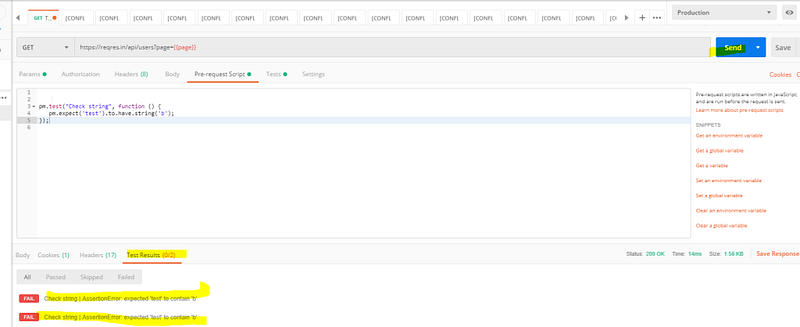
(The below script is to validate whether the text ‘test’ as sub-string ‘b’ in it.)

pm.expect('test').to.have.string('b');

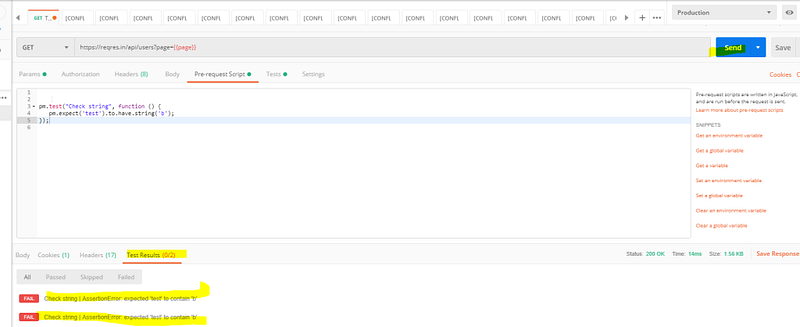
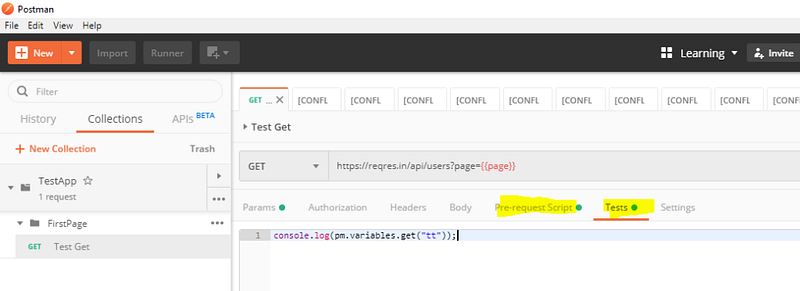
Now enclose the command in pm.test as below on both pre-request and Tests tab:

pm.test("Check string", function () {
   pm.expect('test').to.have.string('b');
});

Now send the request and you will observe that two tests were executed.

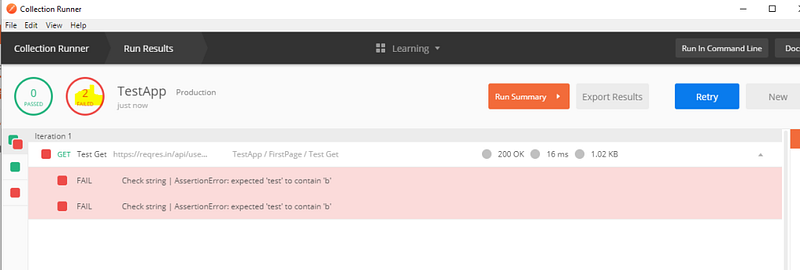
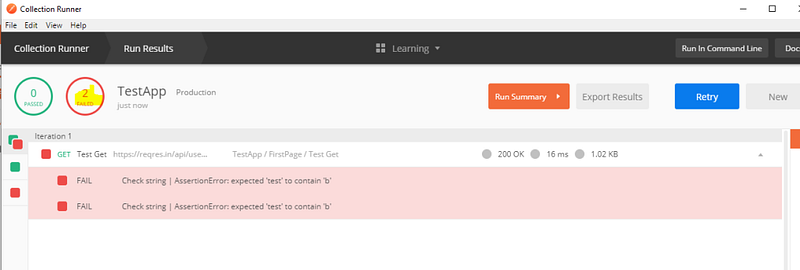
Run the same using collection runner (Make sure to click save before running runner):

Chaining the response together:

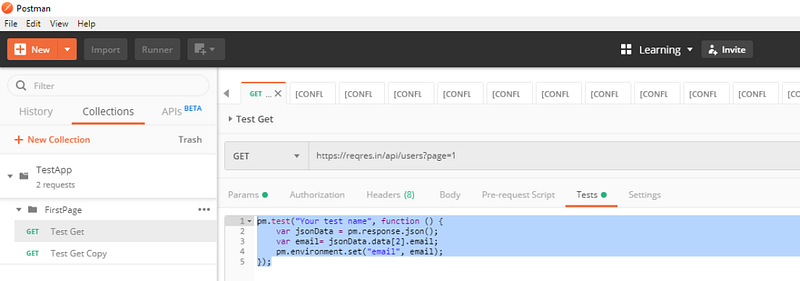
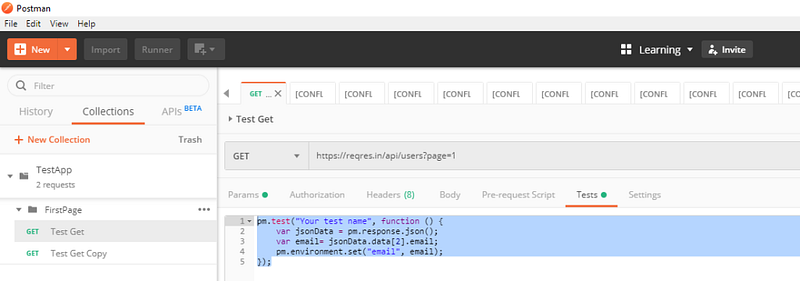
Get the data from response body and store it in an environmental variable:

pm.test("Get email", function () {
    var jsonData = pm.response.json();
    var email= jsonData.data[2].email;
    pm.environment.set("email", email);
});

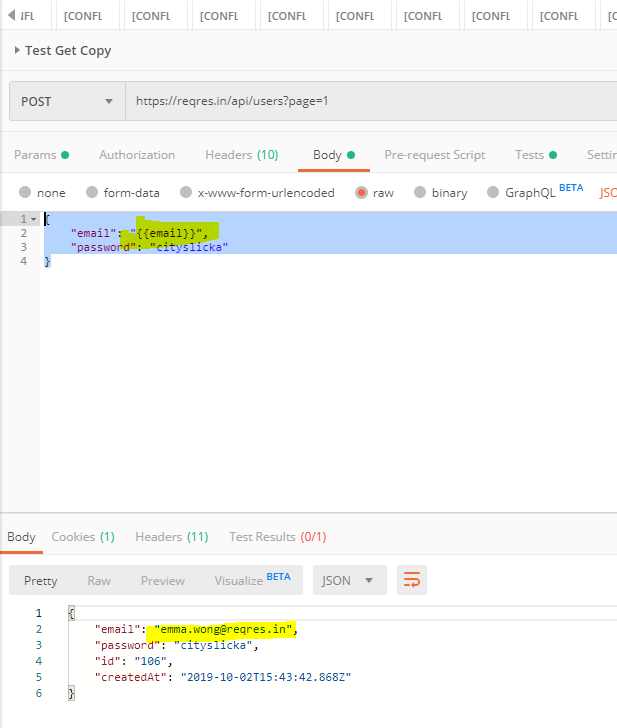
Use this environmental variable in next test.

{
    "email": "{{email}}",
    "password": "cityslicka"
}

Till now , we have executed requests but have not written any testscripts. Meaning, there were no validation steps to verify whether the request passed or failed.

Now let us see who to do this. Let us write our first test script.!!!! 🙂

Automation tests with Postman:

There are two parts were we can write the scripts for our tests.

  1. Pre-request script
  2. Tests

Here pre-request script act as the test setup script, meaning, it will get executed before the tests. So if you have any pre-requisite like creating user variable or validating whether a user variable value exists, you can do it here.

Tests are were we write the actual tests, it get executed after we get the response.

Writing first Test script:

The syntax of writing tests are as follows:

pm.test("Test_case_description", function () {
    <Validation steps!> ( The steps are available as test snippet you just need to select it )
});

Note:

We can write tests at both the places ( Pre-request or Tests) but as tests are meant to be validating the user action, it should be written at the ‘Test’ tab so that it will be executed only after the action is completed.

Postman pm.test function expects different exceptions and passes or fails the test accordingly. You can try running just the below command without the ‘pm.test’ enclosed and observe that on sending the request an assertion is thrown.

(The below script is to validate whether the text ‘test’ as sub-string ‘b’ in it.)

pm.expect('test').to.have.string('b');

Now enclose the command in pm.test as below on both pre-request and Tests tab:

pm.test("Check string", function () {
   pm.expect('test').to.have.string('b');
});

Now send the request and you will observe that two tests were executed.

Run the same using collection runner (Make sure to click save before running runner):

Chaining the response together:

Get the data from response body and store it in an environmental variable:

pm.test("Get email", function () {
    var jsonData = pm.response.json();
    var email= jsonData.data[2].email;
    pm.environment.set("email", email);
});

Use this environmental variable in next test.

{
    "email": "{{email}}",
    "password": "cityslicka"
}

First steps with Postman…

Ok lets start working with postman!!!!

Install Postman:

https://www.getpostman.com/downloads/

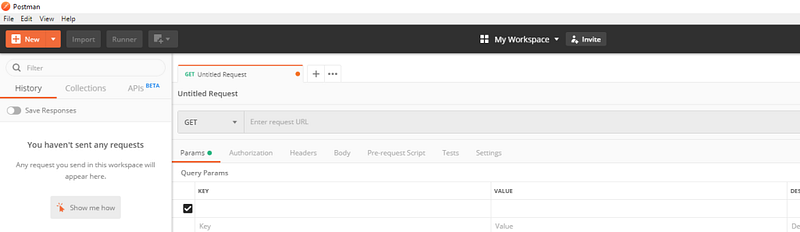
Open Postman:

Create Workspace:

Work space allows you to organize your work. It creates a separate working space where you group all your works including tests,collections, environments etc ( will learn as you read on).

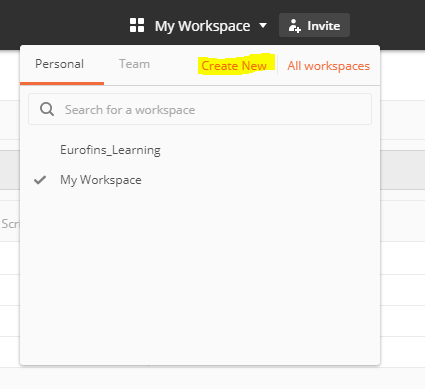
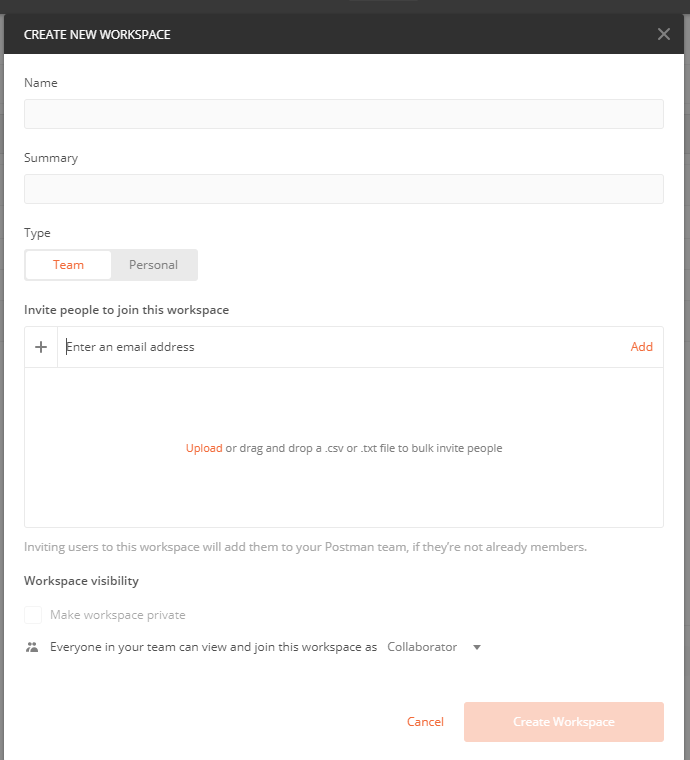
Click My work space and select create New workspace

Note: Workspace could be personal, private or Team. Personal will be available only to you, shared will be available to everyone else with the invitation link and private is enterprise version and allows team members who were invited by you to be part of the workspace.

Team workspace and My Workspace are default workspace and cannot be deleted. To delete other workspaces, goto All workspace (will be opening in browser) and select delete by click ing the meatball menu.

Create Collection:

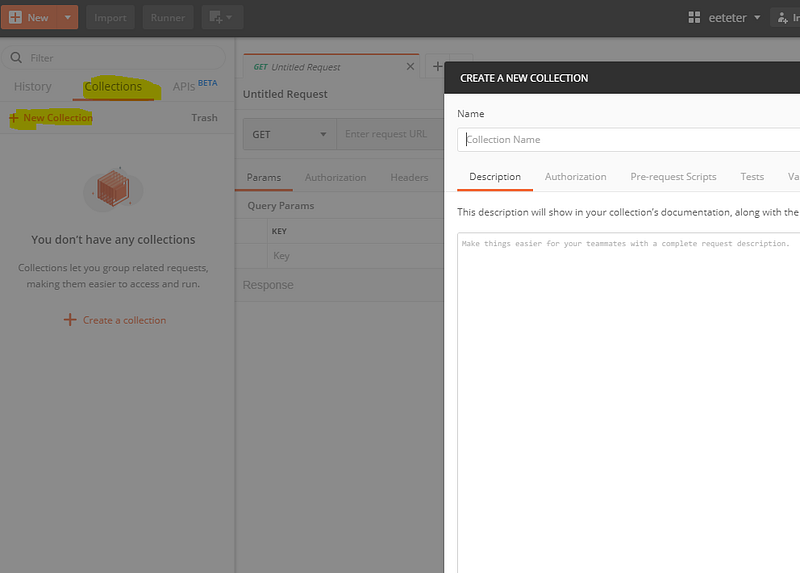
Collection allows to group your requests together in a logical order. It could be seen as the test suite level and we will have individual requests as the tests.

You also create folder inside postman to group your tests more efficiently for example :

Collection name be “Android FaceAPP”

And Folder name be “Test_LoginFeature”

Click collections>New collections for creating new collection

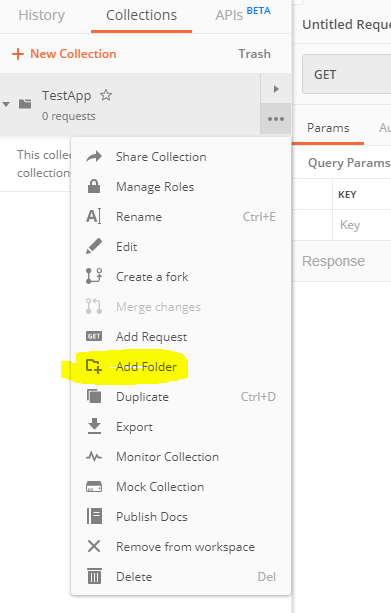
Click meatball menu> Add folder, to create folder

Create your first request:

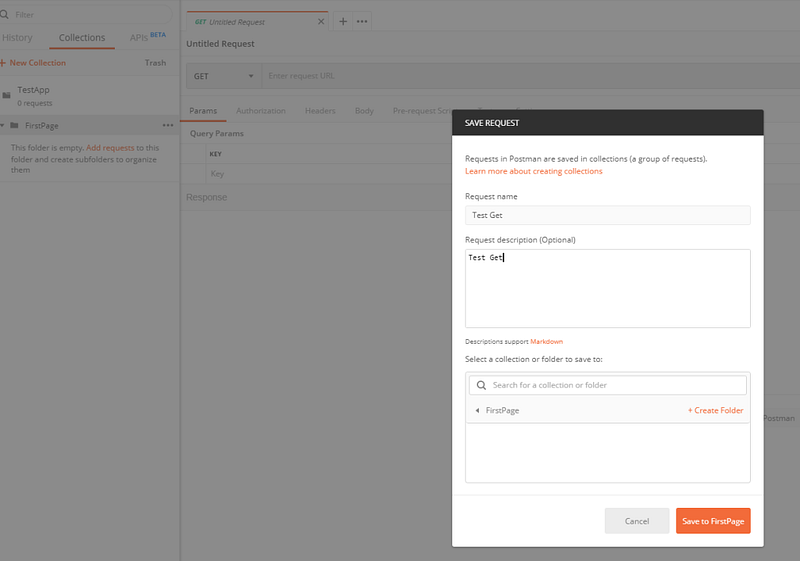
Create a new request by clicking New or by using meatball menu corresponding to the desired collection and folder.

Add the request details:

And click save ( don’t forget to click save else the request won’t be saved onto collection- folder hierarchy)

Then click send.

Note: Use https://reqres.in/ to get API for practice.

Running Collection Runner:

So you can create as many requests as you want, now imagine you have to execute all this requests in order.

You can do this by using collection runner.

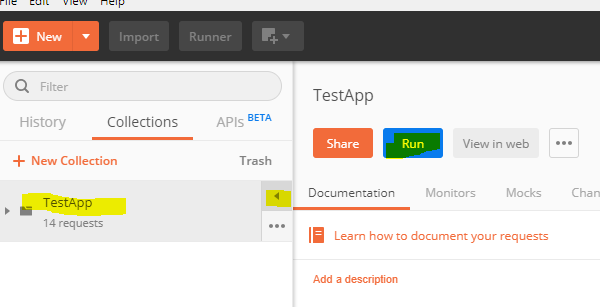
Click on the collection you want to run and click play icon, and click run.

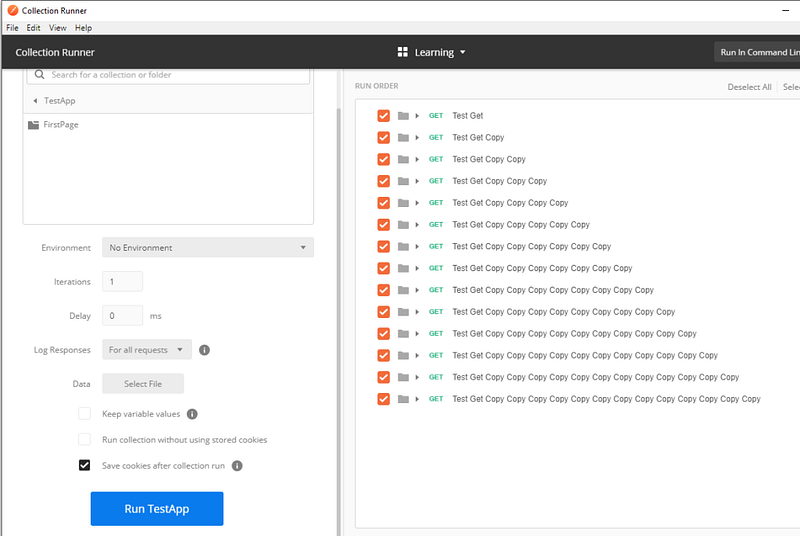
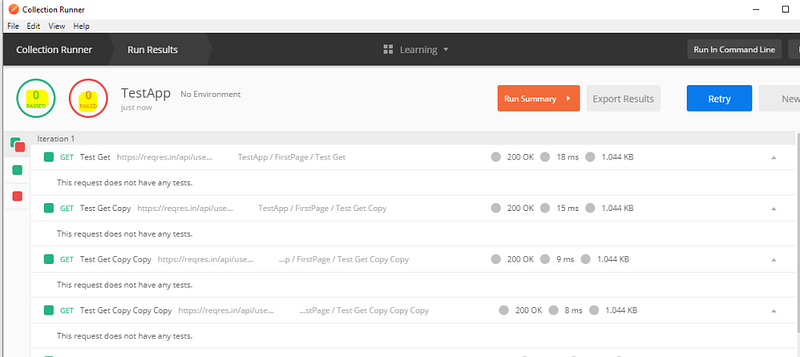
The below window opens up and now click run <collectinname>

This will execute all requests in the collection and shows the result.

Note: Here test results shows ‘0’ passed and failed as there were no validation scripts added. We will learn it in next sections.

Running collections from command line:

For running collections through command line we need to use newman tool

To install newman you need npm (npm is installed as part of nodejs installation , Install here) and then use the below command:

npm install -g newman

Note: make sure that nodejs modules are in path or else add it to path , to ensure newman command is recognized from cmd.

Now to run the tests from command line create a share link or export collection as json

Through Share link:

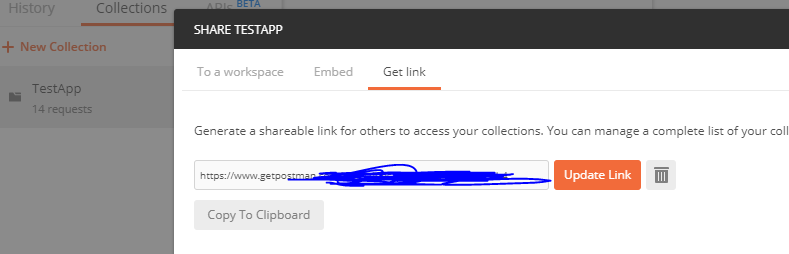
Click the collection’s meatball menu and click share and navigate to ‘Get link’ and generate a link.

copy the link address and run the command:

newman run <link_address>

Through json:

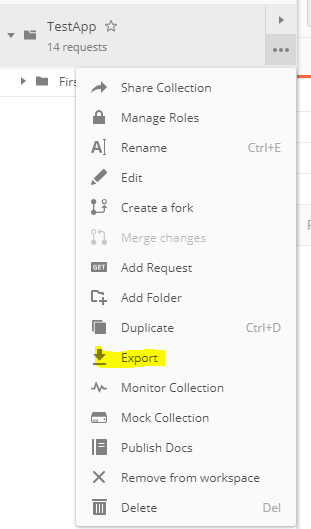
Click the meatball menu and select export, this creats a json file for the collection

now run

newman run <full_path>/TestApp.postman_collection.json

Note: This could be used for running postman in CI/CD pipeline

HTML Reporting

We have seen how to run postman through command line using newman ( just npm install newman and use command ‘newman run <collection>.json’ or url)

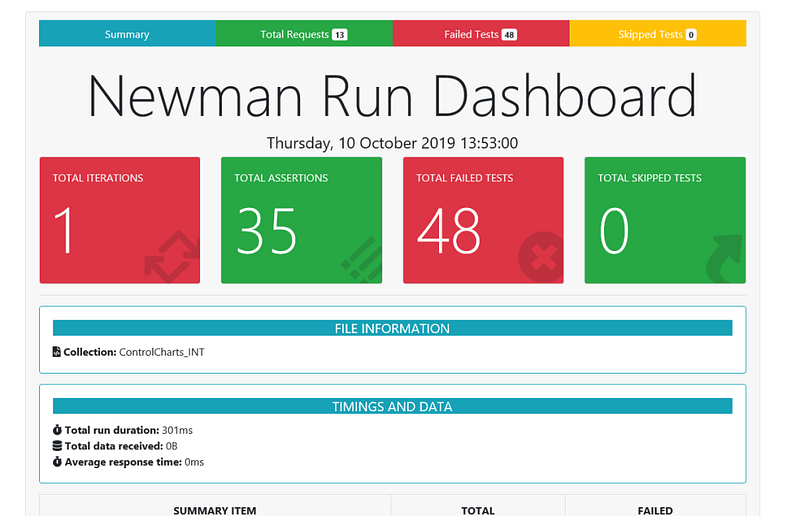
To get html reporet install newman-reporter-htmlextra

npm install -g newman-reporter-htmlextra

Now run the scripts as

newman run <collection_file>.json -r htmlextra