in this approach, the libraries are initialized in the local scope, so if you want to use them again then you have to run the 3 lines of code again in other script sections whenever it’s used.
Second approach:
new Function triggers function in the global scope. so you just have to execute the first two lines only ones in your collection run and it will be available globally throughout:
There is no inbuilt way to specify a specific iteration row to be executed using Newman, but can be done using Powershell or by using Newman as a library.
The approaches are as below
Powershell:
here we read the actual csv file in the current directory using import csv
Then considers only row 1..2 , if you just want 1 row you can change $a[1..2] to $[1]
    it('Validate that error message in all fields given uploaded {Regression} {Smoke} {Sanity}', async function () {
        await stage1.goto()
        await stage1.sendValue('hi')
        await browser.sleep(5000)
    });
Note:
This works even if the page object is defined as a function
For protractor-cucumber add the same in before hook :
you should add the hook in the step definition file itself and not in separate hook.js:
"use strict";
let {Given,Before} = require('cucumber');
let decache = require('decache');
let stage1 = require('../pageobjects/stage1.js');
Before(async function (scenario) {
  decache('../pageobjects/stage1.js');
  stage1 = require('../pageobjects/stage1.js');
  await browser.sleep(4000)
});
 Given('I navigates to google', async() => {
     await stage1.goto()
   });
let parser = require('csv-parser-sync-plus-promise')
Use as sync:
let a=parser.readCsvSync('')
Use as Promise:
let b=parser.readCsvPromise('')
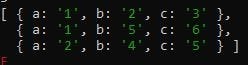
it('test {Regression} {Sanity} {Sanity}', async function () {
console.log(await b);
});
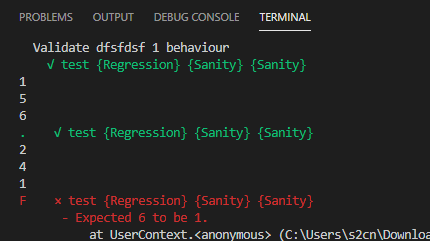
Protractor test:
Use the demo csv ‘1.csv’
'use strict';
let parser = require('csv-parser-sync-plus-promise')
let testdata=parser.readCsvSync('<full_path>/1.csv');
describe('Validate dfsfdsf 1 behaviour', function () {

  for(let i of testdata){
    it('test {Regression} {Sanity} {Sanity}', async function () {
    console.log(i.a);
    console.log(i.b);
    console.log(i.c);
    expect(Number(i.a)+Number(i.b)).toBe(Number(i.c))
    });
  }
});
cucumber :npm install cucumber (If protractor was installed locally else use npm install -g cucumber). Both protractor and cucumber should be in same scope.
//set cucumber options
cucumberOpts: {
     require: ['./testsuites/*.js','./commons/chaiAssertions.js','./commons/hooks.js'],
     strict: true,
     format: [],    //don't put 'Pretty' as it is depreciated
     'dry-run': false,
     compiler: [],
     format: 'json:results.json',    //make sure you are not using multi-capabilities
   },
SELENIUM_PROMISE_MANAGER: false,
 };
Here, i point to the feature file using the property specs: [‘feature/*.feature’],
and glues it to the step definition using cucumberopts> require:
There is no one to one mapping between feature and step definition, the framework automatically finds the step definition that contains the definition for the step from provided step definitions(.js files) in the require field.
Now write feature file:
test.feature
Feature: Google search
 Scenario Outline: Log in with given API
     Given I navigates to google
     And searches for '
'
     Then I should see ''
 Examples:
 |input|this|
 |test|pass|
 |test2|fail|
Now write step definition:
step.js:
var { Given } = require('cucumber');
 Given('I navigates to google', async function () {
   await browser.get('https://www.google.com/');
 });
 Given('searches for {string}', async function (searchValue) {
   await element(by.css('input[role="combobox"]')).sendKeys(searchValue)
 });
 Given('I should see {string}', async function (expectedValue) {
   expect(expectedValue).to.equal('pass')
 });
so here we are using just Given as during runtime Given ,when then etc will be ignored and only the string after that will be considered
So, even if our feature file has And searches for ‘input’ , we can write step definition as Given(‘searches for {string}’.
Note that we are not using regular expressions to get parameters but the data type.
you might have seen in other tutorials , Given( /^searches for (\w+)$/ ). Its simpler to use the format i have used Given(‘searches for {string}’. Both the approaches works works fine.
But still, you can continue reading and see any of the features would be useful for you:
First, let us see why need reporting
Imagine you have written thousands was of wonderful test cases and you have put up it in CI/CD pipeline. You must be feeling proud right? and here the news that the first test runs for the suites you have written will run over the night and you get all excited.
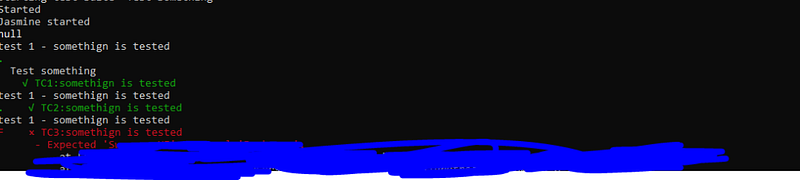
Next day you come to the office and sees the below console logs:
And you have no clue what passed, what failed because the execution got interrupted and was not completed.
Printing test status and logs after each test-case execution:
Add the below code to the protractor config file:
This enables real-time reporting, allowing to print errors onto console without having to wait for the test suite to finish executing.
// so the xml file will be stored in current directory as guitest-xmloutput
Output:
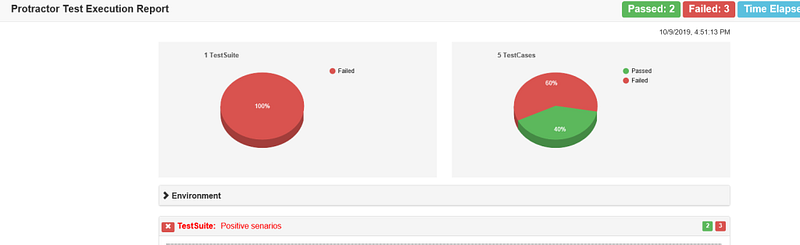
Lets now create a HTML report
This report can’t be send to a Business analyst or any other non-tech guy right!!! lets add some visual treats using HTML.
The below npm tool takes the xml file we created in the previous section and converts it too HTML. The result will be stored in the current directory as ProtractorTestReport.html
The code gets browser name, version etc from the capabilities property, and the suite and test case name, from ‘describe’ and ‘it’ functions in spec.
You can install the tool through npm:
npm i protractor-html-reporter-2
Now add below code to conf.js
exports.config = {

   onComplete: function() {
     var browserName, browserVersion;
     var capsPromise = browser.getCapabilities();
if (expression) {
   Statement(s) to be executed if expression is true
}
Example:
let x = 5;
if(x>4){
    document.write(x)
  }
ELSE:
Syntax:
if (expression) {
   Statement(s) to be executed if expression is true
} else {
   Statement(s) to be executed if expression is false
}
Example:
let x = 5;
if(x>4){
    document.write(x)
  } else{
document.write("No");
}
ELSE IF:
Syntax:
if (expression 1) {
   Statement(s) to be executed if expression 1 is true
} else if (expression 2) {
   Statement(s) to be executed if expression 2 is true
} else if (expression 3) {
   Statement(s) to be executed if expression 3 is true
} else {
   Statement(s) to be executed if no expression is true
}
Example:
let x = 2;
if(x>4){
    document.write(x)
  } else if (x>1){
document.write("No");
} else{
document.write("maybe")
}
Switch Case:
Syntax:
switch (expression) {
   case condition 1: statement(s)
   break;

   case condition 2: statement(s)
   break;
   ...

   case condition n: statement(s)
   break;

   default: statement(s)
}
Example:
let a =1
let b= 4
switch (a+b){
case 2: document.write("2")
document.write("2 test")
break;
case 4: document.write("4")
document.write("4 test")
break;
case 5:
document.write("5")
document.write("5 test")
break;
default: document.write("invalid")
}
While Do:
Syntax:
while (expression) {
   Statement(s) to be executed if expression is true
}
Example:
let a=5
while (a>0){
document.write(a+"W")
a--
 }
Do While:
Syntax:
do {
   Statement(s) to be executed if expression is true
}  while (expression)
Example:
let a=5
do {
document.write(a+"W")
a--
}  while (a>10)
For Loop:
Syntax:
for (initialization; test condition; iteration statement) {
   Statement(s) to be executed if test condition is true
}
Example:
for(i=5; i>0;--i){
document.write(i)
}
For..in (Iterating through object with enumerable properties) :
This should be used only with objects that have elements stored as key value pairs, else if used with normal arrays, the index of the elements will be printed instead
Syntax:
for (variablename in object) {
   statement or block to execute
}
Example:
var test= {a: 1, b: 2, c: 3};
var test2= [10,11,15]
for (a in test) {
    document.write(a+"<br />");
// will print the key value of the elemnt (output is abc)
}
 for (a in test2) {
    document.write(a+"<br />"); // will print 0,1,2 (index value)
}
For..of (Iterating through object) :
Syntax:
for (variablename of array) {
   statement or block to execute
}
Example:
var test2= [10,11,15]
 for (a of test2) {
     document.write(a+"
"); // will print 10,11,15 (actual value)
 }
Loop Control:
Continue, Break and label:
Continue:
Continue keyword skips all the remaining code and navigates to next iteration
Continue can be used only inside iterative blocks eg for, while , do..while , and for in, it cannot be used in switch and normal code block
In below code , document.write will be executed only if a!=1 , if a==1 , then the remaining code is skipped and the for loop goes to the next iteration.
Example:
let test=[1,2,3,4,6];
for (a in test) {

if(a==1){
  continue;
 }
document.write(a+"<br />"); // <br /> indicates next line
 }
Break:
Break is used to skip remaining code and iterations
Once break is encountered, the code exists from the loop and continues with the outer code
The below code prints only 1 and 2, and on encountering 3, it exists from the loop and prints ‘exited’
Example:
let test=[1,2,3,4,6];
for (a in test) {
if(a==3){
  break;
 }
document.write(a+"<br />"); // <br /> indicates next line
 }
 document.write("exited");
Label:
Javascript allows controlling the continue and break code flow using labels
labels are used to identify loops or block and correctly specify which loop to break or continue
Any non reserved keyword could be used as label
In below code the inner loop is exited on getting a=3 and outer loop is broke when b=”c”
Here, we have labeled inner loop as inner and outer as outer.
Example:
let test=[1,2,3,4,6];
 let test2=["a","b","c","d","e"];
 outer:
 for (b of test2){
 inner:
 for (a of test) {
 if(a==3){
   break inner;
  }
  if(b=="c"){
   break outer;
  }
 document.write(a+ "<br />"); //  indicates next line
  }
  document.write(b+ "<br />"); //  indicates next line
 }
  document.write("exited");
You can use continue the same way to tell the loop to skip remaining lines and goto next iteration of the specified loop.
Example:
let test=[1,2,3,4,6];
  let test2=["a","b","c","d","e"];
  outer:
  for (b of test2){
   document.write(b+  "<br />"); //  indicates next line
  inner:
  for (a of test) {
 if(a==3){
    continue outer;
   }
   if(b=="c"){
    break outer;
   }
  document.write(a+ "<br />"); //  indicates next line
   }
 }
   document.write("exited");
Label could also be used with block
here we labeled the block ( code between { }) as foo, and in the second line we are existing this block so the third line within the block will not get executed.
foo: {
 document.write('face'+"<br />");
  break foo;
  document.write('this will not be executed');
}
document.write('swap');
Java script simple statements could be ended without semi colon
Statements:
Both the below statements are valid
var a= 6;
var a=5
you could use ‘;’ semicolon to write multiple statement in single line
var1 =10;var 2=23;var 5= 9
Java script is case sensitive, meaning ‘Time’ and ‘time’ are two different elements.
Comments:
//single line comment
/* multi line statement
can be made like this */
html comment closing ‘ → ‘ is not detected by Javascript
Data Types:
Primitive:
JS following primitive data types:
Numbers — 1,2,3 ( Java script does not have separate representation for floating point and whole numbers, all the numeric are represented as floating points (Eg: 2.0)
Strings — “name”
Boolean — true or false
also supports ‘null’ and ‘undefined’
Composite
JS also so support data type called ‘object’
Declaring variables:
Variables are elements that store data and helps in re-usability
In JS , variables needs to be declared before it could be used. In JS , variable declaration could be made mainly using three keywords and are :
var
let
const
Note: JS is dynamically typed (untyped) , meaning data type is detected dynamically. For instance, if for below variables , we store username = 1 and password = “we”; then the data type of username will be taken as Number and password as string.
Using Var
var username
var password
Multiple variable declaration in a single line is also permitted
var username,password,url
Note:
Variables declared with var are function scoped.
Could be modified
Could be re-declared ( It will replace the previous variable)
Does support hoisting (meaning that , if the variable is called before declaring , then JS will automatically declare and initialize it with value ‘undefined’)
console.log(username)
var username = "user"
// This prints "undefined" because java script changes this code internally as
var username = undefined
console.log(username)
username = "user"
//This is called hoisting
Using let:
let username;
Note:
Variables declared with let are block scoped.
Could be modified
Could not be re-declared ( It will replace the previous variable)
Does not support hoisting. Variable should be declared before it could be used
Using const:
const username;
Note:
Variables declared with const are block scoped.
Could not be modified
Could not be re-declared ( It will replace the previous variable)
Does not support hoisting. Variable should be declared before it could be used






 Learn with praveen