Now lets see Loops and conditions in JavaScript

IF:

Syntax:
if (expression) {
Statement(s) to be executed if expression is true
}
Example:
let x = 5; 
if(x>4){
document.write(x)
}

ELSE:

Syntax:
if (expression) {
Statement(s) to be executed if expression is true
} else {
Statement(s) to be executed if expression is false
}
Example:
let x = 5; 
if(x>4){
document.write(x)
} else{
document.write("No");
}

ELSE IF:

Syntax:
if (expression 1) {
Statement(s) to be executed if expression 1 is true
} else if (expression 2) {
Statement(s) to be executed if expression 2 is true
} else if (expression 3) {
Statement(s) to be executed if expression 3 is true
} else {
Statement(s) to be executed if no expression is true
}
Example:
let x = 2; 
if(x>4){
document.write(x)
} else if (x>1){
document.write("No");
} else{
document.write("maybe")
}

Switch Case:

Syntax:
switch (expression) {
case condition 1: statement(s)
break;

case condition 2: statement(s)
break;
...

case condition n: statement(s)
break;

default: statement(s)
}
Example:
let a =1
let b= 4
switch (a+b){
case 2: document.write("2")
document.write("2 test")
break;
case 4: document.write("4")
document.write("4 test")
break;
case 5:
document.write("5")
document.write("5 test")
break;
default: document.write("invalid")
}

While Do:

Syntax:
while (expression) {
Statement(s) to be executed if expression is true
}
Example:
let a=5
while (a>0){
document.write(a+"W")
a--
}

Do While:

Syntax:
do {
Statement(s) to be executed if expression is true
} while (expression)
Example:
let a=5
do {
document.write(a+"W")
a--
} while (a>10)

For Loop:

Syntax:
for (initialization; test condition; iteration statement) {
Statement(s) to be executed if test condition is true
}
Example:
for(i=5; i>0;--i){
document.write(i)
}

For..in (Iterating through object with enumerable properties) :

This should be used only with objects that have elements stored as key value pairs, else if used with normal arrays, the index of the elements will be printed instead

Syntax:
for (variablename in object) {
statement or block to execute
}
Example:
var test= {a: 1, b: 2, c: 3}; 
var test2= [10,11,15]
for (a in test) {
document.write(a+"<br />");
// will print the key value of the elemnt (output is abc)
}
 for (a in test2) {
document.write(a+"<br />"); // will print 0,1,2 (index value)
}

For..of (Iterating through object) :

Syntax:
for (variablename of array) {
statement or block to execute
}
Example:
var test2= [10,11,15]
for (a of test2) {
document.write(a+"
"); // will print 10,11,15 (actual value)
}

Loop Control:

Continue, Break and label:

Continue:

  1. Continue keyword skips all the remaining code and navigates to next iteration
  2. Continue can be used only inside iterative blocks eg for, while , do..while , and for in, it cannot be used in switch and normal code block

In below code , document.write will be executed only if a!=1 , if a==1 , then the remaining code is skipped and the for loop goes to the next iteration.

Example:
let test=[1,2,3,4,6];
for (a in test) {

if(a==1){
continue;
}
document.write(a+"<br />"); // <br /> indicates next line
}

Break:

  1. Break is used to skip remaining code and iterations
  2. Once break is encountered, the code exists from the loop and continues with the outer code

The below code prints only 1 and 2, and on encountering 3, it exists from the loop and prints ‘exited’

Example:
let test=[1,2,3,4,6];
for (a in test) {
if(a==3){
break;
}
document.write(a+"<br />"); // <br /> indicates next line
}
document.write("exited");

Label:

  • Javascript allows controlling the continue and break code flow using labels
  • labels are used to identify loops or block and correctly specify which loop to break or continue
  • Any non reserved keyword could be used as label

In below code the inner loop is exited on getting a=3 and outer loop is broke when b=”c”

Here, we have labeled inner loop as inner and outer as outer.

Example:
let test=[1,2,3,4,6];
let test2=["a","b","c","d","e"];
outer:
for (b of test2){
inner:
for (a of test) {
if(a==3){
break inner;
}
if(b=="c"){
break outer;
}
document.write(a+ "<br />"); // indicates next line
}
document.write(b+ "<br />"); // indicates next line
}
document.write("exited");

You can use continue the same way to tell the loop to skip remaining lines and goto next iteration of the specified loop.

Example:
let test=[1,2,3,4,6];
let test2=["a","b","c","d","e"];
outer:
for (b of test2){
document.write(b+ "<br />"); // indicates next line
inner:
for (a of test) {
if(a==3){
continue outer;
}
if(b=="c"){
break outer;
}
document.write(a+ "<br />"); // indicates next line
}
}
document.write("exited");

Label could also be used with block

here we labeled the block ( code between { }) as foo, and in the second line we are existing this block so the third line within the block will not get executed.

foo: {
document.write('face'+"<br />");
break foo;
document.write('this will not be executed');
}
document.write('swap');
Lets begin with some highlevel JavaScript basics :)…

Java script simple statements could be ended without semi colon

Statements:

Both the below statements are valid

var a= 6;
var a=5

you could use ‘;’ semicolon to write multiple statement in single line

var1 =10;var 2=23;var 5= 9

Java script is case sensitive, meaning ‘Time’ and ‘time’ are two different elements.

Comments:

//single line comment
/* multi line statement
can be made like this */

html comment closing ‘ → ‘ is not detected by Javascript

Data Types:

Primitive:

JS following primitive data types:

  • Numbers — 1,2,3 ( Java script does not have separate representation for floating point and whole numbers, all the numeric are represented as floating points (Eg: 2.0)
  • Strings — “name”
  • Boolean — true or false

also supports ‘null’ and ‘undefined

Composite

JS also so support data type called ‘object

Declaring variables:

Variables are elements that store data and helps in re-usability

In JS , variables needs to be declared before it could be used. In JS , variable declaration could be made mainly using three keywords and are :

  1. var
  2. let
  3. const

Note: JS is dynamically typed (untyped) , meaning data type is detected dynamically. For instance, if for below variables , we store username = 1 and password = “we”; then the data type of username will be taken as Number and password as string.

Using Var

var username
var password

Multiple variable declaration in a single line is also permitted

var username,password,url

Note:

  • Variables declared with var are function scoped.
  • Could be modified
  • Could be re-declared ( It will replace the previous variable)
  • Does support hoisting (meaning that , if the variable is called before declaring , then JS will automatically declare and initialize it with value ‘undefined’)
console.log(username)
var username = "user"
// This prints "undefined" because java script changes this code internally as 
var username = undefined
console.log(username)
username = "user"
//This is called hoisting

Using let:

let username;

Note:

  • Variables declared with let are block scoped.
  • Could be modified
  • Could not be re-declared ( It will replace the previous variable)
  • Does not support hoisting. Variable should be declared before it could be used

Using const:

const username;

Note:

  • Variables declared with const are block scoped.
  • Could not be modified
  • Could not be re-declared ( It will replace the previous variable)
  • Does not support hoisting. Variable should be declared before it could be used

To know more read : ( Read : https://medium.com/@toddhd/javascript-understanding-the-difference-between-var-let-and-const-d0390da913 )

Variable Scope:

JavaScript only two scope :

  • Global — Available anywhere in the code
  • Local — Available only to the local function in which its defined

Variable naming rules:

Operators in JavaScript:

  • Arithmetic Operators

+ , — , * , / ,% , ++, —

  • Comparison Operators

==, !=, > , <, >=, <=,

  • Logical (or Relational) Operators

&& (AND) , || (OR), !

  • Assignment Operators

=, += (add and assign), -=, *= ,/=, %=

  • Conditional (or ternary) Operators

?:

eg: a==b? true:false

  • Bitwise Operators

Introduction to postman variables and Data driven testing…

Variables:

Same like other programming languages and tools , variables are elements that stores values or information for re-usability and preventing repetitive work.

How to call variables in Postman:

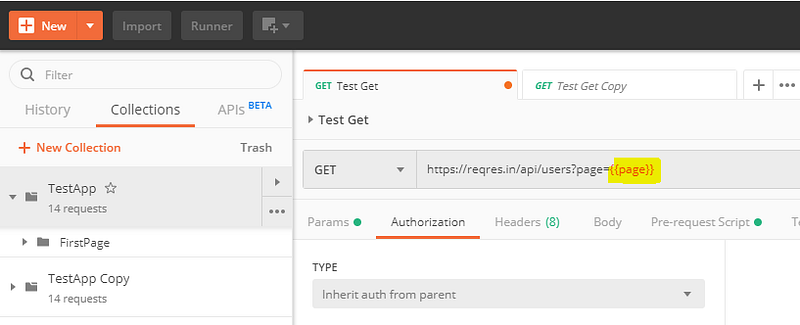
The syntax to call variable is to call variable name using double curly bracket {{<variable_name>}}

For instance let the variable name be ‘Page_no’ so to call this variable we use

https://www.facebook.com/somepage/{{Page_no }}

Note: we can call variables in request, request header or body.

Variable scope:

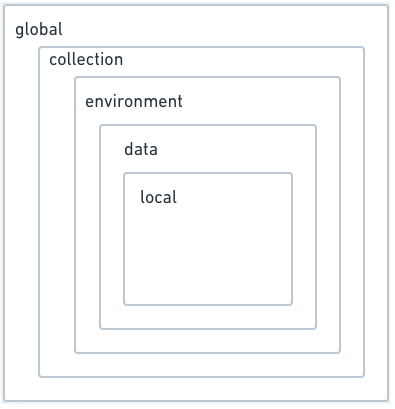
The variable scope in postman is as given below:

  1. Global
  2. Collection
  3. Environment
  4. Data
  5. Local

Note: This image representation may look confusing because environmental variables have more scope than collection, because an environmental variable will be available across all the collections but a collection variable will be available only for the specific collection.

So this list and hierarchy image is arranged more on precedence level than scope, with precedence increasing from top to bottom.

For instance if Collection variable and Environment variable has the same ‘name’ then ‘value’ of Environment variable will be considered.

Global:

Global variables are available across all the collections ( But not across all work-spaces, workspaces are considered as isolated from eachother so variables are not shared among workspaces )

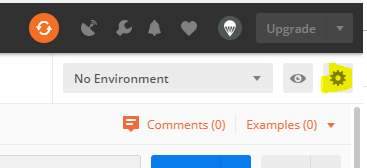
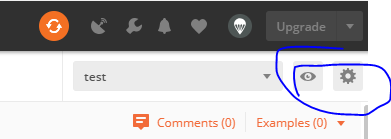
To add global variables click the enviroment management icon :

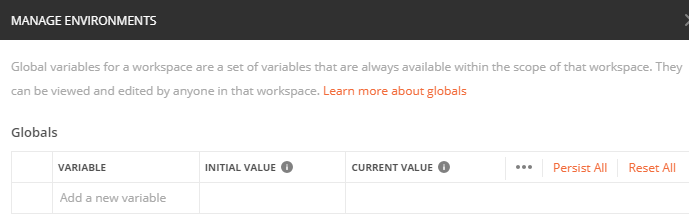
Click Globals button at bottom of the window

provide the global variable name and value.

Note: Initial value is the value shared with all the members in the workspace. If you want to try with different values without affecting all members in the workspace then edit current value, this will ensure that tests are run with the value you provided in the current value field but only on your local system.

You can synchronize this changes using persist or reset, persist sets initial value to the current value that you set and will reflect across the workspace, reset will make current value same as initial.

Collection:

Collections, as discussed before is a logical way of grouping requests.

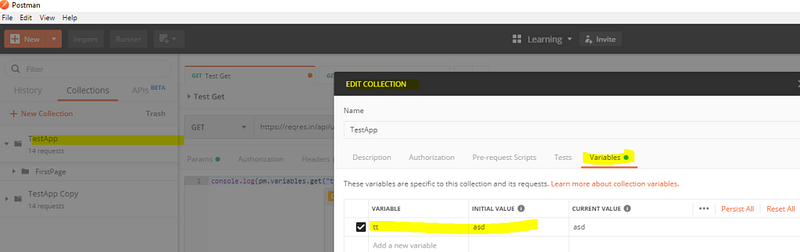
To create collection variable , click the meatball menu and select edit and navigate to variables.

Now add the variable and the value

This variable and value will be available only for the requests/folders within the specific collection.

Environment:

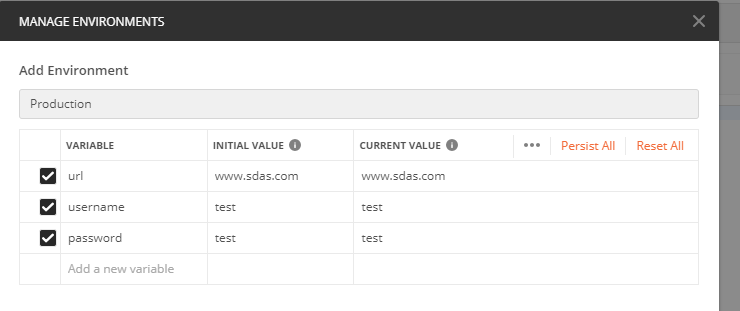
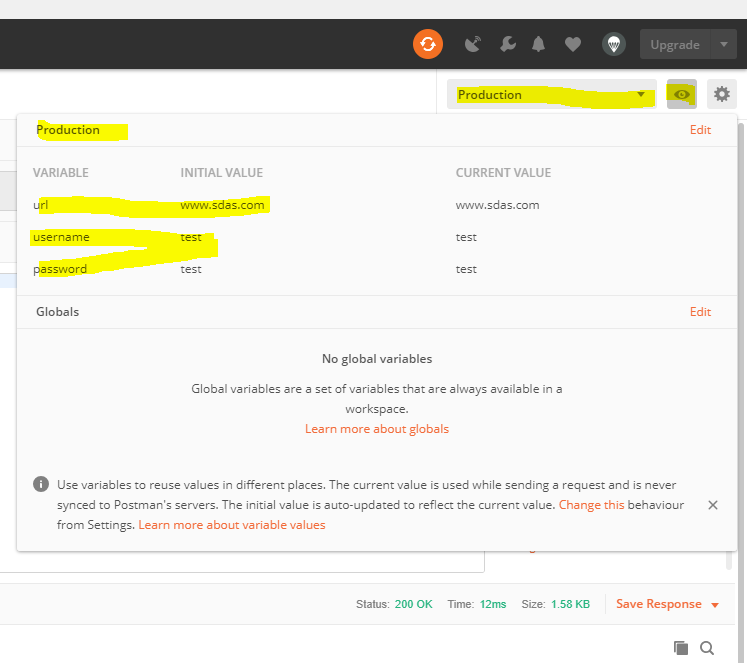
Environment is a way of logically grouping variables. For instance, imagine you want to use the same set of tests in two different environments say ‘Production’ and ‘Testing’ .

The variables ‘url’, ‘username’ and ‘password’, will have different values depending upon where we are running these tests.

So we can create two environments , ‘Production’ and ‘Test’ and add these variables and their corresponding values.

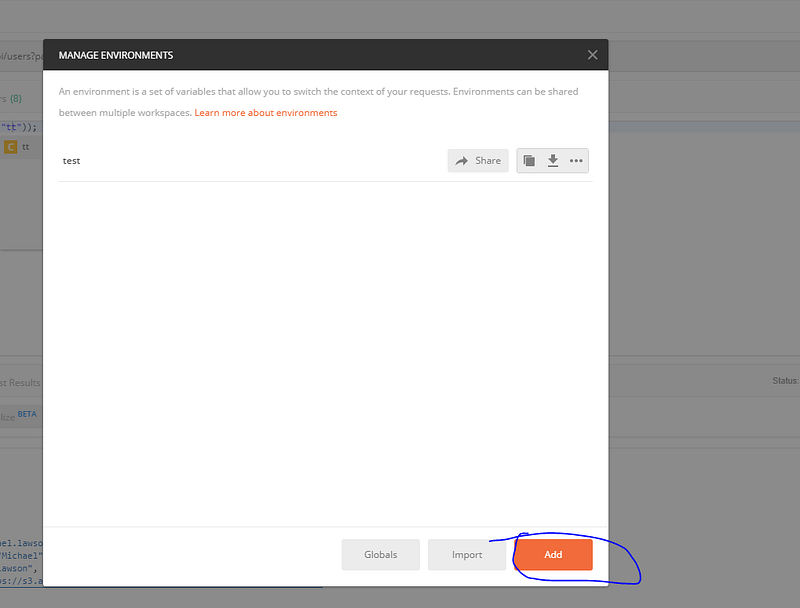
To create ‘environment’ click ‘manage environment’ icon and click the add button on the window.

And give environment name and add the variables

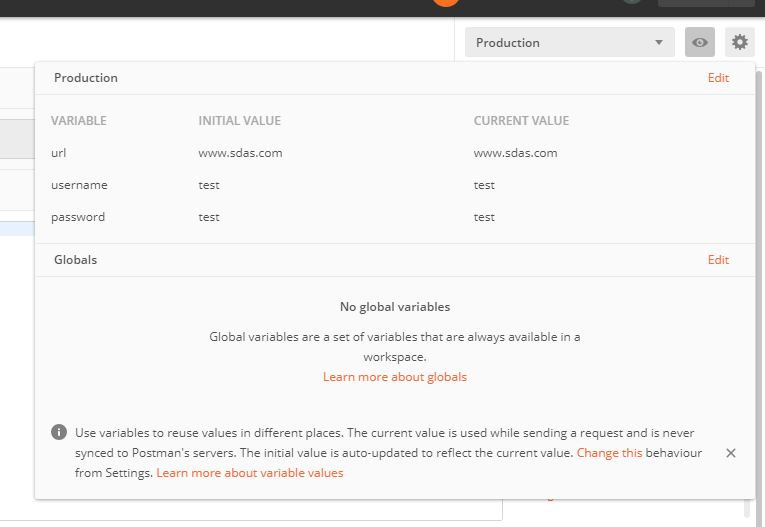
Now select the variable from drop down.

Select the variable from the drop down list as shown and click the eye icon to see the variable details of the specific environment.

Now when we call these variables in our request we get these values.If we change the environment, then the value changes accordingly.

Data:

Postman allows to store and use variables as key value pairs from CSV or JSON file. This helps in data driven testing.

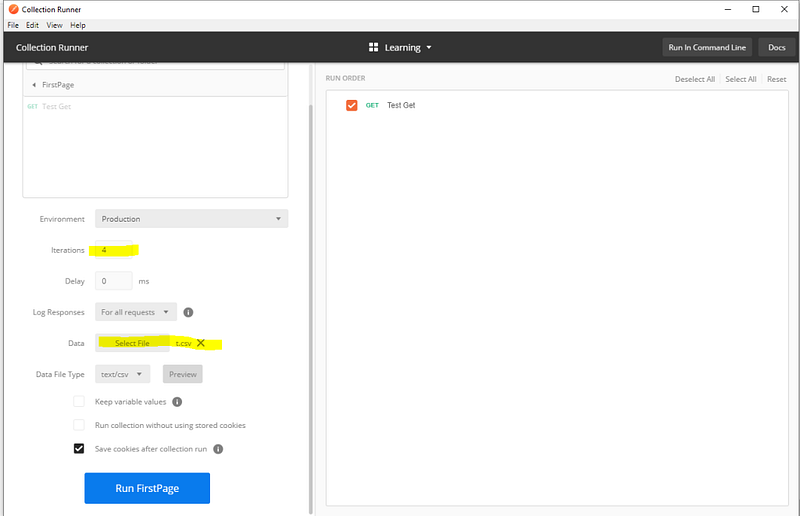
Data variables are available only through Collection runner. To open collection runner , click the collection you want to run , click play icon and click run.

Select the csv file or json file , the iteration will be automatically set to number values in the file

https://learning.getpostman.com/docs/postman/collection_runs/working_with_data_files/#working-with-the-sample-files , this links helps you to know how to create a data file

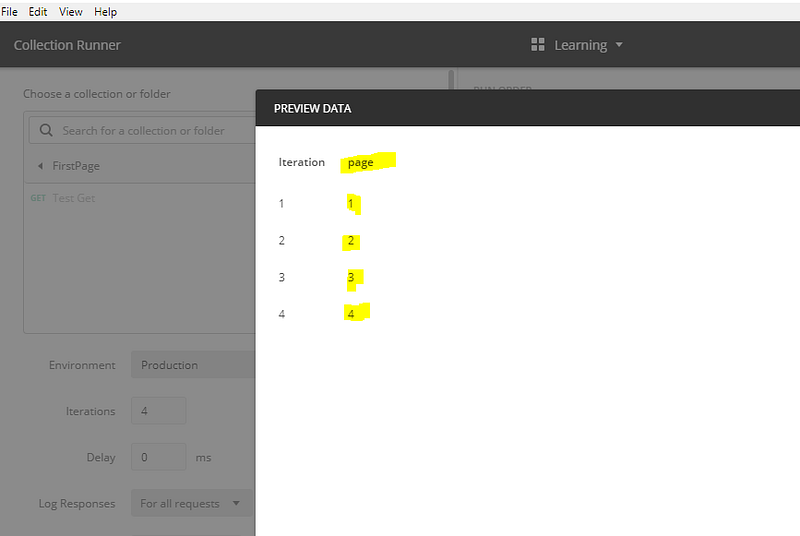
Clicking the preview will show whether the file was parsed correctly into key and value.

So page is the key and {1,2,3,4} are the values.

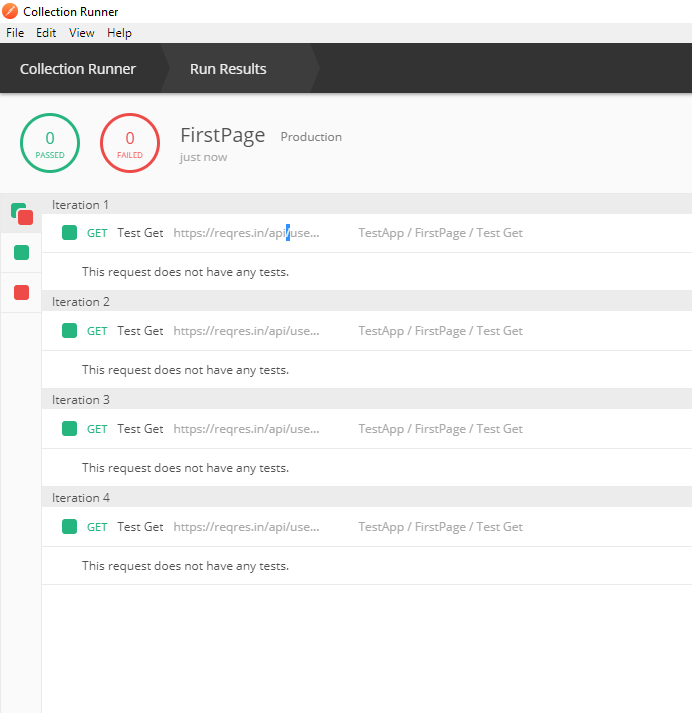
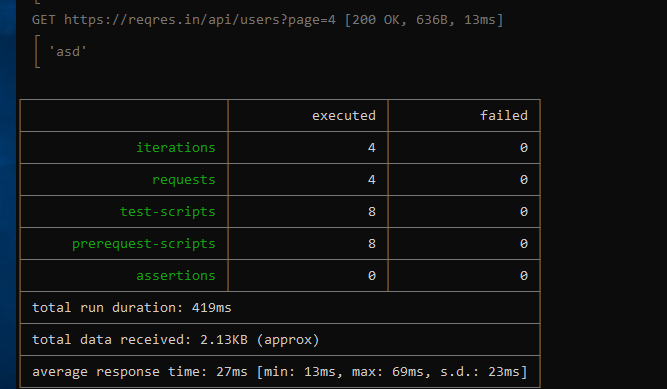
One running the test, it will get executed 4 times . That is with value 1,2,3, and 4.

Local:

Local variable are specific to the request, it will be set through prerequisite- scripts ( which runs before executing requests) or tests ( which run after the response is received)

pm.variables.set('myVariable', MY_VALUE);

They are accessible only with in the request.

Running Data driven test from cmd:

Get the collection link and pass the data file using -d command line argument

newman run https://www.getpostman.com/collections/xxxxx -d t.csv

output will be

Note: Tests are written in the test tab of requests, and as we have not mentioned any validation test scripts, the test failed and pass number will be zero. We will see in next session how to write tests.