Visualizing protractor results using Elastic search and Kibana

System Requirement:

This documentation is for windows system. I am using windows 10

Steps:

Installation and visualization in Kibana:

Please refer :

https://praveendavidmathew.medium.com/visualization-using-kibana-and-elastic-search-d04b388a3032

Pre-requisite:

  1. we can delete the previous index by doing a DELETE request to http://localhost:9200/testresults

Now lets come to Protractor:

So from the previous article , you understand how to send data and visualize it in Elastic search

We have observed that we are just sending json data using rest API and then visualizing it in Kibana by setting x and y axis with the fields we are interested in.

so to visualize the protractor result we just have to send the result to ELastic search , this can be done using jasmine customreporter listeners .

in the protractor config file add : (do npm install axios)

onPrepare: async function() {
jasmine.getEnv().addReporter({
        //adding results to an array for each spec
specDone: function(result) {
console.info(JSON.stringify(result, null, 2))
array.push(result)
},
        //iterating through each result and sending it to elastic search
jasmineDone: function() {
date = new Date(Date.now())
var axios = require('axios');
array.forEach((result) => {
result.date = date
var data = JSON.stringify(result);
                var config = {
method: 'post',
url: 'http://localhost:9200/testresults/protractorresults',
headers: {
'Authorization': 'Basic dGVzdDp0ZXN0MTIz',
'cache-control': 'no-cache',
'APIC-Cookie': 'apicCookie',
'Postman-Token': 'ae18aba5-b962-44d4-9a1e-5684f43318d3',
'Content-Type': 'application/json'
},
data: data
};
                axios(config)
.then(function(response) {
console.log(JSON.stringify(response.data));
})
.catch(function(error) {
console.log(error);
});

            })
}
})
}

This will send the results to elastic search after the test is done .

Visualized result:

  1. Goto stack management>kibana>index pattern and create new index testresults
  2. Click next and add date as time field
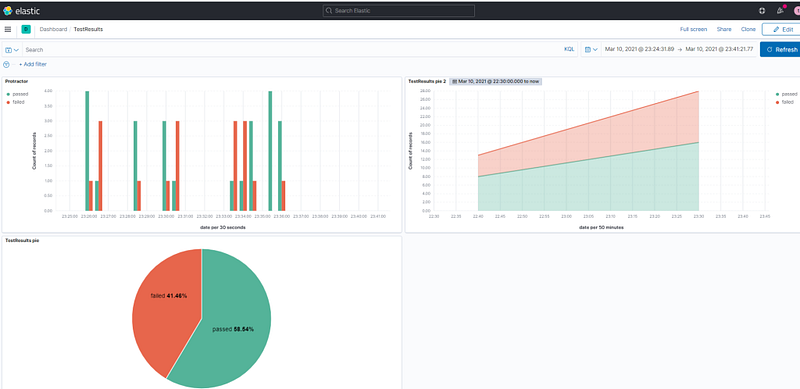
  3. Create new dashboard with horizontal axis as ‘date’ , vertical has ‘keyword.status’ , and breakdown by ‘keyword.status’. Set color code as status.

we have visualized keyword.status in y axis and date field in x axis

Sending text to fields for which no known locators.

Question:

https://sqa.stackexchange.com/questions/42251/how-to-interact-with-ngx-monaco-editor

Answer:

If you are not sure about the locator, then you can use the action class sendKeys method to interact with the field.

Here, it interacts with the active (currently focused ) element.

So the first step is to bring the element to focus, this can be done by just clicking it:

await browser.get('https://stackblitz.com/edit/ngx-monaco-editor-example')      
await browser.sleep(10000)
await $('[class="view-line"]').click()
await browser.sleep(4000)

Now you can see the cursor is at the below place:

Now you can interact with the element using browser.actions():

await browser.actions().sendKeys('This is test').perform();

this will send input to the currently active element:

Now let us look deeper to find out the locator:

We now know that the sendKey using action works, so we can find the locator from the active element:

The outerHTML of the active element gives the locator:

await  $('[class="view-line"]').click()
let test = await browser.driver.switchTo().activeElement()
console.log("outer");
console.log(await test.getAttribute('outerHTML'))
//await test.sendKeys("a=1;c=a+10;") if you try this you can see even this sends data

Output:

<textarea data-mprt="6" class="inputarea" wrap="off" autocorrect="off" autocapitalize="off" autocomplete="off" spellcheck="false" aria-label="Editor content;Press Alt+F1 for Accessibility Options." role="textbox" aria-multiline="true" aria-haspopup="false" aria-autocomplete="both" style="font-size: 1px; line-height: 18px; top: 0px; left: 562px; width: 1px; height: 1px;"></textarea>

So the input element is the text area, and you can send data to this element. Try

$('textarea[class="inputarea"]').sendKeys('something');

Note: you can use this approach of getting outer HTML of the active element in cases where you are not sure about the element but browser actions work.

Summary:

So you can use two approaches:

1:

await elem.click()
await browser.actions().sendKeys('This is test').perform();

2:

await elem.click()
let field= await browser.driver.switchTo().activeElement()
await field.sendKeys("HI");

you can find the locator or element as:

await field.getAttribute('outerHTML');

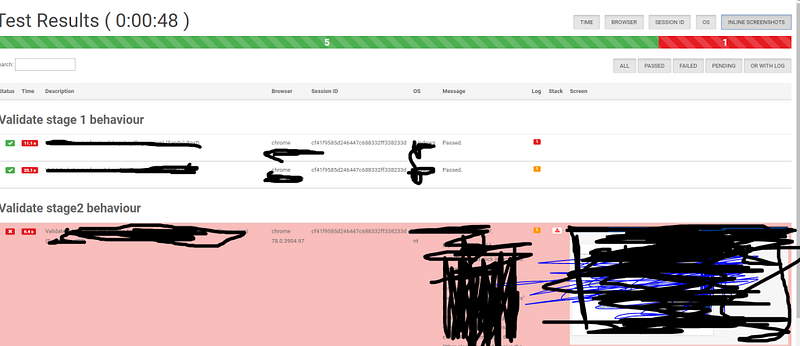
Protractor best HTML report…

We have seen how to create reports in our previous article, but that report used to break when we have test case names with a special character or long names.

So I came across a better report and let’s see how to implement it.

Note: Drawback of this report is that you cannot send it as an attachment as it is dependent on many files. It won’t work as standalone,

So you can use both this report and the old report together and use this one for debugging and the other one as a summary to send along with emails.

Install protractor-beautiful-reporter

npm install protractor-beautiful-reporter --save-dev

Add below code to OnPrepare of the config file:

framework: 'jasmine',
onPrepare: function(){
let HtmlReporter = require('protractor-beautiful-reporter');
jasmine.getEnv().addReporter(new HtmlReporter({
baseDirectory: 'reports_new',
screenshotsSubfolder: 'screenshotsOnFailure',
takeScreenShotsOnlyForFailedSpecs: true,
jsonsSubfolder: 'jsonFiles',
excludeSkippedSpecs: true,
preserveDirectory: false,
clientDefaults:{
showTotalDurationIn: "header",
totalDurationFormat: "h:m:s",
gatherBrowserLogs: true
},
}).getJasmine2Reporter());
}

Report:

How to restart the browser in protractor-cucumber framework or protractor-jasmine

The problem at hand:

https://sqa.stackexchange.com/questions/42235/how-to-restart-browser-in-protractor-cucumber-framework-or-protractor-jasmine

Solution:

You are trying to access an element instance that was created using the previous browser instance. The workflow is as follow,

  1. You imported the page object instance at the start of the spec using require
  2. A browser instant is created in the onPrepare
  3. Using that instance your page object model gets the element object
  4. But on next ‘It’ the browser restarts but the page object instance remains the same
  5. So when you try to interact with the element, you are getting session ID of non-existing browser.

Solution:

As given in your code, you have your page object as a javascript property, than a function

So what you could do is, reinitiate the page object whenever you restart the browser.

This could be done using npm decahe module: https://www.npmjs.com/package/decache

So whenever, you restart the browser reinitiate the module using below command:

//import in top of the spec
var decache = require('decache');
//reinitiate where browser is restarted
decache('../pageobjects/stage1.js');
stage1 = require('../pageobjects/stage1.js');

So your final code:

'use strict';
var decache = require('decache');
let stage1 = require('../pageobjects/stage1.js');

describe('Validate stage 1 and 2 behaviour', function () {
    beforeEach(async function () {        
await browser.waitForAngularEnabled(false);
decache('../pageobjects/stage1.js');
stage1 = require('../pageobjects/stage1.js');
});

    it('Validate that error message in all fields given uploaded {Regression} {Smoke} {Sanity}', async function () {
await stage1.goto()
await stage1.sendValue('hi')
await browser.sleep(5000)
});

Note:

This works even if the page object is defined as a function

For protractor-cucumber add the same in before hook :

you should add the hook in the step definition file itself and not in separate hook.js:

"use strict";
let {Given,Before} = require('cucumber');
let decache = require('decache');
let stage1 = require('../pageobjects/stage1.js');
Before(async function (scenario) {
decache('../pageobjects/stage1.js');
stage1 = require('../pageobjects/stage1.js');
await browser.sleep(4000)
});
 Given('I navigates to google', async() => {
await stage1.goto()
});

Protractor Data-Driven Testing

Now Drive your test using test data

Now you can drive your protractor tests using CSV data:

Demo CSV: (just copy it to notepad and save as 1.csv)

a,b,c
1,2,3
1,5,6
2,4,6

Install csv-parser node module:

run it under the protractor project so that it will be installed as project’s local module ( Run the command where the package.json file is present)

npm install csv-parse

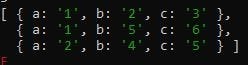
Output after parsing:

This module will parse the csv as below column as the key and value as the value on the specific row

Data-driven testing:

'use strict';
//use fs to read file
let fs = require('fs');
//use csv-parse sync to parse the file : https://csv.js.org/parse/
const parse = require('csv-parse/lib/sync');
//read the csv file
let a = fs.readFileSync('1.csv');
//parse the csv file
const testdata = parse(a, {
columns: true,
skip_empty_lines: true
})
console.log(testdata);
describe('Validate dfsfdsf 1 behaviour', function () {
for (let i of testdata) {
it('test {Regression} {Sanity} {Smoke}', async function () {
console.log(i);
console.log(i.a);
console.log(i.b);
console.log(i.c);
expect(Number(i.a) + Number(i.b)).toBe(Number(i.c))
});
}
});

Ignore below steps:

Deprecated:

npm package:

https://www.npmjs.com/package/csv-parser-sync-plus-promise

Usage:

importing:

let parser = require('csv-parser-sync-plus-promise')

Use as sync:

let a=parser.readCsvSync('')

Use as Promise:

let b=parser.readCsvPromise('')
it('test {Regression} {Sanity} {Sanity}', async function () {
console.log(await b);
});

Protractor test:

Use the demo csv ‘1.csv’

'use strict';
let parser = require('csv-parser-sync-plus-promise')
let testdata=parser.readCsvSync('<full_path>/1.csv');
describe('Validate dfsfdsf 1 behaviour', function () {

for(let i of testdata){
it('test {Regression} {Sanity} {Sanity}', async function () {
console.log(i.a);
console.log(i.b);
console.log(i.c);
expect(Number(i.a)+Number(i.b)).toBe(Number(i.c))
});
}
});

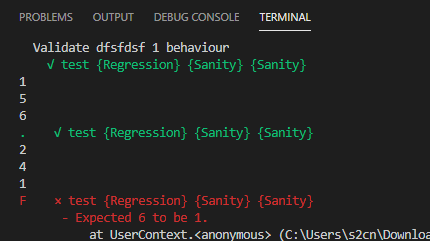
Output:

Protractor-cucumber Framework

Install dependencies:

  • cucumber : npm install cucumber (If protractor was installed locally else use npm install -g cucumber). Both protractor and cucumber should be in same scope.
  • cucumber-html-reporter: npm install cucumber-html-reporter — save-dev
  • chai: npm install chai
  • protractor-cucumber-framework: npm install — save-dev protractor-cucumber-framework

My package.json:

you can directly use the package.json and install all dependencies by placing the file under your test project and just running

npm install

package.json:

{
"name": "Test",
"version": "1.0.0",
"description": "Test framework for project Test",
"main": "conf.js",
"keywords": [
"test"
],
"author": "Praveen David Mathew",
"license": "ISC",
"dependencies": {
"chai": "^4.2.0",
},
"devDependencies": {
"cucumber": "^6.0.5",
"cucumber-html-reporter": "^5.1.0",
"protractor-cucumber-framework": "^6.2.0"
}
}

Now create chai expect global keyword:

Protractor uses jasmine out of the box, so when you are using the custom framework the jasmine expect class won’t work.

You have to use another assertion class , we are using chai.

We can use chai expect class by importing it in each step definition

'use strict';
expect = require('chai').expect;

This would be hectic, so work around is to declare expect as global in a separate file.

My chaiAssertions.js:

'use strict';
// Configure chai
global.expect = require('chai').expect;

Create Hook.js:

Hooks are just another stepdefinition file you can name it anything you want. A hook is identified using the keyword After and Before

Here i created a Hook.js file to get screenshot if scenario fails:

hook.js:

var { After, Before } = require('cucumber');
// Asynchronous Promise
After(async function(scenario) {
if (scenario.result.status === 'failed') {
const screenShot = await browser.takeScreenshot();
this.attach(screenShot, "image/png");
}
});

So after each scenario , the code inside after get executed. Which will take screenshot of scenario.result.status is failed.

Now my conf.js

'use strict';
exports.config = {
directConnect: true,
//Running chrome 
Capabilities: { browserName: 'chrome'
},
//point spec to feature file , my feature file was under feature folder
specs: ['feature/*.feature'],
//set framework options
framework: 'custom',
frameworkPath: require.resolve('protractor-cucumber-framework'),
//just maximizing window before testing
onPrepare: function(){
browser.waitForAngularEnabled(true);
browser.driver.manage().window().maximize();
} ,
//Create html report 
onComplete: () => {
var reporter = require('cucumber-html-reporter');
var options = {
theme: 'bootstrap',
jsonFile: './results.json',
output: './results.html',
reportSuiteAsScenarios: true,
launchReport: true,
metadata: {
"App Version":"0.3.2",
"Test Environment": "STAGING",
"Browser": "Chrome 54.0.2840.98",
"Platform": "Windows 10",
"Parallel": "Scenarios",
"Executed": "Remote"
},
output: './report/cucumber_report.html',
};
reporter.generate(options);
},
//set cucumber options
cucumberOpts: {
require: ['./testsuites/*.js','./commons/chaiAssertions.js','./commons/hooks.js'],
strict: true,
format: [], //don't put 'Pretty' as it is depreciated
'dry-run': false,
compiler: [],
format: 'json:results.json', //make sure you are not using multi-capabilities
},
SELENIUM_PROMISE_MANAGER: false,
};

Here, i point to the feature file using the property specs: [‘feature/*.feature’],

and glues it to the step definition using cucumberopts> require:

There is no one to one mapping between feature and step definition, the framework automatically finds the step definition that contains the definition for the step from provided step definitions(.js files) in the require field.

Now write feature file:

test.feature

Feature: Google search
Scenario Outline: Log in with given API
Given I navigates to google
And searches for '
'
Then I should see ''
Examples:
|input|this|
|test|pass|
|test2|fail|

Now write step definition:

step.js:

var { Given } = require('cucumber');
Given('I navigates to google', async function () {
await browser.get('https://www.google.com/');
});
Given('searches for {string}', async function (searchValue) {
await element(by.css('input[role="combobox"]')).sendKeys(searchValue)
});
Given('I should see {string}', async function (expectedValue) {
expect(expectedValue).to.equal('pass')
});

so here we are using just Given as during runtime Given ,when then etc will be ignored and only the string after that will be considered

So, even if our feature file has And searches for ‘input’ , we can write step definition as Given(‘searches for {string}’.

Note that we are not using regular expressions to get parameters but the data type.

you might have seen in other tutorials , Given( /^searches for (\w+)$/ ). Its simpler to use the format i have used Given(‘searches for {string}’. Both the approaches works works fine.

Now run the scripts:

protractor conf.js

Report:

Report will be generated under report folder

Framework zip:

Just download and run npm install

To execute , run the command protractor conf.js

https://github.com/praveendvd/Protractor_cucumber_PoC.git

Debugging protractor scripts

Using VScode:

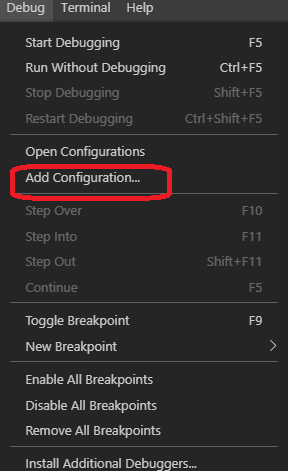
Click Debug>Add configuration:

This opens the launch.json, replace program and args with below values:

"program": "<your_path_to_protractor>\\npm\\node_modules\\protractor\\bin\\protractor",            
"args": ["${workspaceRoot}/confchrome.js"],

Now add break point:

You can add break point by clicking near to the line you want to inspect:

Now execute the debugger by pressing f5:

Using chrome inspect:

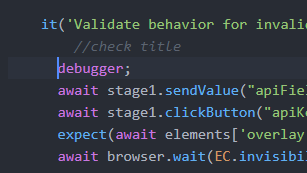
just add the keyword debugger to the tests which you want to inspect:

Run below command:

node --inspect-brk <full_Path>npm\node_modules\protractor\bin\protractor <filePath>/confchrome.js --params.url="https://sdsd"

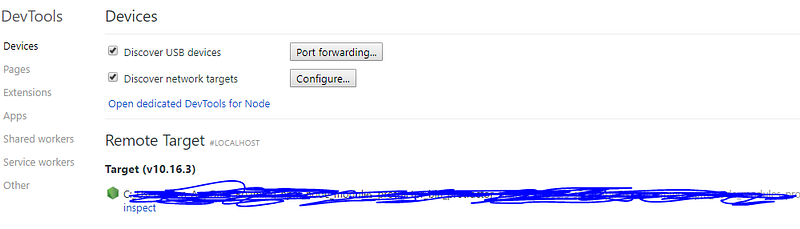
Now open chrome and type chrome://inspect/#devices

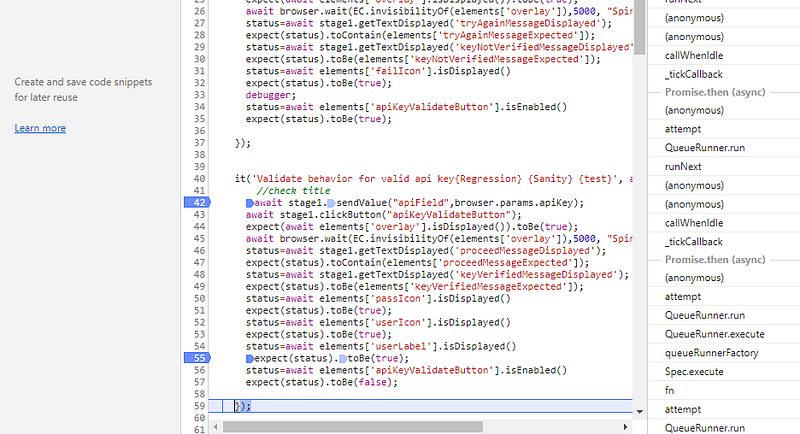
Click inspect and click F8 and click run. The exection stops at ‘debugger’ line and now add manual break points ow goto the file using the tabs and add manual break points.

Creating HTML reports for protractor

Note: I have found an easier and better report for protractor by sauce lab use that report instead:

Read about the new report at: https://medium.com/@praveendavidmathew/protractor-best-html-report-d548d1460c36

But still, you can continue reading and see any of the features would be useful for you:

First, let us see why need reporting

Imagine you have written thousands was of wonderful test cases and you have put up it in CI/CD pipeline. You must be feeling proud right? and here the news that the first test runs for the suites you have written will run over the night and you get all excited.

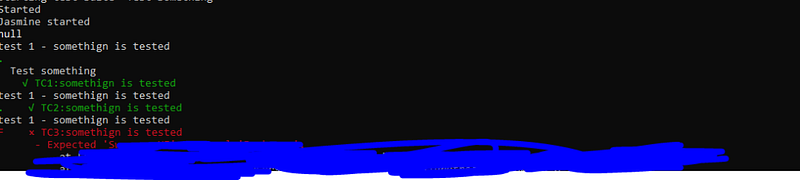
Next day you come to the office and sees the below console logs:

And you have no clue what passed, what failed because the execution got interrupted and was not completed.

Printing test status and logs after each test-case execution:

Add the below code to the protractor config file:

This enables real-time reporting, allowing to print errors onto console without having to wait for the test suite to finish executing.

exports.config = {
onPrepare: function(){
const SpecReporter = require('jasmine-spec-reporter').SpecReporter;
jasmine.getEnv().addReporter(new SpecReporter({
spec: {
displayStacktrace: true
}
}));
}
}

To make this work we need to install jasmine-spec-reporter

npm i jasmine-spec-reporter

Output:

So we can know when something goes wrong in the suite without wasting time waiting for it to finish executing.

Now lets create the Jasmine XML report :

Now lets believe that things went well, how will you report this to other stakeholders ? how will you show the status of the last test execution?

The answer is to use the jasmine xml report:

Install it using npm:

npm i jasmine-reporters

Add the below line in conf.js

exports.config = {

onPrepare: function(){
//configure junit xml report
var jasmineReporters = require('jasmine-reporters');
jasmine.getEnv().addReporter(new jasmineReporters.JUnitXmlReporter({
consolidateAll: true,
filePrefix: 'guitest-xmloutput',
savePath: '.'
}));
}
}
// so the xml file will be stored in current directory as guitest-xmloutput

Output:

Lets now create a HTML report

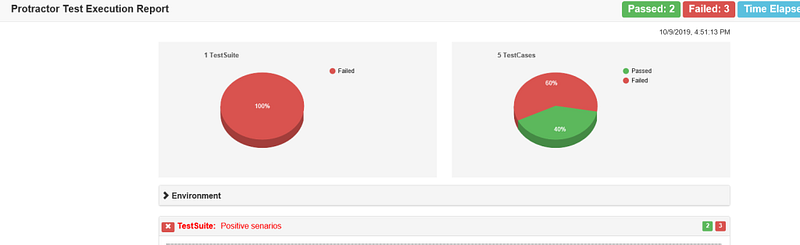
This report can’t be send to a Business analyst or any other non-tech guy right!!! lets add some visual treats using HTML.

The below npm tool takes the xml file we created in the previous section and converts it too HTML. The result will be stored in the current directory as ProtractorTestReport.html

The code gets browser name, version etc from the capabilities property, and the suite and test case name, from ‘describe’ and ‘it’ functions in spec.

You can install the tool through npm:

npm i protractor-html-reporter-2

Now add below code to conf.js

exports.config = {

onComplete: function() {
var browserName, browserVersion;
var capsPromise = browser.getCapabilities();
capsPromise.then(function (caps) {
browserName = caps.get('browserName');
browserVersion = caps.get('version');
platform = caps.get('platform');
var HTMLReport = require('protractor-html-reporter-2');
testConfig = {
reportTitle: 'Protractor Test Execution Report',
outputPath: './',
outputFilename: 'ProtractorTestReport',
screenshotPath: './screenshots',
testBrowser: browserName,
browserVersion: browserVersion,
modifiedSuiteName: false,
screenshotsOnlyOnFailure: true,
testPlatform: platform
};
new HTMLReport().from('guitest-xmloutput.xml', testConfig);
});
},
}

Output:

Taking screenshots on failure:

you can take screen shot on test failures by using fs-extra, to install use below command:

npm i fs-extra

Now add below command to conf.js

exports.config = {

onPrepare: function(){
var fs = require('fs-extra');
fs.emptyDir('screenshots/', function (err) {
console.log(err);
});
jasmine.getEnv().addReporter({
specDone: function(result) {
if (result.status == 'failed') {
browser.getCapabilities().then(function (caps) {
var browserName = caps.get('browserName');
browser.takeScreenshot().then(function (png) {
var stream = fs.createWriteStream('screenshots/' + browserName + '-' + result.fullName+ '.png');
stream.write(new Buffer.from(png, 'base64'));
stream.end();
});
});
}
}
});
}
}

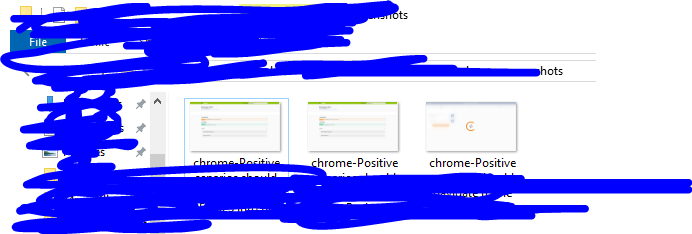
Screenshots will be taken and stored in ‘screenshots’ folder in the current directory.

Output:

Adding screenshots to html report:

Adding the above code to Onprepare property of protractor conf.js, ensures that on failure, screenshots are captured and stored on screenshots folder

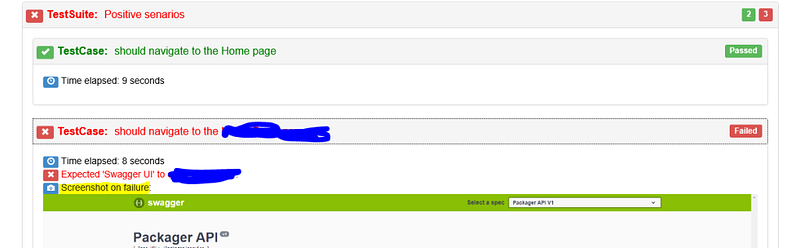
The protractor-html tool will look for screenshots in this folder and add to the report automatically

output:

Final Config.js

exports.config = {
specs: ['spec.js'],
onPrepare: function(){
// Getting CLI report
      const SpecReporter = require('jasmine-spec-reporter').SpecReporter;
jasmine.getEnv().addReporter(new SpecReporter({
spec: {
displayStacktrace: true
}
}));

//Getting XML report
    var jasmineReporters = require('jasmine-reporters');
jasmine.getEnv().addReporter(new jasmineReporters.JUnitXmlReporter({
consolidateAll: true,
filePrefix: 'guitest-xmloutput',
savePath: '.'
}));
//Getting screenshots
  var fs = require('fs-extra');
fs.emptyDir('screenshots/', function (err) {
console.log(err);
});
jasmine.getEnv().addReporter({
specDone: function(result) {
if (result.status == 'failed') {
browser.getCapabilities().then(function (caps) {
var browserName = caps.get('browserName');
browser.takeScreenshot().then(function (png) {
var stream = fs.createWriteStream('screenshots/' + browserName + '-' + result.fullName+ '.png');
stream.write(new Buffer.from(png, 'base64'));
stream.end();
});
});
}
}
});
},
  onComplete: function() {
//Getting HTML report
var browserName, browserVersion;
var capsPromise = browser.getCapabilities();
capsPromise.then(function (caps) {
browserName = caps.get('browserName');
browserVersion = caps.get('version');
platform = caps.get('platform');
var HTMLReport = require('protractor-html-reporter-2');
testConfig = {
reportTitle: 'Protractor Test Execution Report',
outputPath: './',
outputFilename: 'ProtractorTestReport',
screenshotPath: './screenshots',
testBrowser: browserName,
browserVersion: browserVersion,
modifiedSuiteName: false,
screenshotsOnlyOnFailure: true,
testPlatform: platform
};
new HTMLReport().from('guitest-xmloutput.xml', testConfig);
});
}
}