Auto Detect Chrome version and auto-download compatible chrome version !!!

Introduction:

Thanks to @webdriverio , i came to know about the chromedriver npm package. It’s a cool library that allows you to detect the installed chrome version and download the compatible chromedriver version automatically

https://www.npmjs.com/package/chromedriver

Pre-requisite:

install nodejs >v 10 : install

you can also download just the binary file instead of installing nodejs

now just run the below command

<oath_to_npm>/npm install -g chromedriver --detect_chromedriver_version --scripts-prepend-node-path

you can see the supported command-line flags at :

https://www.npmjs.com/package/chromedriver

Note: — scripts-prepend-node-path should be last argument, this flag is mandatory only if you are using node binaries than installation

if you want to download the binary to a specific folder then use the below repo instead:

I have added features to set target directory and download driver when used as a library. I have created a pull request for these but till that gets merged use the below repo instead

https://www.npmjs.com/package/chromedriver

download the zip or clone the files, unzip the content and then use the below command

C:\Users\test\Downloads\node-v14.17.0-win-x64\npm install -g "C:\Users\test\Downloads\chromedriver-main\chromedriver-main" --chromedriver_download_to_target_folder="C:\Users\test\Downloads\chromedriver-main\output" --scripts-prepend-node-path

Note: — scripts-prepend-node-path should be given as the last argument if you are running nodejs binary zip directly instead of installing nodejs

This will add node to PATH automatically for the scripts to detect

Now let see how we can run this library from nodejs , Note I have given information about alternative simple native libraries that does the same :

Running from Java:

You can run this nodejs library from java as:

package test_suites;
import java.io.IOException;
import java.util.regex.Matcher;
import java.util.regex.Pattern;
public class Testcase1 {
public static void main(String[] args) throws IOException, InterruptedException {
// just donwload the nodejs binary zip file and extract it
//point to the npm.cmd inside the extracted folder
//if you already have nodejs installed then point to the npm.cmd of the installed library
ProcessBuilder pb = new ProcessBuilder("C:\\Users\\test\\Downloads\\node-v14.17.0-win-x64\\npm.cmd",
"install",
"-g",
"C:\\Users\\test\\Downloads\\chromedriver-main\\chromedriver-main",
"--detect_chromedriver_version",
//  "--chromedriver-force-download",  // uncomment to force chromedriver dwonload even if it exists 
// "--chromedriver_version=88.0.4324.96", //comment detect version and hard code the version
// "--chromedriver_download_to_target_folder=\"C:\\Users\\test\\Downloads\\temp_2\\github_chromedriver\\output\"" // available only for praveendvd/chromedriver repo
"--scripts-prepend-node-path"); //"--scripts-prepend-node-path" should be always the last argument
Process p = null;
String result = null;
String error = null;
p = pb.start();
System.out.println("Started download ###############################");
//wait for download to complete
p.waitFor();
System.out.println("Output  ###############################");
System.out.println("Output stream ###############################");
result = new String(p.getInputStream().readAllBytes());
System.out.println(result);
System.out.println("Error stream ###############################");
error = new String(p.getErrorStream().readAllBytes());
System.out.println(error);
System.out.println("Output end ###############################");
Pattern pattern = Pattern.compile("ChromeDriver binary available at(.*?)\n", Pattern.DOTALL);
Matcher matcher = pattern.matcher(result);
matcher.find();
String chromedriverpath = matcher.group(1).trim();
System.out.println("****The driver is copied to**** : " + chromedriverpath  );
System.out.println("Completed download ###############################");
}
}

Output:

Or use :

GitHub — bonigarcia/webdrivermanager: Automated driver management for Selenium WebDriver

Mvn:

<dependency>
<groupId>io.github.bonigarcia</groupId>
<artifactId>webdrivermanager</artifactId>
<version>4.4.3</version>
</dependency>

Code:

import io.github.bonigarcia.wdm.WebDriverManager;
import io.github.bonigarcia.wdm.config.DriverManagerType;
public class Testcase1 {
public static void main(String[] args) throws IOException, InterruptedException {
WebDriverManager.getInstance(DriverManagerType.CHROME).forceDownload();
WebDriverManager.chromedriver().setup();
System.out.println(WebDriverManager.getInstance(DriverManagerType.CHROME).getDownloadedDriverPath());
}
}

Running from Python:

import subprocess
import sys
import re
command = subprocess.run(
[
"C:\\Users\\Downloads\\node-v14.17.0-win-x64\\npm.cmd",
"install",
"-g",
"C:\\Users\\Downloads\\chromedriver-main\\chromedriver-main",
"--detect_chromedriver_version",
# "--chromedriver-force-download",  # uncomment to force chromedriver dwonload even if it exists
# "--chromedriver_version=88.0.4324.96", #comment detect version and hard code the version
# "--chromedriver_download_to_target_folder=\"C:\\Downloads\\temp_2\\github_chromedriver\\output\"" # available only for praveendvd/chromedriver repo
"--scripts-prepend-node-path",
],
capture_output=True,
)
# --scripts-prepend-node-path" should be always the last argument'''
print("Started download ###############################")
print("Output  ###############################")
print("Output stream ###############################")
sys.stdout.buffer.write(command.stdout)
print("Error stream ###############################")
sys.stderr.buffer.write(command.stderr)
print("Output end ###############################")
output = command.stdout
result = re.search("ChromeDriver binary available at(.*?)\n", output.decode('utf-8') )
chromedriverpath = result.group(1)
print("****The driver is copied to**** : " + chromedriverpath  )
print(("Completed download ###############################"))
sys.exit(command.returncode)

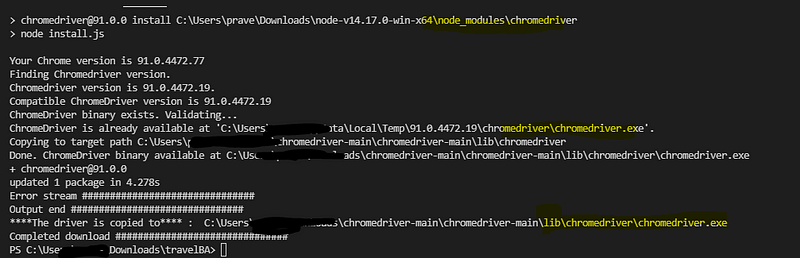
Output:
Or use:

library: chromedriver-autoinstaller · PyPI

pip install chromedriver-autoinstaller

code:

import chromedriver_autoinstaller
# Check if the current version of chromedriver exists
# and if it doesn’t exist, download it automatically,
# then add chromedriver to path
driver = webdriver.Chrome(chromedriver_autoinstaller.install())

Running from Nodejs:

Clone or download and extract :

https://github.com/praveendvd/chromedriver

Now install the library to your npm project as :

C:\Users\test\Downloads\node-v14.17.0-win-x64\npm install "C:\Users\test\Downloads\chromedriver-main\chromedriver-main" --chromedriver_download_to_target_folder="C:\Users\test\Downloads\chromedriver-main\output" --scripts-prepend-node-path

Now you can use this library to autodownload compatible chrome driver version as :

var chromedriver =  require('chromedriver');
process.env.detect_chromedriver_version = true
process.env.chromedriver_force_download = true
process.env.chromedriver_download_to_target_folder="C:/Users/output"
chromedriver.download() //returns a promise

How to test chrome in mobile devices without appium:

You can run chrome in android device straight from selenium:

https://chromedriver.chromium.org/getting-started/getting-started—android

First Connect actual device or emulator:

To start emulator follow the below article about installing android-studio:

https://praveendavidmathew.medium.com/android-studio-7174c43708f6

To connect an actual mobile instead then use below article, read about enabling debugger mode:

https://praveendavidmathew.medium.com/android-studio-7174c43708f6

Second make sure you have latest adb version is installed:

download latest from :

https://developer.android.com/studio/releases/platform-tools

the adb will be inside the platform tool folder

Now make sure device is detected and authorized: (these steps are explained in the above mentioned articles)

open the folder in which abd is there and run the below command ./adb

./adb devices

And make sure device shows in the list

make sure it is showing device and not unauthorized:

Now you can run below code:

Here we are using experimental_option “androidPackage” to connect to chrome in mobile device

you can add experimental option (for any binding )

Python:

options = webdriver.ChromeOptions()
options.add_experimental_option('androidPackage', 'com.android.chrome')
driver = webdriver.Chrome('./chromedriver', options=options)
driver.get('https://google.com')
driver.quit()

Java:

System.setProperty(“webdriver.chrome.driver”,””);
ChromeOptions options = new ChromeOptions();
options.setExperimentalOption(“androidPackage”, “com.android.chrome”);
WebDriver driver = new ChromeDriver(options);
driver.get(“https://www.google.com");

You can see how to inspect from desktop here:

https://praveendavidmathew.medium.com/android-studio-7174c43708f6

How to check if a file got downloaded in java selenium tests

How to check a file exists in system:

//we use import java.io.File;
File f = new File("D:\\program.txt");
f.exists(); // this will print true or false whether the file program.txt exists

We can use this logic to check if the file got downloaded and is available at the location.

But sometimes we need to click download button and wait for like few mins or seconds for the download to finish.

so in this case we need to poll for the file till it exists . We might need to try polling for a max of 5 mins then fail the tests if file doesn’t exists

This can be achieved using custom expected condition:

Custom expected condition:

Define below expected class in any of your page object class

public ExpectedCondition<Boolean> filepresent() {
return new ExpectedCondition<Boolean>() {
@Override
public Boolean apply(WebDriver driver) {
File f = new File("D:\\program.txt");
return f.exists();
}
        @Override
public String toString() {
return String.format("file to be present within the time specified");
}
};
}

And call it inside text as :

WebDriverWait wait = new WebDriverWait(driver,Duration.ofSeconds(2));
wait.until(pageobject.filepresent());

Output:

Failed:

Passed:

Sending text to fields for which no known locators.

Question:

https://sqa.stackexchange.com/questions/42251/how-to-interact-with-ngx-monaco-editor

Answer:

If you are not sure about the locator, then you can use the action class sendKeys method to interact with the field.

Here, it interacts with the active (currently focused ) element.

So the first step is to bring the element to focus, this can be done by just clicking it:

await browser.get('https://stackblitz.com/edit/ngx-monaco-editor-example')      
await browser.sleep(10000)
await $('[class="view-line"]').click()
await browser.sleep(4000)

Now you can see the cursor is at the below place:

Now you can interact with the element using browser.actions():

await browser.actions().sendKeys('This is test').perform();

this will send input to the currently active element:

Now let us look deeper to find out the locator:

We now know that the sendKey using action works, so we can find the locator from the active element:

The outerHTML of the active element gives the locator:

await  $('[class="view-line"]').click()
let test = await browser.driver.switchTo().activeElement()
console.log("outer");
console.log(await test.getAttribute('outerHTML'))
//await test.sendKeys("a=1;c=a+10;") if you try this you can see even this sends data

Output:

<textarea data-mprt="6" class="inputarea" wrap="off" autocorrect="off" autocapitalize="off" autocomplete="off" spellcheck="false" aria-label="Editor content;Press Alt+F1 for Accessibility Options." role="textbox" aria-multiline="true" aria-haspopup="false" aria-autocomplete="both" style="font-size: 1px; line-height: 18px; top: 0px; left: 562px; width: 1px; height: 1px;"></textarea>

So the input element is the text area, and you can send data to this element. Try

$('textarea[class="inputarea"]').sendKeys('something');

Note: you can use this approach of getting outer HTML of the active element in cases where you are not sure about the element but browser actions work.

Summary:

So you can use two approaches:

1:

await elem.click()
await browser.actions().sendKeys('This is test').perform();

2:

await elem.click()
let field= await browser.driver.switchTo().activeElement()
await field.sendKeys("HI");

you can find the locator or element as:

await field.getAttribute('outerHTML');

Opening the chrome driver and browser on a specific port, and connecting to already opened chroem…

Introduction:

This article helps you in understanding how to start chrome driver on a specific port, connect to an existing browser session and opening chrome browser with debug port opened through selenium scripts.

You should use ChromeDriverService for starting chrome in a different port:

import org.openqa.selenium.chrome.WebDriver;
      import org.openqa.selenium.chrome.ChromeDriverService;
      import org.openqa.selenium.chrome.ChromeOptions;
      import org.openqa.selenium.remote.RemoteWebDriver;     

      WebDriver browser = null;
  	  ChromeDriverService service = new ChromeDriverService.Builder()
      .usingDriverExecutable(new File("C:\\chromedriver.exe"))
      .usingPort(4444) 
      .build();
  	  service.start(); 
  	  browser = new RemoteWebDriver(service.getUrl(), new ChromeOptions());

Once your tests are done, make sure to close the browser and the service:

browser.quit()
  service.stop()

Else the port remains open.

Output:

Add alt text

Connecting to an existing chrome browser from selenium:

close all chrome browsers and then, start the Chrome browser in debug mode by opening cmd and running chrome.exe with — remote-debugging-port argument

"<path>\chrome.exe" --remote-debugging-port=1559

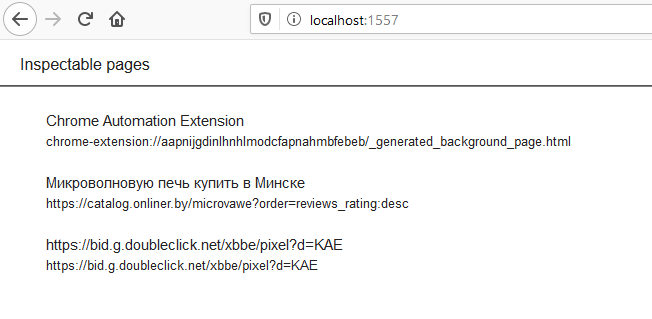
Now open any other browser and navigate to localhost:1559 to check that the browser was indeed opened with that port

Now in selenium code use chrome experimental option to connect to this chrome option

System.setProperty("webdriver.chrome.driver", "C:\\chromedriver.exe");
ChromeOptions options = new ChromeOptions();
options.setExperimentalOption("debuggerAddress", "127.0.0.1:1557");
WebDriver browser=new ChromeDriver(options);

Running Chrome on specific debug port from selenium:

System.setProperty("webdriver.chrome.driver", "C:\\chromedriver.exe");
ChromeOptions options = new ChromeOptions();
options.addArguments("--remote-debugging-port=1557");
WebDriver browser = new ChromeDriver(options);
options.setExperimentalOption("debuggerAddress", "127.0.0.1:1557");
browser=new ChromeDriver(options);

Output: