Auto Detect Chrome version and auto-download compatible chrome version !!!

Introduction:

Thanks to @webdriverio , i came to know about the chromedriver npm package. It’s a cool library that allows you to detect the installed chrome version and download the compatible chromedriver version automatically

https://www.npmjs.com/package/chromedriver

Pre-requisite:

install nodejs >v 10 : install

you can also download just the binary file instead of installing nodejs

now just run the below command

<oath_to_npm>/npm install -g chromedriver --detect_chromedriver_version --scripts-prepend-node-path

you can see the supported command-line flags at :

https://www.npmjs.com/package/chromedriver

Note: — scripts-prepend-node-path should be last argument, this flag is mandatory only if you are using node binaries than installation

if you want to download the binary to a specific folder then use the below repo instead:

I have added features to set target directory and download driver when used as a library. I have created a pull request for these but till that gets merged use the below repo instead

https://www.npmjs.com/package/chromedriver

download the zip or clone the files, unzip the content and then use the below command

C:\Users\test\Downloads\node-v14.17.0-win-x64\npm install -g "C:\Users\test\Downloads\chromedriver-main\chromedriver-main" --chromedriver_download_to_target_folder="C:\Users\test\Downloads\chromedriver-main\output" --scripts-prepend-node-path

Note: — scripts-prepend-node-path should be given as the last argument if you are running nodejs binary zip directly instead of installing nodejs

This will add node to PATH automatically for the scripts to detect

Now let see how we can run this library from nodejs , Note I have given information about alternative simple native libraries that does the same :

Running from Java:

You can run this nodejs library from java as:

package test_suites;
import java.io.IOException;
import java.util.regex.Matcher;
import java.util.regex.Pattern;
public class Testcase1 {
public static void main(String[] args) throws IOException, InterruptedException {
// just donwload the nodejs binary zip file and extract it
//point to the npm.cmd inside the extracted folder
//if you already have nodejs installed then point to the npm.cmd of the installed library
ProcessBuilder pb = new ProcessBuilder("C:\\Users\\test\\Downloads\\node-v14.17.0-win-x64\\npm.cmd",
"install",
"-g",
"C:\\Users\\test\\Downloads\\chromedriver-main\\chromedriver-main",
"--detect_chromedriver_version",
//  "--chromedriver-force-download",  // uncomment to force chromedriver dwonload even if it exists 
// "--chromedriver_version=88.0.4324.96", //comment detect version and hard code the version
// "--chromedriver_download_to_target_folder=\"C:\\Users\\test\\Downloads\\temp_2\\github_chromedriver\\output\"" // available only for praveendvd/chromedriver repo
"--scripts-prepend-node-path"); //"--scripts-prepend-node-path" should be always the last argument
Process p = null;
String result = null;
String error = null;
p = pb.start();
System.out.println("Started download ###############################");
//wait for download to complete
p.waitFor();
System.out.println("Output  ###############################");
System.out.println("Output stream ###############################");
result = new String(p.getInputStream().readAllBytes());
System.out.println(result);
System.out.println("Error stream ###############################");
error = new String(p.getErrorStream().readAllBytes());
System.out.println(error);
System.out.println("Output end ###############################");
Pattern pattern = Pattern.compile("ChromeDriver binary available at(.*?)\n", Pattern.DOTALL);
Matcher matcher = pattern.matcher(result);
matcher.find();
String chromedriverpath = matcher.group(1).trim();
System.out.println("****The driver is copied to**** : " + chromedriverpath  );
System.out.println("Completed download ###############################");
}
}

Output:

Or use :

GitHub — bonigarcia/webdrivermanager: Automated driver management for Selenium WebDriver

Mvn:

<dependency>
<groupId>io.github.bonigarcia</groupId>
<artifactId>webdrivermanager</artifactId>
<version>4.4.3</version>
</dependency>

Code:

import io.github.bonigarcia.wdm.WebDriverManager;
import io.github.bonigarcia.wdm.config.DriverManagerType;
public class Testcase1 {
public static void main(String[] args) throws IOException, InterruptedException {
WebDriverManager.getInstance(DriverManagerType.CHROME).forceDownload();
WebDriverManager.chromedriver().setup();
System.out.println(WebDriverManager.getInstance(DriverManagerType.CHROME).getDownloadedDriverPath());
}
}

Running from Python:

import subprocess
import sys
import re
command = subprocess.run(
[
"C:\\Users\\Downloads\\node-v14.17.0-win-x64\\npm.cmd",
"install",
"-g",
"C:\\Users\\Downloads\\chromedriver-main\\chromedriver-main",
"--detect_chromedriver_version",
# "--chromedriver-force-download",  # uncomment to force chromedriver dwonload even if it exists
# "--chromedriver_version=88.0.4324.96", #comment detect version and hard code the version
# "--chromedriver_download_to_target_folder=\"C:\\Downloads\\temp_2\\github_chromedriver\\output\"" # available only for praveendvd/chromedriver repo
"--scripts-prepend-node-path",
],
capture_output=True,
)
# --scripts-prepend-node-path" should be always the last argument'''
print("Started download ###############################")
print("Output  ###############################")
print("Output stream ###############################")
sys.stdout.buffer.write(command.stdout)
print("Error stream ###############################")
sys.stderr.buffer.write(command.stderr)
print("Output end ###############################")
output = command.stdout
result = re.search("ChromeDriver binary available at(.*?)\n", output.decode('utf-8') )
chromedriverpath = result.group(1)
print("****The driver is copied to**** : " + chromedriverpath  )
print(("Completed download ###############################"))
sys.exit(command.returncode)

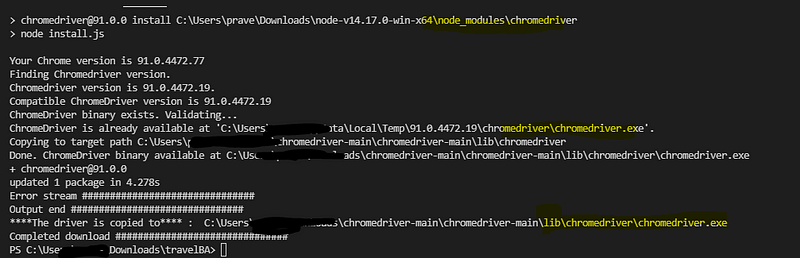
Output:
Or use:

library: chromedriver-autoinstaller · PyPI

pip install chromedriver-autoinstaller

code:

import chromedriver_autoinstaller
# Check if the current version of chromedriver exists
# and if it doesn’t exist, download it automatically,
# then add chromedriver to path
driver = webdriver.Chrome(chromedriver_autoinstaller.install())

Running from Nodejs:

Clone or download and extract :

https://github.com/praveendvd/chromedriver

Now install the library to your npm project as :

C:\Users\test\Downloads\node-v14.17.0-win-x64\npm install "C:\Users\test\Downloads\chromedriver-main\chromedriver-main" --chromedriver_download_to_target_folder="C:\Users\test\Downloads\chromedriver-main\output" --scripts-prepend-node-path

Now you can use this library to autodownload compatible chrome driver version as :

var chromedriver =  require('chromedriver');
process.env.detect_chromedriver_version = true
process.env.chromedriver_force_download = true
process.env.chromedriver_download_to_target_folder="C:/Users/output"
chromedriver.download() //returns a promise

Using external libraries in postman and there by using custom helper in Postman visualization!

Postman allows you to use CDN libraries in the script session,

so here we are using the CDN equivalent of the handlebar and then passing the compiled template to the postman visualizer

**We can initialize CDN in two ways :**

**First Approach:**

By initializing the CDN in global space using “new Function(cdn)()”

You can see the code below , but this will mess up global scope and can be used only once in the entire run*

// you can call any package with min build in postman
pm.sendRequest("https://cdnjs.cloudflare.com/ajax/libs/handlebars.js/4.7.7/handlebars.js", (err, res) => {
pm.environment.set("res", res.text());
// intialize the min.js
new Function(pm.environment.get("res"))();
//create template soource
var source =
`{{#ifCond v1 v2}}
{{v1}} is equal to {{v2}}
{{else}}
{{v1}} is not equal to {{v2}}
{{/ifCond}}`;
//you can call methods in the cdn file using this keyword
//here we are registring handlebar
Handlebars.registerHelper('ifCond', function (v1, v2, options) {
if (v1 === v2) {
return options.fn(this);
}
return options.inverse(this);
});
//compile the template
var template = Handlebars.compile(source);
//data to be passed 
// try v1 and v2 with same and different values and observe the output in visualization tab
var data = {
"v1": "test",
"v2": "test",
};
// passing the data to template
var result = template(data);
//visualizing it 
pm.visualizer.set(result)
})

**Second Approach:**

you can call any package with min build in postman

this initializes the functions in local scope so it won’t mess up the global space and cause issues

pm.sendRequest("https://cdnjs.cloudflare.com/ajax/libs/handlebars.js/4.7.7/handlebars.min.js", (err, res) => {
pm.environment.set("res", res.text());
// intialize the min.js
eval(pm.environment.get("res"));
//create template soource
var source =
`{{#ifCond v1 v2}}
{{v1}} is equal to {{v2}}
{{else}}
{{v1}} is not equal to {{v2}}
{{/ifCond}}`;
//you can call methods in the cdn file using this keyword
//here we are registring handlebar
this.Handlebars.registerHelper('ifCond', function (v1, v2, options) {
if (v1 === v2) {
return options.fn(this);
}
return options.inverse(this);
});
//compile the template
var template = this.Handlebars.compile(source);
//data to be passed
// try v1 and v2 with same and different values and observe the output in visualization tab
var data = {
"v1": "test",
"v2": "test",
};
// passing the data to template
var result = template(data);
//visualizing it
pm.visualizer.set(result)
})

The hidden gem: Postman API and Documentation feature

its easier than you would expect to create a project collection…

Postman API Feature:

you can create collection , mock servers, documentation in click of a button by using postman API definition feature.

Lets see how to do it!!

  1. Get the API definition:

postman supports following API definitions:

so what is API definitions ?

API definitions, or API specifications or description formats (all are the same) defines your API . It is like a live documentation on what is available, what it can do , what is supported etc . In short a comprehensive live documentation that can help consumers understand what your API can do.

in summary:

  • Help internal folks understand the API and agree on its attributes
  • Help external folks understand the API and what it can do
  • Act as live documentation on what all endpoints are available, what methods are supported, what attributes are expected etc.

https://swagger.io/blog/api-development/why-you-should-create-an-api-definition/

How to get API definition ?

Most APIs visualizes the API definition using swagger UI. Which creates a user interactable representation of your API from the API definition file.

In mostcases the swagger UI will have link to the definition file or you can goto network tab and search for it

lets take https://petstore.swagger.io/ as example.

you can see the link to the definition file, it can be in yaml or json format. just click the link and copy the content.

you can see the version is swagger 2.0 meaning its open api v2

2. Create API in Postman

click API section and click the add icon or create new API link

Now give the below details:

name,version , open api v2.0 and json , and click create

Now paste the swagger definition we copied from pet store:

you can press ctrl+b to format the json properly after pasting:

click save

3. Now Generate collection from this swagger definition:

click generate collection:

click show advanced settings:

Give the below settings:

Now click Generate collection and goto your collections once the collection generation completes

4. Mock server , documentation and other things

so the generated collection will have documentation and examples as per the API definition file provided so you don’t have to generate documentation separately!!

And for mockserver, you can directly create a mock server from the collection as the examples are already available.

5. Publishing your documentation and adding animation to your documentation

Click the collection and click view documentation , and click publish

Now you have the documentation available in public domain for your customers.

https://swagger.io/blog/api-development/why-you-should-create-an-api-definition/

To unpublish follow the same procedure and click edit documentation and click unpublish

Adding animation:

you can add gif to your documentation , to do that use :

copy the absolute url of your gif:

provide it in documentation as :

![](https://i.pinimg.com/originals/f0/6a/9b/f06a9b257ba15f4761308ff84ab1ba2b.gif)

so when you click outside it will be resolved as

Data driven testing per request without using data file

Create a environment variable called “csv” and copy the below content and paste it as value:

username,password,error_message,error_code
username1,password1,errormessage1,errorcode1

Now in pre-request add :

//we use variables as it will get destroyed after the run . So if index returns null then it means it’s the first iteration
if (!pm.variables.get("index")) {
    const parse = require('csv-parse/lib/sync')
//Environmental variable where we copy-pasted the csv content
const input = pm.environment.get("csv");
const records = parse(input, {
columns: true,
skip_empty_lines: true
})
    pm.variables.set("index", 0)
pm.variables.set("records", records)
}
records = pm.variables.get("records")
index = pm.variables.get("index")
//we are setting variable 
if (index !== records.length) {
for (let i of Object.entries(records[index])) {
pm.variables.set(i[0], i[1])
}
pm.variables.set("index", ++index)
pm.variables.get("index")===records.length?null:postman.setNextRequest(pm.info.requestName)
}

Now you can run data driven for that one particular request:

Note that here we used pm.variables. this is because it creates local variable that get destroyed after the collection run completes .

So for each run , first value will be null and then will be set to 0

Eg collection:

https://www.postman.com/collections/eb144d613b7becb22482

use the same data as environment variable content , now run the collection using collection runner or newman.

You can import this collection by clicking file >import >and then choosing links

Output:

How to check if a file got downloaded in java selenium tests

How to check a file exists in system:

//we use import java.io.File;
File f = new File("D:\\program.txt");
f.exists(); // this will print true or false whether the file program.txt exists

We can use this logic to check if the file got downloaded and is available at the location.

But sometimes we need to click download button and wait for like few mins or seconds for the download to finish.

so in this case we need to poll for the file till it exists . We might need to try polling for a max of 5 mins then fail the tests if file doesn’t exists

This can be achieved using custom expected condition:

Custom expected condition:

Define below expected class in any of your page object class

public ExpectedCondition<Boolean> filepresent() {
return new ExpectedCondition<Boolean>() {
@Override
public Boolean apply(WebDriver driver) {
File f = new File("D:\\program.txt");
return f.exists();
}
        @Override
public String toString() {
return String.format("file to be present within the time specified");
}
};
}

And call it inside text as :

WebDriverWait wait = new WebDriverWait(driver,Duration.ofSeconds(2));
wait.until(pageobject.filepresent());

Output:

Failed:

Passed: