Using external libraries in postman and there by using custom helper in Postman visualization!

Postman allows you to use CDN libraries in the script session,

so here we are using the CDN equivalent of the handlebar and then passing the compiled template to the postman visualizer

**We can initialize CDN in two ways :**

**First Approach:**

By initializing the CDN in global space using “new Function(cdn)()”

You can see the code below , but this will mess up global scope and can be used only once in the entire run*

// you can call any package with min build in postman
pm.sendRequest("https://cdnjs.cloudflare.com/ajax/libs/handlebars.js/4.7.7/handlebars.js", (err, res) => {
pm.environment.set("res", res.text());
// intialize the min.js
new Function(pm.environment.get("res"))();
//create template soource
var source =
`{{#ifCond v1 v2}}
{{v1}} is equal to {{v2}}
{{else}}
{{v1}} is not equal to {{v2}}
{{/ifCond}}`;
//you can call methods in the cdn file using this keyword
//here we are registring handlebar
Handlebars.registerHelper('ifCond', function (v1, v2, options) {
if (v1 === v2) {
return options.fn(this);
}
return options.inverse(this);
});
//compile the template
var template = Handlebars.compile(source);
//data to be passed 
// try v1 and v2 with same and different values and observe the output in visualization tab
var data = {
"v1": "test",
"v2": "test",
};
// passing the data to template
var result = template(data);
//visualizing it 
pm.visualizer.set(result)
})

**Second Approach:**

you can call any package with min build in postman

this initializes the functions in local scope so it won’t mess up the global space and cause issues

pm.sendRequest("https://cdnjs.cloudflare.com/ajax/libs/handlebars.js/4.7.7/handlebars.min.js", (err, res) => {
pm.environment.set("res", res.text());
// intialize the min.js
eval(pm.environment.get("res"));
//create template soource
var source =
`{{#ifCond v1 v2}}
{{v1}} is equal to {{v2}}
{{else}}
{{v1}} is not equal to {{v2}}
{{/ifCond}}`;
//you can call methods in the cdn file using this keyword
//here we are registring handlebar
this.Handlebars.registerHelper('ifCond', function (v1, v2, options) {
if (v1 === v2) {
return options.fn(this);
}
return options.inverse(this);
});
//compile the template
var template = this.Handlebars.compile(source);
//data to be passed
// try v1 and v2 with same and different values and observe the output in visualization tab
var data = {
"v1": "test",
"v2": "test",
};
// passing the data to template
var result = template(data);
//visualizing it
pm.visualizer.set(result)
})

Visualizing protractor results using Elastic search and Kibana

System Requirement:

This documentation is for windows system. I am using windows 10

Steps:

Installation and visualization in Kibana:

Please refer :

https://praveendavidmathew.medium.com/visualization-using-kibana-and-elastic-search-d04b388a3032

Pre-requisite:

  1. we can delete the previous index by doing a DELETE request to http://localhost:9200/testresults

Now lets come to Protractor:

So from the previous article , you understand how to send data and visualize it in Elastic search

We have observed that we are just sending json data using rest API and then visualizing it in Kibana by setting x and y axis with the fields we are interested in.

so to visualize the protractor result we just have to send the result to ELastic search , this can be done using jasmine customreporter listeners .

in the protractor config file add : (do npm install axios)

onPrepare: async function() {
jasmine.getEnv().addReporter({
        //adding results to an array for each spec
specDone: function(result) {
console.info(JSON.stringify(result, null, 2))
array.push(result)
},
        //iterating through each result and sending it to elastic search
jasmineDone: function() {
date = new Date(Date.now())
var axios = require('axios');
array.forEach((result) => {
result.date = date
var data = JSON.stringify(result);
                var config = {
method: 'post',
url: 'http://localhost:9200/testresults/protractorresults',
headers: {
'Authorization': 'Basic dGVzdDp0ZXN0MTIz',
'cache-control': 'no-cache',
'APIC-Cookie': 'apicCookie',
'Postman-Token': 'ae18aba5-b962-44d4-9a1e-5684f43318d3',
'Content-Type': 'application/json'
},
data: data
};
                axios(config)
.then(function(response) {
console.log(JSON.stringify(response.data));
})
.catch(function(error) {
console.log(error);
});

            })
}
})
}

This will send the results to elastic search after the test is done .

Visualized result:

  1. Goto stack management>kibana>index pattern and create new index testresults
  2. Click next and add date as time field
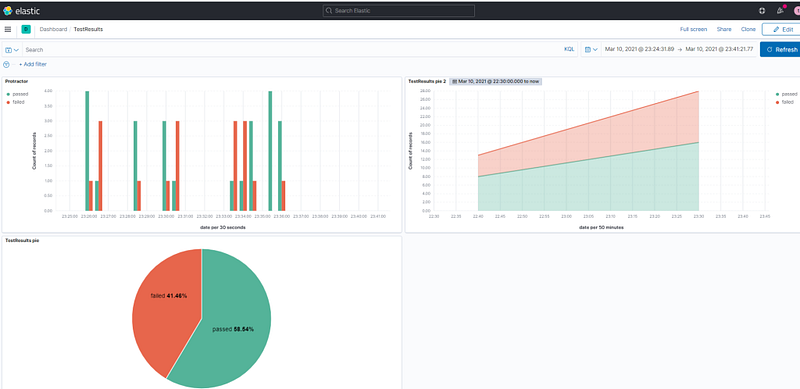
  3. Create new dashboard with horizontal axis as ‘date’ , vertical has ‘keyword.status’ , and breakdown by ‘keyword.status’. Set color code as status.

we have visualized keyword.status in y axis and date field in x axis

Visualization using Kibana and Elastic search

System Requirement:

This documentation is for windows system. I am using windows 10

Introduction:

Elasticsearch is a distributed, RESTful search and analytics engine capable of addressing a growing number of use cases. As the heart of the Elastic Stack, it centrally stores your data for lightning fast search, fine‑tuned relevancy, and powerful analytics that scale with ease.

Kibana is a free and open user interface that lets you visualize your Elasticsearch data and navigate the Elastic Stack. Do anything from tracking query load to understanding the way requests flow through your apps.

Logstash is a free and open server-side data processing pipeline that ingests data from a multitude of sources, transforms it, and then sends it to your favorite “stash.” . We are not using logstash as we are directly adding data to elastic search

Steps:

Installing elastic search and Kibana:

  1. Download the installation file:

https://www.elastic.co/downloads/

Download Elastic search and Kibana windows zip file.

2. Extract the zip file:

3. lets configure simple security settings like username and password, to do this follow below steps:

Update following files : elasticsearch-7.11.1\config\elasticsearch.yml and kibana-7.11.1-windows-x86_64\config\kibana.yml

Add to end of Kibana.yml:

xpack.fleet.enabled: true
xpack.fleet.agents.tlsCheckDisabled: true
xpack.encryptedSavedObjects.encryptionKey: "something_at_least_32_characters"
xpack.security.enabled: true
elasticsearch.username: "test"
elasticsearch.password: "test123"

Add to end of Elasticsearch.yml:

xpack.security.enabled: true
discovery.type: single-node

4. Open cmd with elasticsearch-7.11.1\bin as current directory:

Add elastic search user using below command:

elasticsearch-users useradd test -p test123 -r superuser

This will add user test with admin privilege:

5. Start ElasticSearch and Kibana:

Kibana:

open cmd with current directory as : kibana-7.11.1-windows-x86_64\bin

and run kibana.bat

Elasticsearch:

open cmd with current directory as : elasticsearch-7.11.1\bin

and run elasticsearch.bat

6. Verify installation:

Elasticsearch:

navigate to : http://localhost:9200/ give user name and password as test and test123

you should see output as :

{
"name" : "DESKTsdsd",
"cluster_name" : "elasticsearch",
"cluster_uuid" : "4CbhYSWqAxkSmo_1-3Q",
"version" : {
"number" : "7.11.1",
"build_flavor" : "default",
"build_type" : "zip",
"build_hash" : "ff17057c9c1bbecc727003a907c0db7a",
"build_date" : "2021-02-15T13:44:09.394032Z",
"build_snapshot" : false,
"lucene_version" : "8.7.0",
"minimum_wire_compatibility_version" : "6.8.0",
"minimum_index_compatibility_version" : "6.0.0-beta1"
},
"tagline" : "You Know, for Search"
}

Kibana:

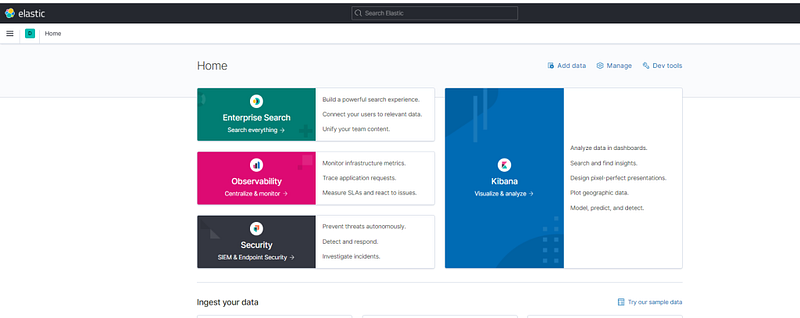
navigate to : http://localhost:5601 give user name and password as test and test123 , and click explore myown

you should see output as:

Adding data to Elasticsearch:

in Elasticsearch:

An index can be thought of as an optimized collection of documents and each document is a collection of fields, which are the key-value pairs that contain your data. By default, Elasticsearch indexes all data in every field and each indexed field has a dedicated, optimized data structure.

in simple word it is like a table

In Elastic search you can add data to a index using rest endpoint , and if no index exists a new index is created automatically.

so lets create data using postman.

the url syntax is :

http://localhost:9200/index/type

so lets our endpoint be :

http://localhost:9200/testresults/protractorresult (Note: you can delete an index by doing Delete on http://localhost:9200/testresults)

and you can send any body , let body be : (add few other items also like books , pencil etc for visualizing)

{
"item":"shampoo",
"count":2
}

now do a post , Make sure you have basic authentication username:password set (test:test123)

Visualizing in Kibana:

Navigate to : http://localhost:5601/app/home#/ > menu (handburger menu onleft top corner) > stack management (http://localhost:5601/app/management)

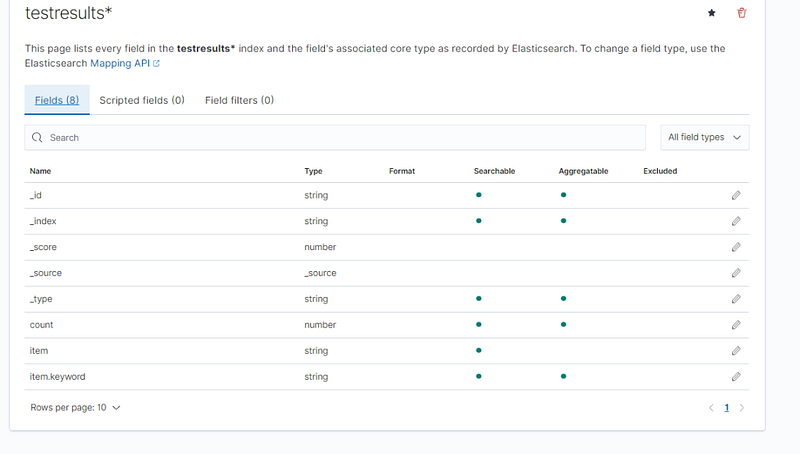
Click: Kibana>Index Patterns > create index and add testresults* , now this index will be available for visualization.

output:

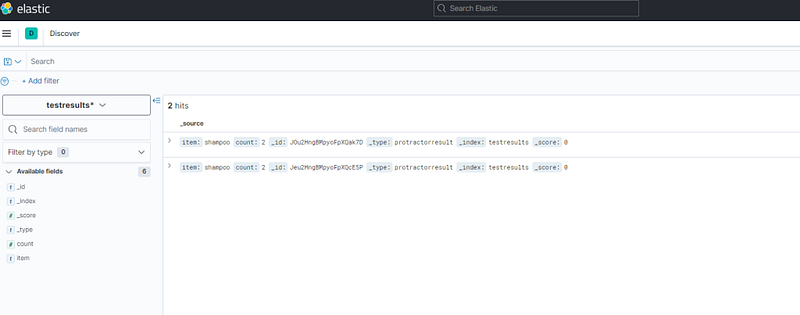
Navigate to : http://localhost:5601/app/home#/ > menu (handburger menu onleft top corner) > analytics > Discover .

Here you can see the data that we send through postman:

Now create dashboard for visualization:

Navigate to : http://localhost:5601/app/home#/ > menu (handburger menu onleft top corner) > analytics > Dashboard.

  1. Click create new Dashboard
  2. Click create new Panel
  3. Click Lens
  4. Set horizontal axis as :

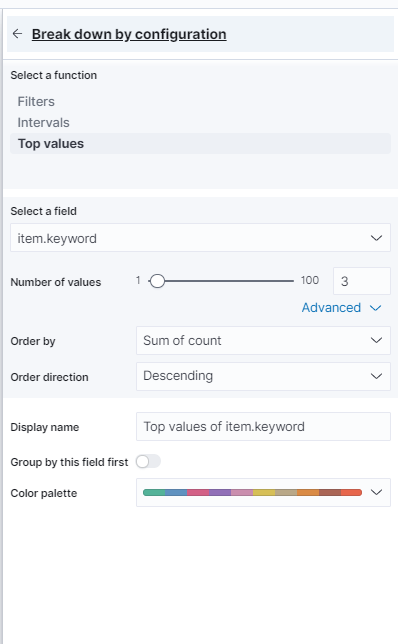
item.keyword

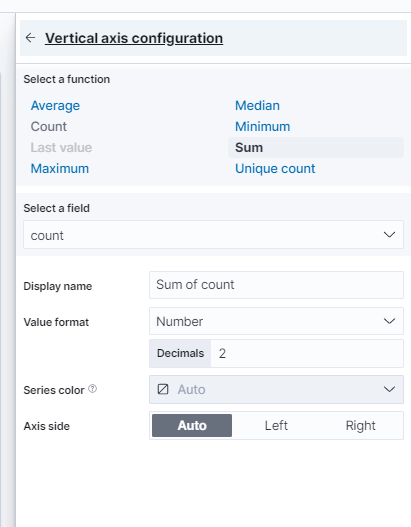
set vertical axis as :

Breakdown by:

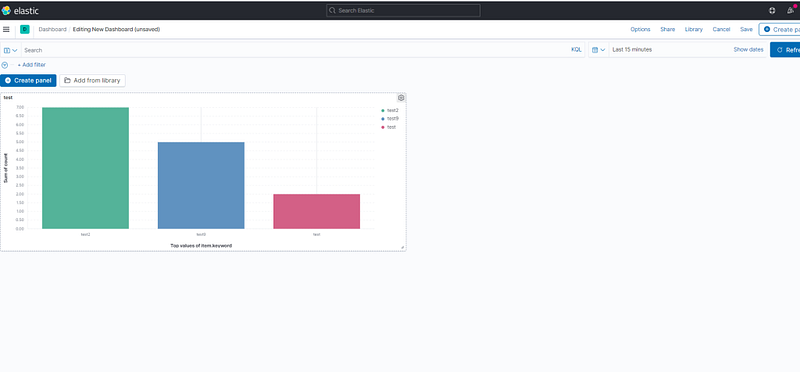
Now the resulting chart will be :

Now click save and it will be navigated to dashboard: